<?xml version="1.0" encoding="UTF-8"?><feed
	xmlns="http://www.w3.org/2005/Atom"
	xmlns:thr="http://purl.org/syndication/thread/1.0"
	xml:lang="vi"
	
	xmlns:georss="http://www.georss.org/georss"
	xmlns:geo="http://www.w3.org/2003/01/geo/wgs84_pos#"
	>
	<title type="text">xóa file cài đặt windows 10 &#8211; BlogAnChoi</title>
	<subtitle type="text">Blog giải trí về du lịch, làm đẹp, quán ngon dành cho giới trẻ.</subtitle>

	<updated>2016-09-14T01:36:09Z</updated>

	<link rel="alternate" type="text/html" href="https://bloganchoi.com" />
	<id>https://bloganchoi.com/feed/atom/</id>
	<link rel="self" type="application/atom+xml" href="https://bloganchoi.com/tag/xoa-file-cai-dat-windows-10/feed/atom/" />

	
	<entry>
		<author>
			<name>LÊ ẨN</name>
					</author>

		<title type="html"><![CDATA[Xóa file đã cài đặt Windows trên Windows 10]]></title>
		<link rel="alternate" type="text/html" href="https://bloganchoi.com/xoa-file-da-cai-dat-windows-tren-windows-10/" />

		<id>http://bloganchoi.com/?p=22855</id>
		<updated>2016-09-14T01:36:09Z</updated>
		<published>2016-09-14T01:36:09Z</published>
		<category scheme="https://bloganchoi.com" term="Thủ thuật" /><category scheme="https://bloganchoi.com" term="thủ thuật tiện ích windows 10" /><category scheme="https://bloganchoi.com" term="windows 10" /><category scheme="https://bloganchoi.com" term="xóa file cài đặt windows 10" />
		<summary type="html"><![CDATA[Trong bài hướng dẫn này, chúng tôi sẽ chỉ ra cho bạn cách xóa các file tạm cài đặt Windows để giải phóng không gian đĩa cứng trên một chiếc PC chạy Windows 10. Có rất nhiều cách để giải phóng một lượng đáng kể không gian ổ cứng trên một chiếc PC chạy Windows]]></summary>

					<content type="html" xml:base="https://bloganchoi.com/xoa-file-da-cai-dat-windows-tren-windows-10/"><![CDATA[<p><strong>Trong bài hướng dẫn này, chúng tôi sẽ chỉ ra cho bạn cách xóa các file tạm cài đặt Windows để giải phóng không gian đĩa cứng trên một chiếc PC chạy Windows 10.</strong></p>
<p><span id="more-22855"></span></p>
<p>Có rất nhiều cách để giải phóng một lượng đáng kể không gian ổ cứng trên một chiếc PC chạy Windows 10, không cần đụng đến các thiết lập có thể ảnh hưởng đến hiệu suất tổng thể của Windows.</p>
<p>Với các thiết lập mặc định, Windows 10 sẽ tự động tải và cài đặt các bản cập nhật khi chúng được phát hành bởi Microsoft. Tính đến thời điểm này, đã có hai bản cập nhật lớn (November Update và Anniversary Update) được phát hành cho Windows 10.</p>
<p>Mỗi khi bạn cài đặt một bản cập nhật lớn cho Windows 10 hoặc nâng cấp lên phiên bản mới nhất của Windows 10, bạn cần phải xóa các file và folder được tạo ra khi cập nhật để lấy lại không gian bị chiếm dụng một cách thủ công. Có lẽ bạn bạn đã biết rằng bạn có thể giải phóng hàng GB không gian trống bằng cách xóa thư mục Windows.old cũng như xóa phiên bản driver cũ của các thiết bị khỏi Windows 10.</p>
<p><img loading="lazy" class="size-full wp-image-22856 aligncenter" src="http://bloganchoi.com/wp-content/uploads/2016/09/delete-windows-temporary-windows-installation-files-win10-1.png" alt="delete-windows-temporary-windows-installation-files-win10-1" width="375" height="474" srcset="https://bloganchoi.com/wp-content/uploads/2016/09/delete-windows-temporary-windows-installation-files-win10-1.png 375w, https://bloganchoi.com/wp-content/uploads/2016/09/delete-windows-temporary-windows-installation-files-win10-1-237x300.png 237w, https://bloganchoi.com/wp-content/uploads/2016/09/delete-windows-temporary-windows-installation-files-win10-1-332x420.png 332w" sizes="(max-width: 375px) 100vw, 375px" /></p>
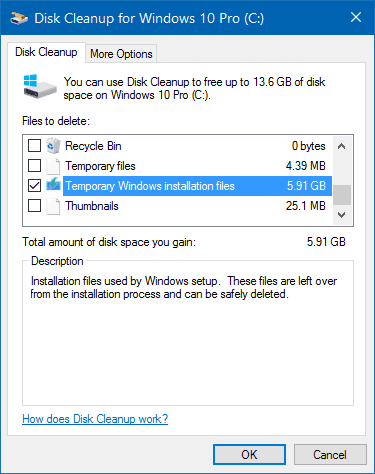
<p>Các file tạm cài đặt Windows có thể không hiện diện trên PC của bạn nếu bạn đã từng sử dụng một tiện ích dọn dẹp ổ cứng của bên thứ ba hoặc bạn vừa thực hiện cài mới lại Windows 10.</p>
<p><strong>Xóa các file tạm cài đặt Windows trên Windows 10</strong></p>
<p>Các file tạm cài đặt Windows thường được tạo ra khi bạn nâng cấp Windows 10 lên một bản build lớn mới. Chẳng hạn, các file tạm cài đặt Windows được tạo ra khi bạn nâng cấp lên Windows 10 Anniversary Update.</p>
<p>Lưu ý rằng các file tạm cài đặt Windows hoàn toàn khác với các file tạm. Việc xóa các file tạm từ thư mục <em>Temp</em> sẽ không xóa các file tạm cài đặt Windows.</p>
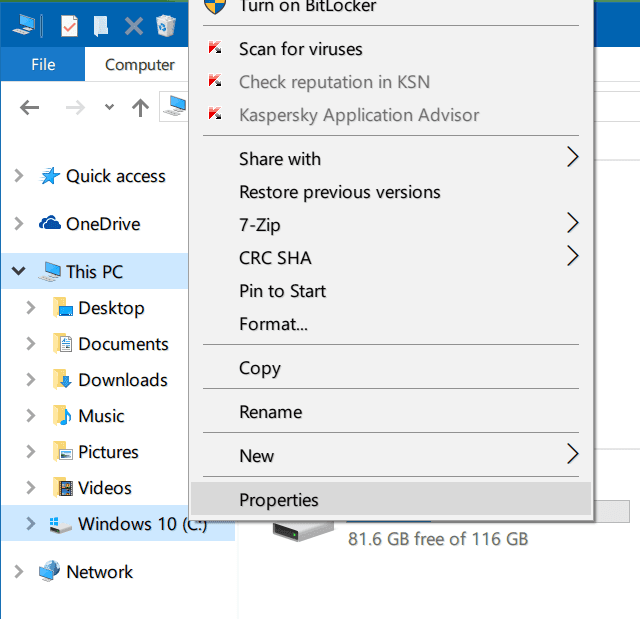
<p><strong>Bước 1</strong>: Mở <em>This PC</em> hoặc <em>Quick Access</em>, nhấp chuột phải lên ổ đĩa Windows 10 được cài đặt (thường là ổ C) và chọn <em>Properties</em>.</p>
<p><img loading="lazy" class="size-full wp-image-22858 aligncenter" src="http://bloganchoi.com/wp-content/uploads/2016/09/delete-windows-temporary-windows-installation-files-win10-2.png" alt="delete-windows-temporary-windows-installation-files-win10-2" width="640" height="619" srcset="https://bloganchoi.com/wp-content/uploads/2016/09/delete-windows-temporary-windows-installation-files-win10-2.png 640w, https://bloganchoi.com/wp-content/uploads/2016/09/delete-windows-temporary-windows-installation-files-win10-2-300x290.png 300w, https://bloganchoi.com/wp-content/uploads/2016/09/delete-windows-temporary-windows-installation-files-win10-2-434x420.png 434w" sizes="(max-width: 640px) 100vw, 640px" /></p>
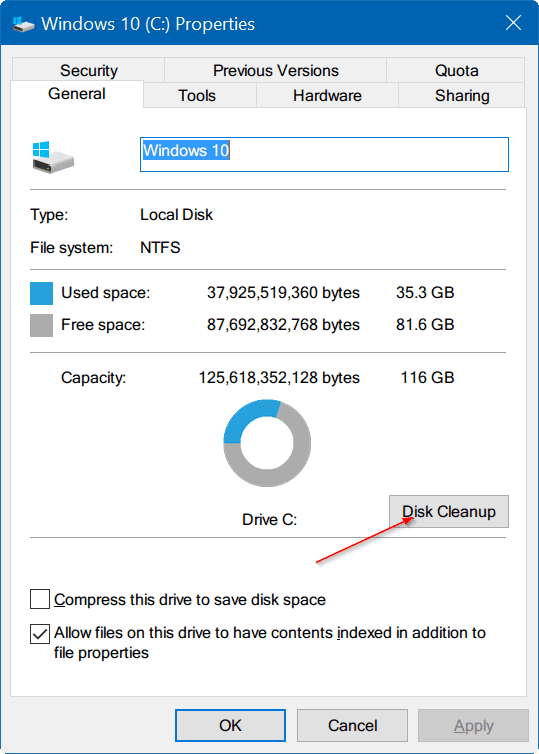
<p><strong>Bước 2</strong>: Nhấn nút <em>Disk Cleanup</em> để chạy công cụ <em>Disk Cleanup</em>. Công cụ <em>Disk Cleanup</em> có thể mất khoảng vài phút để hiển thị những file và folder có thể được xóa để giải phóng không gian ổ cứng.</p>
<p><img loading="lazy" class="size-full wp-image-22859 aligncenter" src="http://bloganchoi.com/wp-content/uploads/2016/09/delete-windows-temporary-windows-installation-files-win10-3.png" alt="delete-windows-temporary-windows-installation-files-win10-3" width="539" height="754" srcset="https://bloganchoi.com/wp-content/uploads/2016/09/delete-windows-temporary-windows-installation-files-win10-3.png 539w, https://bloganchoi.com/wp-content/uploads/2016/09/delete-windows-temporary-windows-installation-files-win10-3-214x300.png 214w, https://bloganchoi.com/wp-content/uploads/2016/09/delete-windows-temporary-windows-installation-files-win10-3-300x420.png 300w" sizes="(max-width: 539px) 100vw, 539px" /></p>
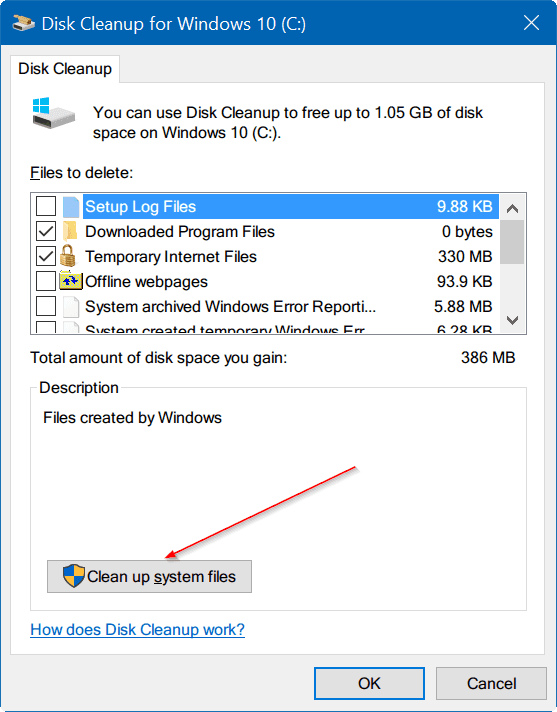
<p><strong>Bước 3</strong>: Khi bạn thấy hộp thoại bên dưới, hãy nhấn nút <em>Clean up system files</em>. Lần này, tiện ích <em>Disk Cleanup</em> sẽ tìm các file hệ thống có thể được xóa để lấy lại không gian đĩa.</p>
<p><img loading="lazy" class="size-full wp-image-22861 aligncenter" src="http://bloganchoi.com/wp-content/uploads/2016/09/delete-windows-temporary-windows-installation-files-win10-4.png" alt="delete-windows-temporary-windows-installation-files-win10-4" width="557" height="712" srcset="https://bloganchoi.com/wp-content/uploads/2016/09/delete-windows-temporary-windows-installation-files-win10-4.png 557w, https://bloganchoi.com/wp-content/uploads/2016/09/delete-windows-temporary-windows-installation-files-win10-4-235x300.png 235w, https://bloganchoi.com/wp-content/uploads/2016/09/delete-windows-temporary-windows-installation-files-win10-4-329x420.png 329w" sizes="(max-width: 557px) 100vw, 557px" /></p>
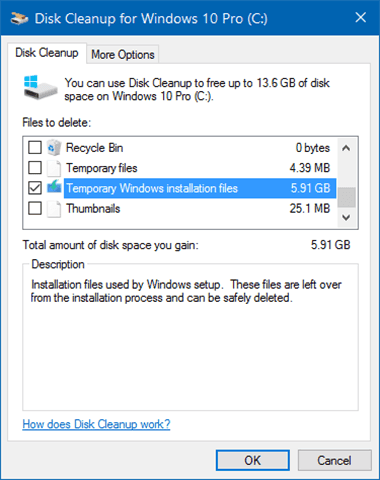
<p><strong>Bước 4</strong>: Hãy tìm đến mục có tên <em>Temporary Windows installation files</em>, đánh dấu chọn vào ô vuông trước nó, và sau đó nhấn nút <em>OK</em>. Nhấn nút <em>Yes</em> nếu bạn thấy hộp thoại xác nhận hoặc hộp thoại cảnh báo để tiếp tục xóa các file tạm cài đặt Windows.</p>
<p><img loading="lazy" class="size-full wp-image-22862 aligncenter" src="http://bloganchoi.com/wp-content/uploads/2016/09/delete-windows-temporary-windows-installation-files-win10-5.png" alt="delete-windows-temporary-windows-installation-files-win10-5" width="380" height="480" srcset="https://bloganchoi.com/wp-content/uploads/2016/09/delete-windows-temporary-windows-installation-files-win10-5.png 380w, https://bloganchoi.com/wp-content/uploads/2016/09/delete-windows-temporary-windows-installation-files-win10-5-238x300.png 238w, https://bloganchoi.com/wp-content/uploads/2016/09/delete-windows-temporary-windows-installation-files-win10-5-333x420.png 333w" sizes="(max-width: 380px) 100vw, 380px" /></p>
<p>&nbsp;</p>]]></content>
		
					<link rel="replies" type="text/html" href="https://bloganchoi.com/xoa-file-da-cai-dat-windows-tren-windows-10/#comments" thr:count="1" />
			<link rel="replies" type="application/atom+xml" href="https://bloganchoi.com/xoa-file-da-cai-dat-windows-tren-windows-10/feed/atom/" thr:count="1" />
			<thr:total>1</thr:total>
			</entry>
	</feed>