<?xml version="1.0" encoding="UTF-8"?><feed
	xmlns="http://www.w3.org/2005/Atom"
	xmlns:thr="http://purl.org/syndication/thread/1.0"
	xml:lang="vi"
	
	xmlns:georss="http://www.georss.org/georss"
	xmlns:geo="http://www.w3.org/2003/01/geo/wgs84_pos#"
	>
	<title type="text">Windows Store &#8211; BlogAnChoi</title>
	<subtitle type="text">Blog giải trí về du lịch, làm đẹp, quán ngon dành cho giới trẻ.</subtitle>

	<updated>2021-07-02T04:02:06Z</updated>

	<link rel="alternate" type="text/html" href="https://bloganchoi.com" />
	<id>https://bloganchoi.com/feed/atom/</id>
	<link rel="self" type="application/atom+xml" href="https://bloganchoi.com/tag/windows-store/feed/atom/" />

	
	<entry>
		<author>
			<name>Dũng Nguyễn</name>
					</author>

		<title type="html"><![CDATA[Windows 11 có tính năng gì mới so với Windows 10, Windows 8.1 và macOS?]]></title>
		<link rel="alternate" type="text/html" href="https://bloganchoi.com/windows-11-tinh-nang-moi-so-voi-windows-10-windows-8-1-va-macos/" />

		<id>https://bloganchoi.com/?p=395601</id>
		<updated>2021-07-02T04:02:06Z</updated>
		<published>2021-07-02T04:02:06Z</published>
		<category scheme="https://bloganchoi.com" term="Ứng dụng - Phần mềm" /><category scheme="https://bloganchoi.com" term="cách cài windows 11" /><category scheme="https://bloganchoi.com" term="cấu hình máy để cài windows 11" /><category scheme="https://bloganchoi.com" term="chính sách bảo mật" /><category scheme="https://bloganchoi.com" term="chip tpm" /><category scheme="https://bloganchoi.com" term="Cortana của Microsoft" /><category scheme="https://bloganchoi.com" term="giả lập trên windows" /><category scheme="https://bloganchoi.com" term="hệ điều hành MacOS" /><category scheme="https://bloganchoi.com" term="hệ điều hành windows" /><category scheme="https://bloganchoi.com" term="laptop MacOS" /><category scheme="https://bloganchoi.com" term="macos" /><category scheme="https://bloganchoi.com" term="macos bigsur" /><category scheme="https://bloganchoi.com" term="Microsoft" /><category scheme="https://bloganchoi.com" term="Microsoft Authenticator" /><category scheme="https://bloganchoi.com" term="Microsoft Edge" /><category scheme="https://bloganchoi.com" term="Microsoft Edge 15" /><category scheme="https://bloganchoi.com" term="Microsoft Flight Simulator" /><category scheme="https://bloganchoi.com" term="microsoft surface" /><category scheme="https://bloganchoi.com" term="multi-windows" /><category scheme="https://bloganchoi.com" term="phần mềm microsoft" /><category scheme="https://bloganchoi.com" term="phương pháp bảo mật" /><category scheme="https://bloganchoi.com" term="setting trên windows 10" /><category scheme="https://bloganchoi.com" term="start menu" /><category scheme="https://bloganchoi.com" term="surface windows" /><category scheme="https://bloganchoi.com" term="tính năng" /><category scheme="https://bloganchoi.com" term="trình duyệt Microsoft Edge" /><category scheme="https://bloganchoi.com" term="ứng dụng" /><category scheme="https://bloganchoi.com" term="vấn đề bảo mật" /><category scheme="https://bloganchoi.com" term="windows 10" /><category scheme="https://bloganchoi.com" term="Windows 11" /><category scheme="https://bloganchoi.com" term="windows 7" /><category scheme="https://bloganchoi.com" term="Windows 8" /><category scheme="https://bloganchoi.com" term="Windows Store" />
		<summary type="html"><![CDATA[Tối ngày 24/06/2021 (theo giờ Việt Nam), Microsoft đã chính thức ra mắt Windows 11 với nhiều cải tiến mới. Vậy là sau 5 năm kể từ Windows 10, Microsoft đã đem tới người dùng một phiên bản Windows tốt hơn, mở hơn. Trong bài viết này, BlogAnChoi sẽ tổng hợp lại những điểm thay]]></summary>

					<content type="html" xml:base="https://bloganchoi.com/windows-11-tinh-nang-moi-so-voi-windows-10-windows-8-1-va-macos/"><![CDATA[<p><strong>Tối ngày 24/06/2021 (theo giờ Việt Nam), Microsoft đã chính thức ra mắt Windows 11 với nhiều cải tiến mới. Vậy là sau 5 năm kể từ Windows 10, Microsoft đã đem tới người dùng một phiên bản Windows tốt hơn, mở hơn. Trong bài viết này, BlogAnChoi sẽ tổng hợp lại những điểm thay đổi trên Windows 11 so với hai &#8220;người tiền nhiệm&#8221; Windows 8.1 và Windows 10, nhằm giúp <strong><a href="https://bloganchoi.com/tin/ban-doc/"  target="_bank"   title="bạn đọc">bạn đọc</a></strong> có thêm thông tin để quyết định có nên nâng cấp máy tính của mình lên phiên bản Windows mới nhất này hay không.</strong></p>
<p><span id="more-395601"></span></p>
<figure id="attachment_395622" aria-describedby="caption-attachment-395622" style="width: 1024px" class="wp-caption aligncenter"><img loading="lazy" class="wp-image-395622 size-full" title="Windows 11 đi kèm với Start Menu hoàn toàn mới (Ảnh: Internet)." src="https://bloganchoi.com/wp-content/uploads/2021/06/windows-11-tinh-nang-moi-01.jpg" alt="Windows 11 đi kèm với Start Menu hoàn toàn mới (Ảnh: Internet)." width="1024" height="576" srcset="https://bloganchoi.com/wp-content/uploads/2021/06/windows-11-tinh-nang-moi-01.jpg 1024w, https://bloganchoi.com/wp-content/uploads/2021/06/windows-11-tinh-nang-moi-01-300x169.jpg 300w, https://bloganchoi.com/wp-content/uploads/2021/06/windows-11-tinh-nang-moi-01-768x432.jpg 768w, https://bloganchoi.com/wp-content/uploads/2021/06/windows-11-tinh-nang-moi-01-696x392.jpg 696w, https://bloganchoi.com/wp-content/uploads/2021/06/windows-11-tinh-nang-moi-01-747x420.jpg 747w" sizes="(max-width: 1024px) 100vw, 1024px" /><figcaption id="caption-attachment-395622" class="wp-caption-text">Windows 11 đi kèm với Start Menu hoàn toàn mới (Ảnh: Internet).</figcaption></figure>
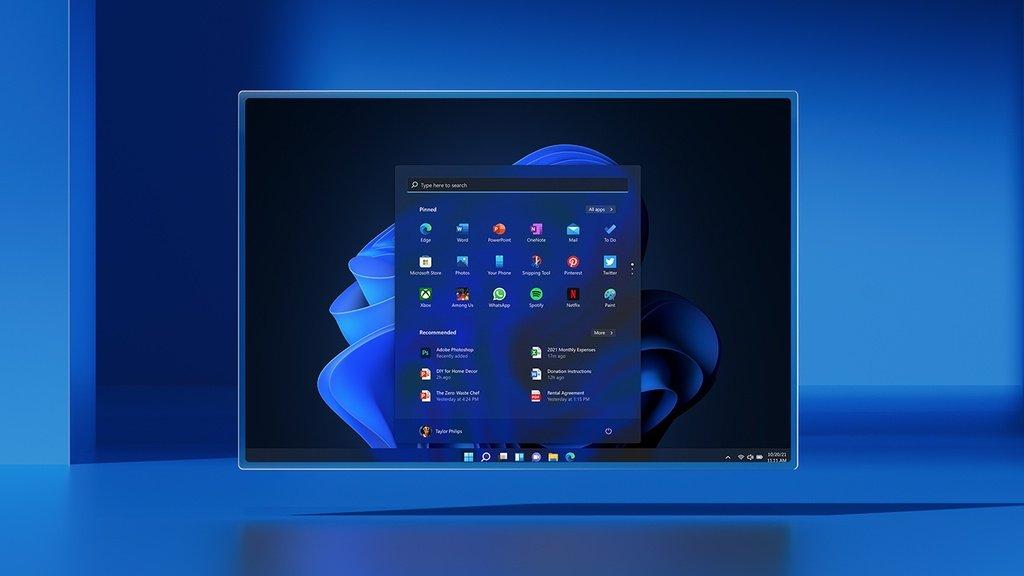
<h2><strong>1. Windows 11 có Start Menu mới</strong></h2>
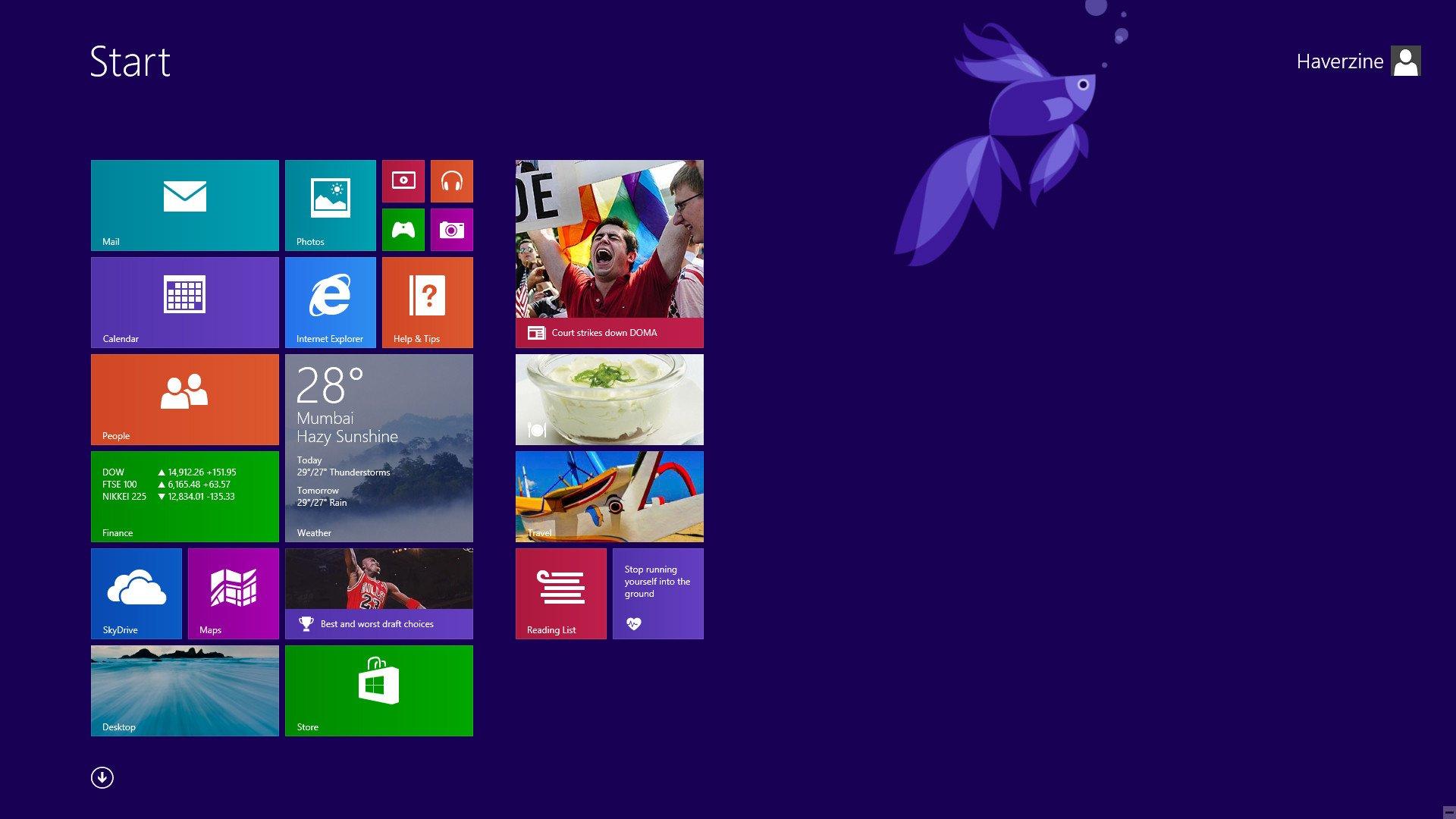
<p>Đập vào mắt người dùng trên Windows 11 đó chính là Start Menu. Kể từ Windows 8.1 hay Windows 10, Microsoft đã cố gắng lồng ghép nhiều tính năng vào Start Menu nhằm tăng sự tương tác cũng như trải nghiệm người dùng, song không phải cải tiến nào cũng đáng giá.</p>
<figure id="attachment_395627" aria-describedby="caption-attachment-395627" style="width: 1920px" class="wp-caption aligncenter"><img loading="lazy" class="wp-image-395627 size-full" title="Start Menu trên Windows 8.1. Người dùng thường hay đùa vui rằng đây là Start Screen chứ không phải Start Menu mà họ muốn. (Ảnh: Internet)" src="https://bloganchoi.com/wp-content/uploads/2021/06/windows-11-windows-8-1-start-menu.jpg" alt="Start Menu trên Windows 8.1. Người dùng thường hay đùa vui rằng đây là Start Screen chứ không phải Start Menu mà họ muốn. (Ảnh: Internet)" width="1920" height="1080" srcset="https://bloganchoi.com/wp-content/uploads/2021/06/windows-11-windows-8-1-start-menu.jpg 1920w, https://bloganchoi.com/wp-content/uploads/2021/06/windows-11-windows-8-1-start-menu-300x169.jpg 300w, https://bloganchoi.com/wp-content/uploads/2021/06/windows-11-windows-8-1-start-menu-1024x576.jpg 1024w, https://bloganchoi.com/wp-content/uploads/2021/06/windows-11-windows-8-1-start-menu-768x432.jpg 768w, https://bloganchoi.com/wp-content/uploads/2021/06/windows-11-windows-8-1-start-menu-1536x864.jpg 1536w, https://bloganchoi.com/wp-content/uploads/2021/06/windows-11-windows-8-1-start-menu-696x392.jpg 696w, https://bloganchoi.com/wp-content/uploads/2021/06/windows-11-windows-8-1-start-menu-1068x601.jpg 1068w, https://bloganchoi.com/wp-content/uploads/2021/06/windows-11-windows-8-1-start-menu-747x420.jpg 747w" sizes="(max-width: 1920px) 100vw, 1920px" /><figcaption id="caption-attachment-395627" class="wp-caption-text">Start Menu trên Windows 8.1. Người dùng thường hay đùa vui rằng đây là Start Screen chứ không phải Start Menu mà họ muốn. (Ảnh: Internet)</figcaption></figure>
<p>Trên Windows 8.1, người dùng thường xuyên kêu ca về việc họ chỉ có Start Screen chứ không phải Start Menu thực sự. Hoạt động thiếu ổn định đi kèm với giao diện khá rối mắt khiến Start Screen thực sự là một điểm trừ lớn của phiên bản Windows 8.1 vốn đã thiếu sự ổn định so với Windows 7.</p>
<p><iframe loading="lazy" class="youtube-player" width="640" height="360" src="https://www.youtube.com/embed/_KY3y3SdPWg?version=3&#038;rel=1&#038;showsearch=0&#038;showinfo=1&#038;iv_load_policy=1&#038;fs=1&#038;hl=vi&#038;autohide=2&#038;wmode=transparent" allowfullscreen="true" style="border:0;" sandbox="allow-scripts allow-same-origin allow-popups allow-presentation"></iframe></p>
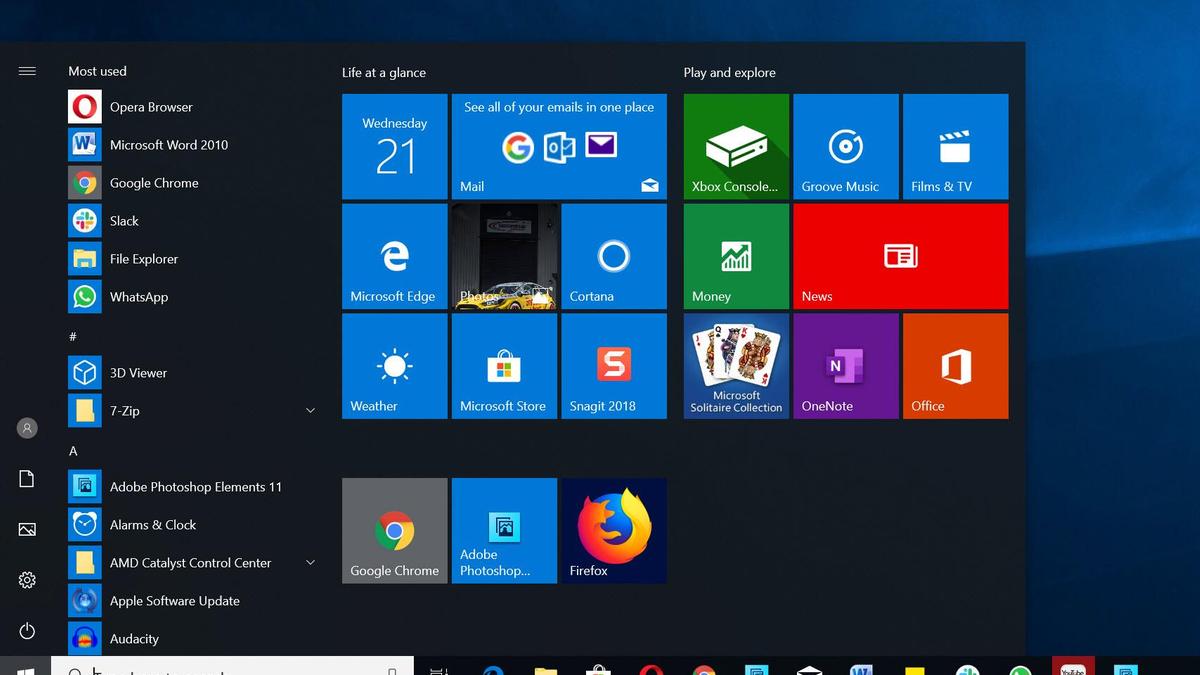
<figure id="attachment_395633" aria-describedby="caption-attachment-395633" style="width: 1200px" class="wp-caption aligncenter"><img loading="lazy" class="wp-image-395633 size-full" title="Start Menu trên Windows 10: bạn sẽ phải tốn thời gian để tinh chỉnh lại nếu muốn Start Menu của mình đỡ lộn xộn hơn (Ảnh: Internet)." src="https://bloganchoi.com/wp-content/uploads/2021/06/windows-11-windows-10-start-menu-1.jpg" alt="Start Menu trên Windows 10: bạn sẽ phải tốn thời gian để tinh chỉnh lại nếu muốn Start Menu của mình đỡ lộn xộn hơn (Ảnh: Internet)." width="1200" height="675" srcset="https://bloganchoi.com/wp-content/uploads/2021/06/windows-11-windows-10-start-menu-1.jpg 1200w, https://bloganchoi.com/wp-content/uploads/2021/06/windows-11-windows-10-start-menu-1-300x169.jpg 300w, https://bloganchoi.com/wp-content/uploads/2021/06/windows-11-windows-10-start-menu-1-1024x576.jpg 1024w, https://bloganchoi.com/wp-content/uploads/2021/06/windows-11-windows-10-start-menu-1-768x432.jpg 768w, https://bloganchoi.com/wp-content/uploads/2021/06/windows-11-windows-10-start-menu-1-696x392.jpg 696w, https://bloganchoi.com/wp-content/uploads/2021/06/windows-11-windows-10-start-menu-1-1068x601.jpg 1068w, https://bloganchoi.com/wp-content/uploads/2021/06/windows-11-windows-10-start-menu-1-747x420.jpg 747w" sizes="(max-width: 1200px) 100vw, 1200px" /><figcaption id="caption-attachment-395633" class="wp-caption-text">Start Menu trên Windows 10: bạn sẽ phải tốn thời gian để tinh chỉnh lại nếu muốn Start Menu của mình đỡ lộn xộn hơn (Ảnh: Internet).</figcaption></figure>
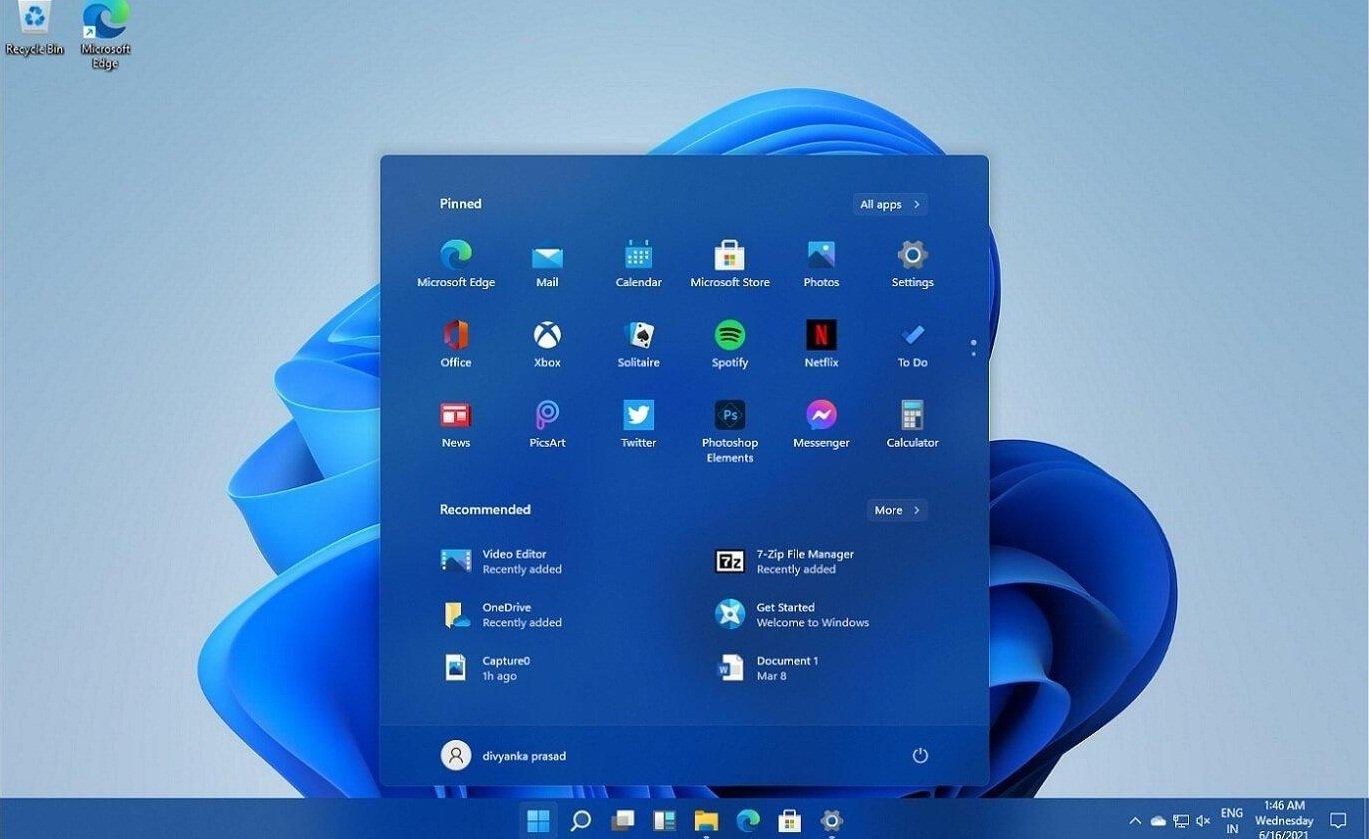
<p>Ở Windows 11, người dùng sẽ thấy một Start Menu gọn gàng, chi tiết. Bạn có thể ghim những ứng dụng thường xuyên sử dụng và truy cập nhanh đến chúng. So với Windows 8.1 hay Windows 10, đây chính là một điểm cộng khiến người dùng muốn nâng cấp lên Windows 11.</p>
<figure id="attachment_396404" aria-describedby="caption-attachment-396404" style="width: 1369px" class="wp-caption aligncenter"><img loading="lazy" class="wp-image-396404 size-full" title="Start Menu trên Windows 11 (Ảnh: Internet)." src="https://bloganchoi.com/wp-content/uploads/2021/06/windows-11-start-menu-1.jpg" alt="Start Menu trên Windows 11 (Ảnh: Internet)." width="1369" height="839" srcset="https://bloganchoi.com/wp-content/uploads/2021/06/windows-11-start-menu-1.jpg 1369w, https://bloganchoi.com/wp-content/uploads/2021/06/windows-11-start-menu-1-300x184.jpg 300w, https://bloganchoi.com/wp-content/uploads/2021/06/windows-11-start-menu-1-1024x628.jpg 1024w, https://bloganchoi.com/wp-content/uploads/2021/06/windows-11-start-menu-1-768x471.jpg 768w, https://bloganchoi.com/wp-content/uploads/2021/06/windows-11-start-menu-1-696x427.jpg 696w, https://bloganchoi.com/wp-content/uploads/2021/06/windows-11-start-menu-1-1068x655.jpg 1068w, https://bloganchoi.com/wp-content/uploads/2021/06/windows-11-start-menu-1-685x420.jpg 685w" sizes="(max-width: 1369px) 100vw, 1369px" /><figcaption id="caption-attachment-396404" class="wp-caption-text">Start Menu trên Windows 11 (Ảnh: Internet).</figcaption></figure>
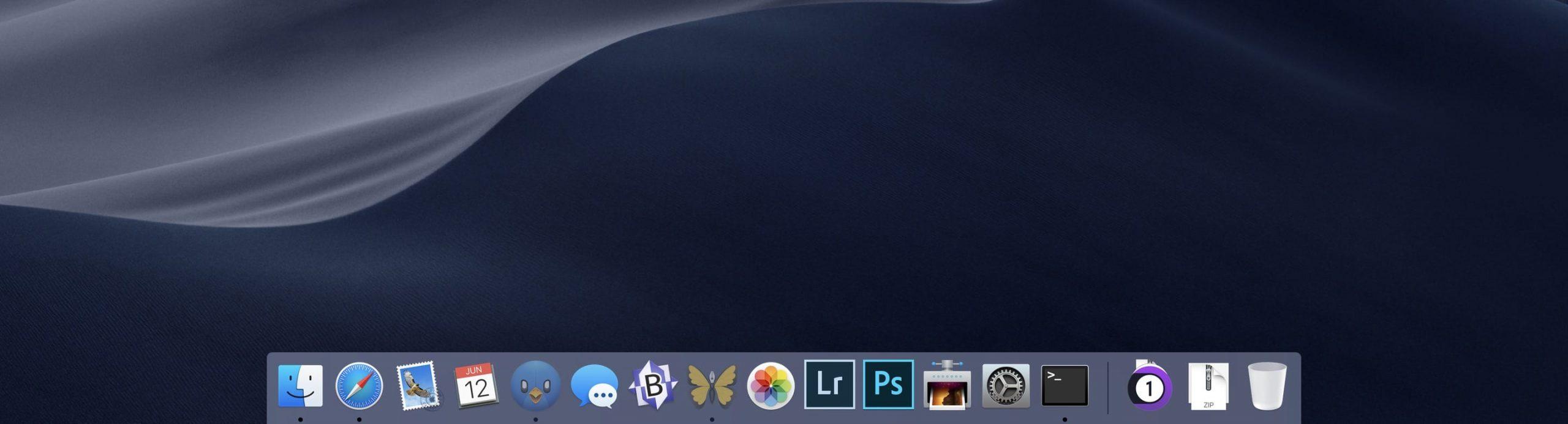
<figure id="attachment_395636" aria-describedby="caption-attachment-395636" style="width: 2560px" class="wp-caption aligncenter"><img loading="lazy" class="wp-image-395636 size-full" title="Nhiều người cho rằng Start Menu trên Windows 11 khá tương đồng với Dock Menu trên macOS (Ảnh: Internet)." src="https://bloganchoi.com/wp-content/uploads/2021/06/windows-11-dock-menu-macos-scaled.jpg" alt="Nhiều người cho rằng Start Menu trên Windows 11 khá tương đồng với Dock Menu trên macOS (Ảnh: Internet)." width="2560" height="693" srcset="https://bloganchoi.com/wp-content/uploads/2021/06/windows-11-dock-menu-macos-scaled.jpg 2560w, https://bloganchoi.com/wp-content/uploads/2021/06/windows-11-dock-menu-macos-300x81.jpg 300w, https://bloganchoi.com/wp-content/uploads/2021/06/windows-11-dock-menu-macos-1024x277.jpg 1024w, https://bloganchoi.com/wp-content/uploads/2021/06/windows-11-dock-menu-macos-768x208.jpg 768w, https://bloganchoi.com/wp-content/uploads/2021/06/windows-11-dock-menu-macos-1536x416.jpg 1536w, https://bloganchoi.com/wp-content/uploads/2021/06/windows-11-dock-menu-macos-2048x555.jpg 2048w, https://bloganchoi.com/wp-content/uploads/2021/06/windows-11-dock-menu-macos-696x189.jpg 696w, https://bloganchoi.com/wp-content/uploads/2021/06/windows-11-dock-menu-macos-1068x289.jpg 1068w, https://bloganchoi.com/wp-content/uploads/2021/06/windows-11-dock-menu-macos-1551x420.jpg 1551w" sizes="(max-width: 2560px) 100vw, 2560px" /><figcaption id="caption-attachment-395636" class="wp-caption-text">Nhiều người cho rằng Start Menu trên Windows 11 khá tương đồng với Dock Menu trên macOS (Ảnh: Internet).</figcaption></figure>
<h2><strong>2. Windows 11 không cho di chuyển Task Bar</strong></h2>
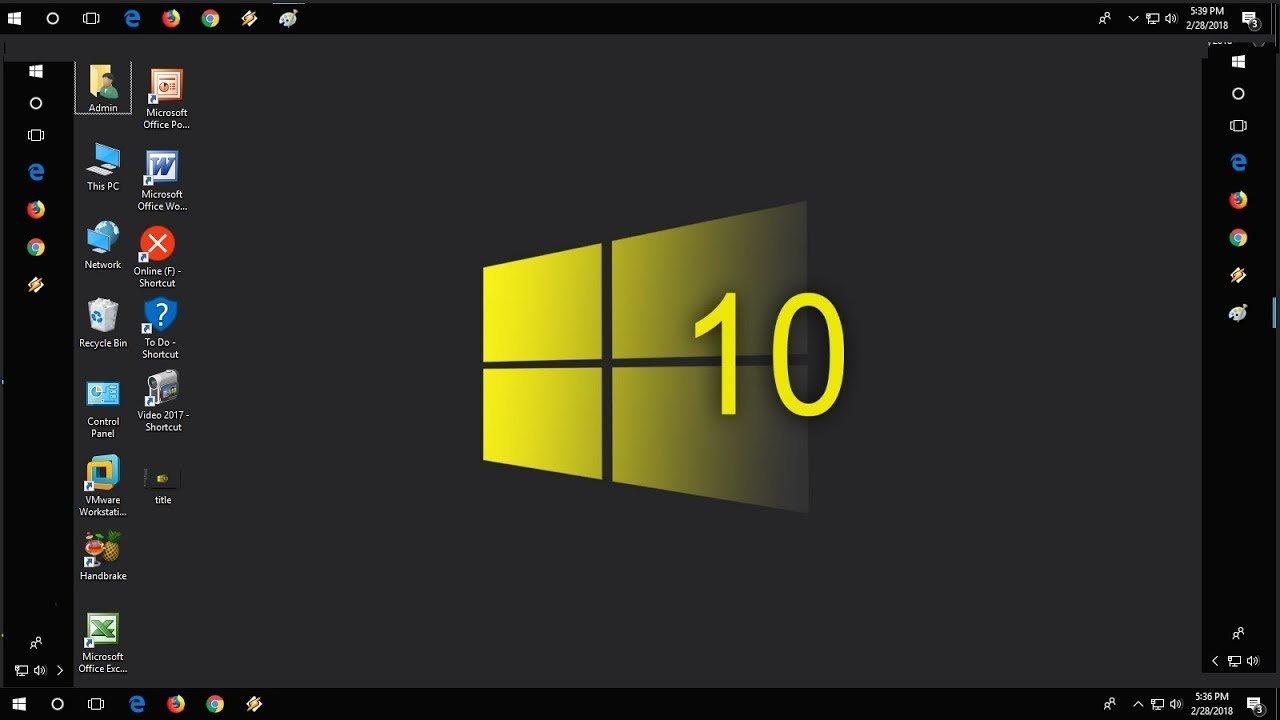
<p>So với macOS, người dùng Windows luôn có một sự “tự do” hơn nhất định. Họ có thể thoải mái tuỳ chỉnh hệ điều hành mình sử dụng ở mọi khía cạnh: từ giao diện cho đến những thiết lập ảnh hưởng đến sự vận hành của hệ thống. Một trong những điều đó là khả năng di chuyển thanh Taskbar từ trên, dưới, trái hay phải.</p>
<figure id="attachment_395642" aria-describedby="caption-attachment-395642" style="width: 1280px" class="wp-caption aligncenter"><img loading="lazy" class="wp-image-395642 size-full" title="Bốn vị trí mà người dùng có thể thoải mái &quot;xê dịch&quot; thanh Taskbar trên Windows 10 (Ảnh: Internet)." src="https://bloganchoi.com/wp-content/uploads/2021/06/windows-11-windows-10-taskbar.jpg" alt="Bốn vị trí mà người dùng có thể thoải mái &quot;xê dịch&quot; thanh Taskbar trên Windows 10 (Ảnh: Internet)." width="1280" height="720" srcset="https://bloganchoi.com/wp-content/uploads/2021/06/windows-11-windows-10-taskbar.jpg 1280w, https://bloganchoi.com/wp-content/uploads/2021/06/windows-11-windows-10-taskbar-300x169.jpg 300w, https://bloganchoi.com/wp-content/uploads/2021/06/windows-11-windows-10-taskbar-1024x576.jpg 1024w, https://bloganchoi.com/wp-content/uploads/2021/06/windows-11-windows-10-taskbar-768x432.jpg 768w, https://bloganchoi.com/wp-content/uploads/2021/06/windows-11-windows-10-taskbar-696x392.jpg 696w, https://bloganchoi.com/wp-content/uploads/2021/06/windows-11-windows-10-taskbar-1068x601.jpg 1068w, https://bloganchoi.com/wp-content/uploads/2021/06/windows-11-windows-10-taskbar-747x420.jpg 747w" sizes="(max-width: 1280px) 100vw, 1280px" /><figcaption id="caption-attachment-395642" class="wp-caption-text">Bốn vị trí mà người dùng có thể thoải mái &#8220;xê dịch&#8221; thanh Taskbar trên Windows 10 (Ảnh: Internet).</figcaption></figure>
<p>Tuy nhiên theo phản hồi của nhiều người dùng thì họ không thể di chuyển Task Bar trên Windows 11 một cách tuỳ ý như trên những phiên bản tiền nhiệm. Thanh Taskbar trên Windows 11 sẽ chỉ nằm cố định ở phía dưới cùng của góc màn hình. Hy vọng rằng ở những bản cập nhật trong tương lai Microsoft có thể khắc phục được điều này và cho phép người dùng tự do hơn trong việc đặt thanh Taskbar.</p>
<figure id="attachment_395622" aria-describedby="caption-attachment-395622" style="width: 1024px" class="wp-caption aligncenter"><img loading="lazy" class="wp-image-395622 size-full" title="Windows 11 có giao diện rất đẹp, chỉ là không cho thay đổi vị trí Taskbar mà thôi (Ảnh: Internet)." src="https://bloganchoi.com/wp-content/uploads/2021/06/windows-11-tinh-nang-moi-01.jpg" alt="Windows 11 có giao diện rất đẹp, chỉ là không cho thay đổi vị trí Taskbar mà thôi (Ảnh: Internet)." width="1024" height="576" srcset="https://bloganchoi.com/wp-content/uploads/2021/06/windows-11-tinh-nang-moi-01.jpg 1024w, https://bloganchoi.com/wp-content/uploads/2021/06/windows-11-tinh-nang-moi-01-300x169.jpg 300w, https://bloganchoi.com/wp-content/uploads/2021/06/windows-11-tinh-nang-moi-01-768x432.jpg 768w, https://bloganchoi.com/wp-content/uploads/2021/06/windows-11-tinh-nang-moi-01-696x392.jpg 696w, https://bloganchoi.com/wp-content/uploads/2021/06/windows-11-tinh-nang-moi-01-747x420.jpg 747w" sizes="(max-width: 1024px) 100vw, 1024px" /><figcaption id="caption-attachment-395622" class="wp-caption-text">Windows 11 có giao diện rất đẹp, chỉ là không cho thay đổi vị trí Taskbar mà thôi (Ảnh: Internet).</figcaption></figure>
<p><iframe loading="lazy" class="youtube-player" width="640" height="360" src="https://www.youtube.com/embed/cp6D8RzqgTQ?version=3&#038;rel=1&#038;showsearch=0&#038;showinfo=1&#038;iv_load_policy=1&#038;fs=1&#038;hl=vi&#038;autohide=2&#038;wmode=transparent" allowfullscreen="true" style="border:0;" sandbox="allow-scripts allow-same-origin allow-popups allow-presentation"></iframe></p>
<h2><strong>3. Task View của Windows 11 </strong></h2>
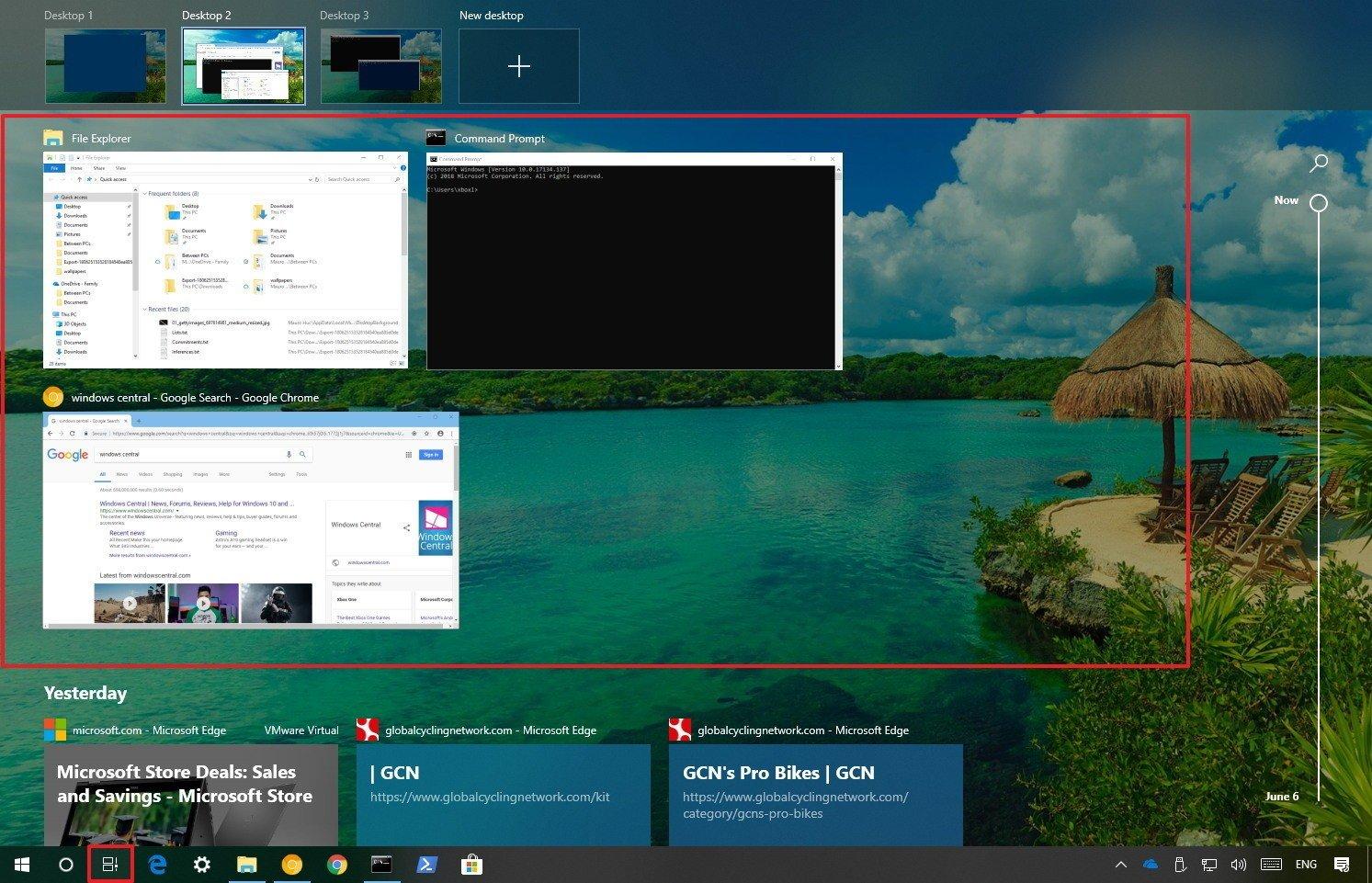
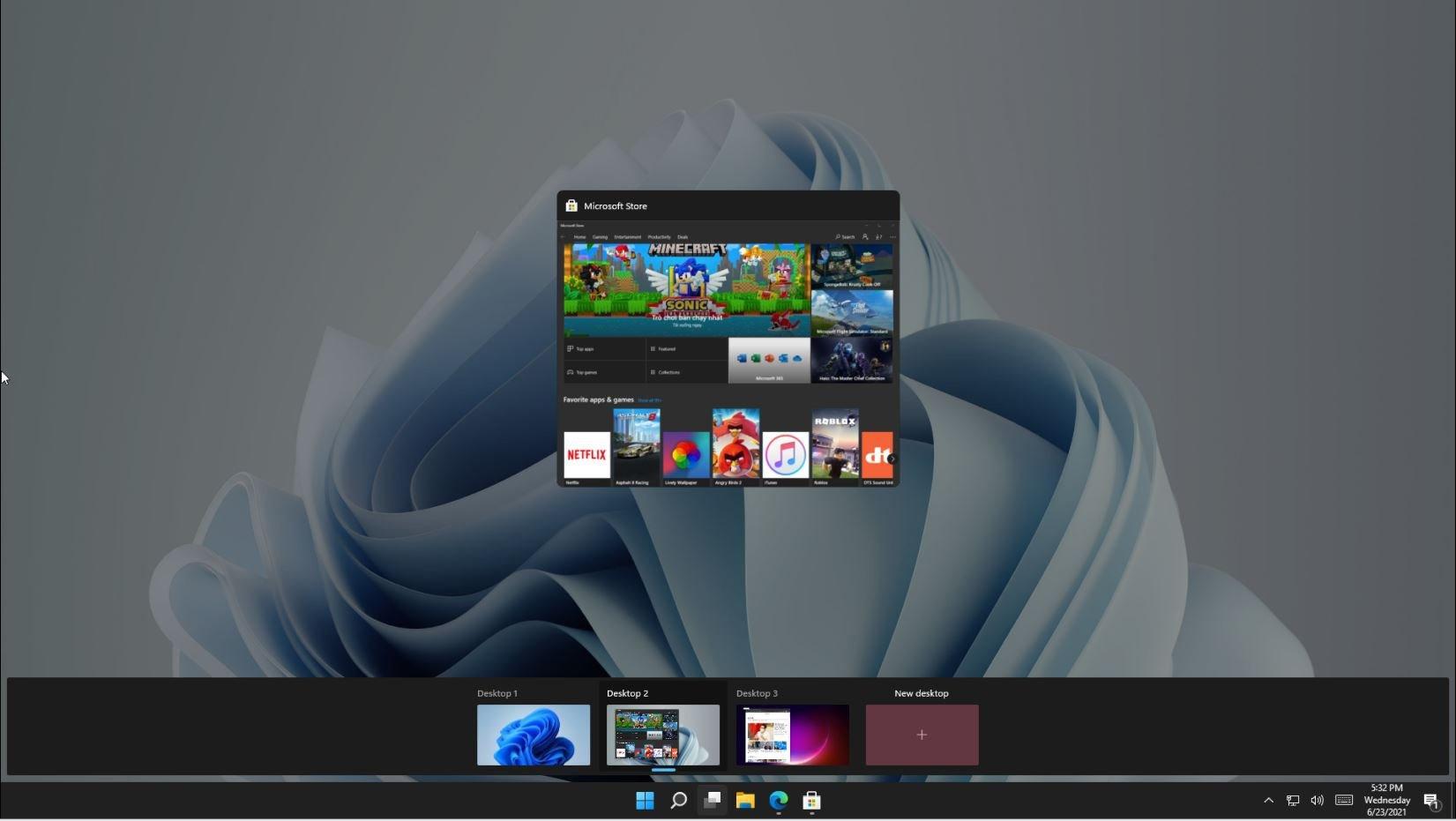
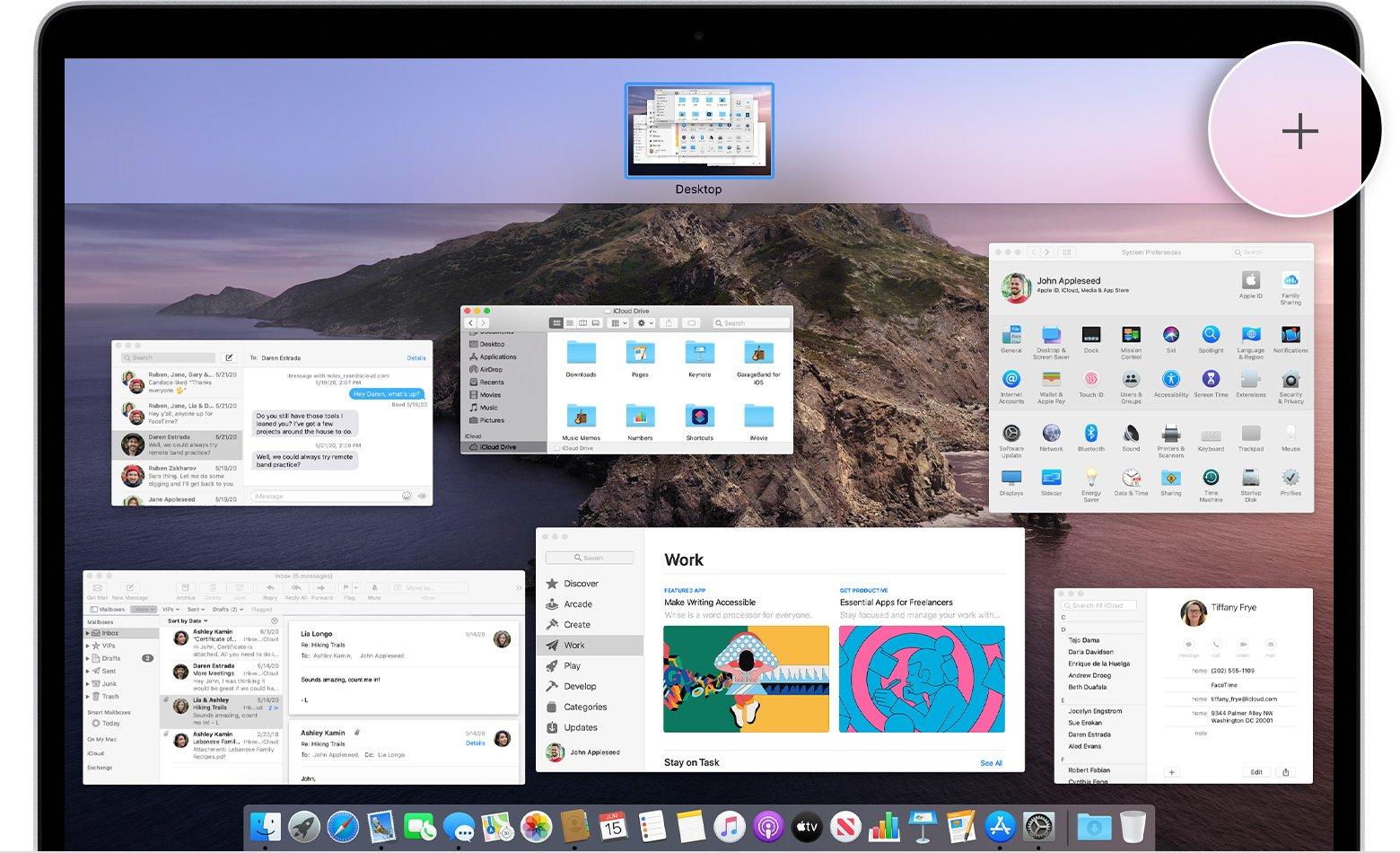
<p>Trên Windows 11, tính năng Task View đã được update và cải thiện. Việc tạo ra các desktop mới để làm việc đa tác vụ đã xuất hiện lần đầu ở Windows 10. Trên Windows 11, tính năng này được nhiều người dùng đánh giá là học hỏi đến &#8230;99% từ Mission Control, một trình quản lý đa tác vụ mặc định đến từ &#8220;đối thủ&#8221; macOS.</p>
<figure id="attachment_395650" aria-describedby="caption-attachment-395650" style="width: 1493px" class="wp-caption aligncenter"><img loading="lazy" class="wp-image-395650 size-full" title="Task View trên Windows 10. (Ảnh: Internet)" src="https://bloganchoi.com/wp-content/uploads/2021/06/windows-11-windows-10-task-view.jpg" alt="Task View trên Windows 10. (Ảnh: Internet)" width="1493" height="961" srcset="https://bloganchoi.com/wp-content/uploads/2021/06/windows-11-windows-10-task-view.jpg 1493w, https://bloganchoi.com/wp-content/uploads/2021/06/windows-11-windows-10-task-view-300x193.jpg 300w, https://bloganchoi.com/wp-content/uploads/2021/06/windows-11-windows-10-task-view-1024x659.jpg 1024w, https://bloganchoi.com/wp-content/uploads/2021/06/windows-11-windows-10-task-view-768x494.jpg 768w, https://bloganchoi.com/wp-content/uploads/2021/06/windows-11-windows-10-task-view-696x448.jpg 696w, https://bloganchoi.com/wp-content/uploads/2021/06/windows-11-windows-10-task-view-1068x687.jpg 1068w, https://bloganchoi.com/wp-content/uploads/2021/06/windows-11-windows-10-task-view-653x420.jpg 653w" sizes="(max-width: 1493px) 100vw, 1493px" /><figcaption id="caption-attachment-395650" class="wp-caption-text">Task View trên Windows 10. (Ảnh: Internet)</figcaption></figure>
<figure id="attachment_395651" aria-describedby="caption-attachment-395651" style="width: 1651px" class="wp-caption aligncenter"><img loading="lazy" class="wp-image-395651 size-full" title="Task View trên Windows 11: Tính năng này giúp người dùng phân chia từng Desktop riêng cho một công việc hoặc ứng dụng cụ thể. (Ảnh: Internet)" src="https://bloganchoi.com/wp-content/uploads/2021/06/windows-11-task-view.jpg" alt="Task View trên Windows 11: Tính năng này giúp người dùng phân chia từng Desktop riêng cho một công việc hoặc ứng dụng cụ thể. (Ảnh: Internet)" width="1651" height="931" srcset="https://bloganchoi.com/wp-content/uploads/2021/06/windows-11-task-view.jpg 1651w, https://bloganchoi.com/wp-content/uploads/2021/06/windows-11-task-view-300x169.jpg 300w, https://bloganchoi.com/wp-content/uploads/2021/06/windows-11-task-view-1024x577.jpg 1024w, https://bloganchoi.com/wp-content/uploads/2021/06/windows-11-task-view-768x433.jpg 768w, https://bloganchoi.com/wp-content/uploads/2021/06/windows-11-task-view-1536x866.jpg 1536w, https://bloganchoi.com/wp-content/uploads/2021/06/windows-11-task-view-696x392.jpg 696w, https://bloganchoi.com/wp-content/uploads/2021/06/windows-11-task-view-1068x602.jpg 1068w, https://bloganchoi.com/wp-content/uploads/2021/06/windows-11-task-view-745x420.jpg 745w" sizes="(max-width: 1651px) 100vw, 1651px" /><figcaption id="caption-attachment-395651" class="wp-caption-text">Task View trên Windows 11: Tính năng này giúp người dùng phân chia từng Desktop riêng cho một công việc hoặc ứng dụng cụ thể. (Ảnh: Internet)</figcaption></figure>
<figure id="attachment_395652" aria-describedby="caption-attachment-395652" style="width: 1560px" class="wp-caption aligncenter"><img loading="lazy" class="wp-image-395652 size-full" title="Những người từng sử dụng qua cả 2 hệ điều hành sẽ không khó để nhận ra sự tương đồng giữa Mission Control của macOS so với Task View của Windows 11 (Ảnh: Internet)." src="https://bloganchoi.com/wp-content/uploads/2021/06/windows-11-mission-control-macos.jpg" alt="Những người từng sử dụng qua cả 2 hệ điều hành sẽ không khó để nhận ra sự tương đồng giữa Mission Control của macOS so với Task View của Windows 11 (Ảnh: Internet)." width="1560" height="950" srcset="https://bloganchoi.com/wp-content/uploads/2021/06/windows-11-mission-control-macos.jpg 1560w, https://bloganchoi.com/wp-content/uploads/2021/06/windows-11-mission-control-macos-300x183.jpg 300w, https://bloganchoi.com/wp-content/uploads/2021/06/windows-11-mission-control-macos-1024x624.jpg 1024w, https://bloganchoi.com/wp-content/uploads/2021/06/windows-11-mission-control-macos-768x468.jpg 768w, https://bloganchoi.com/wp-content/uploads/2021/06/windows-11-mission-control-macos-1536x935.jpg 1536w, https://bloganchoi.com/wp-content/uploads/2021/06/windows-11-mission-control-macos-696x424.jpg 696w, https://bloganchoi.com/wp-content/uploads/2021/06/windows-11-mission-control-macos-1068x650.jpg 1068w, https://bloganchoi.com/wp-content/uploads/2021/06/windows-11-mission-control-macos-690x420.jpg 690w" sizes="(max-width: 1560px) 100vw, 1560px" /><figcaption id="caption-attachment-395652" class="wp-caption-text">Những người từng sử dụng qua cả 2 hệ điều hành sẽ không khó để nhận ra sự tương đồng giữa Mission Control của macOS so với Task View của Windows 11 (Ảnh: Internet).</figcaption></figure>
<p><iframe loading="lazy" class="youtube-player" width="640" height="360" src="https://www.youtube.com/embed/uBYP5IdfoCo?version=3&#038;rel=1&#038;showsearch=0&#038;showinfo=1&#038;iv_load_policy=1&#038;fs=1&#038;hl=vi&#038;autohide=2&#038;wmode=transparent" allowfullscreen="true" style="border:0;" sandbox="allow-scripts allow-same-origin allow-popups allow-presentation"></iframe></p>
<h2><strong>4. Màn hình cài đặt của Windows 11 </strong></h2>
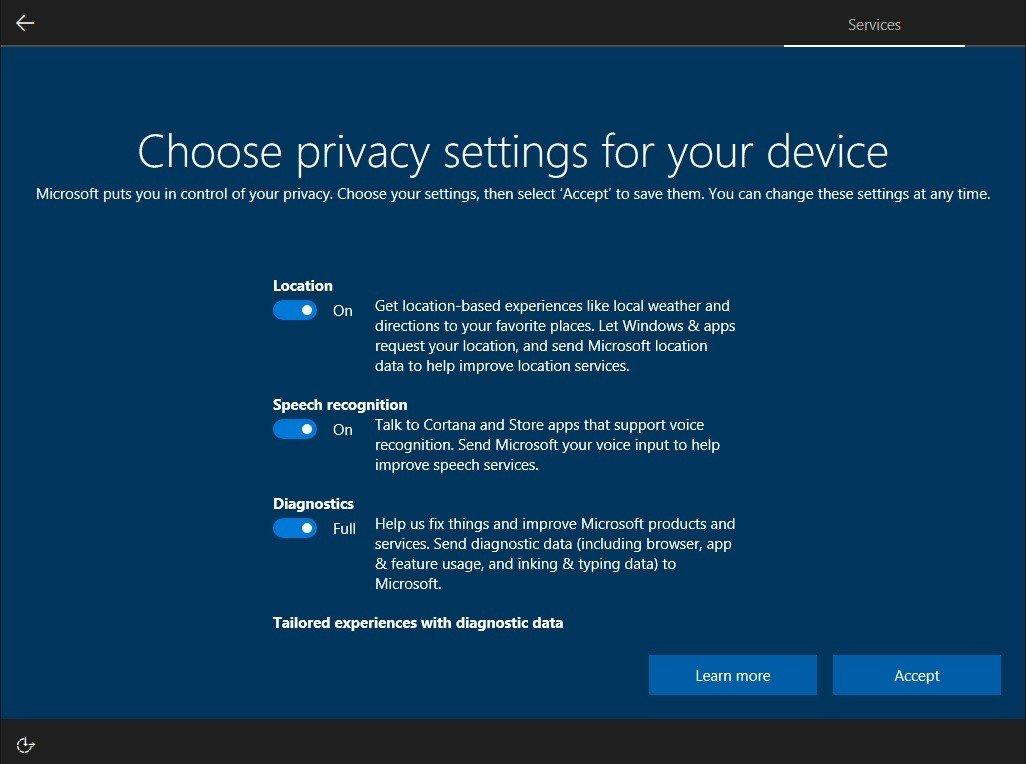
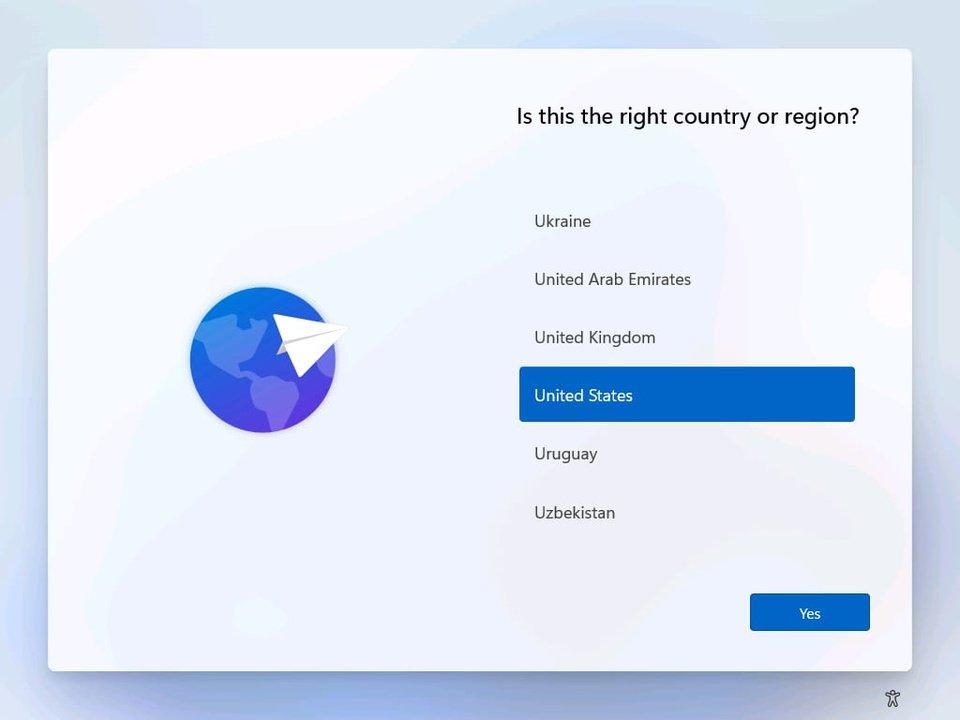
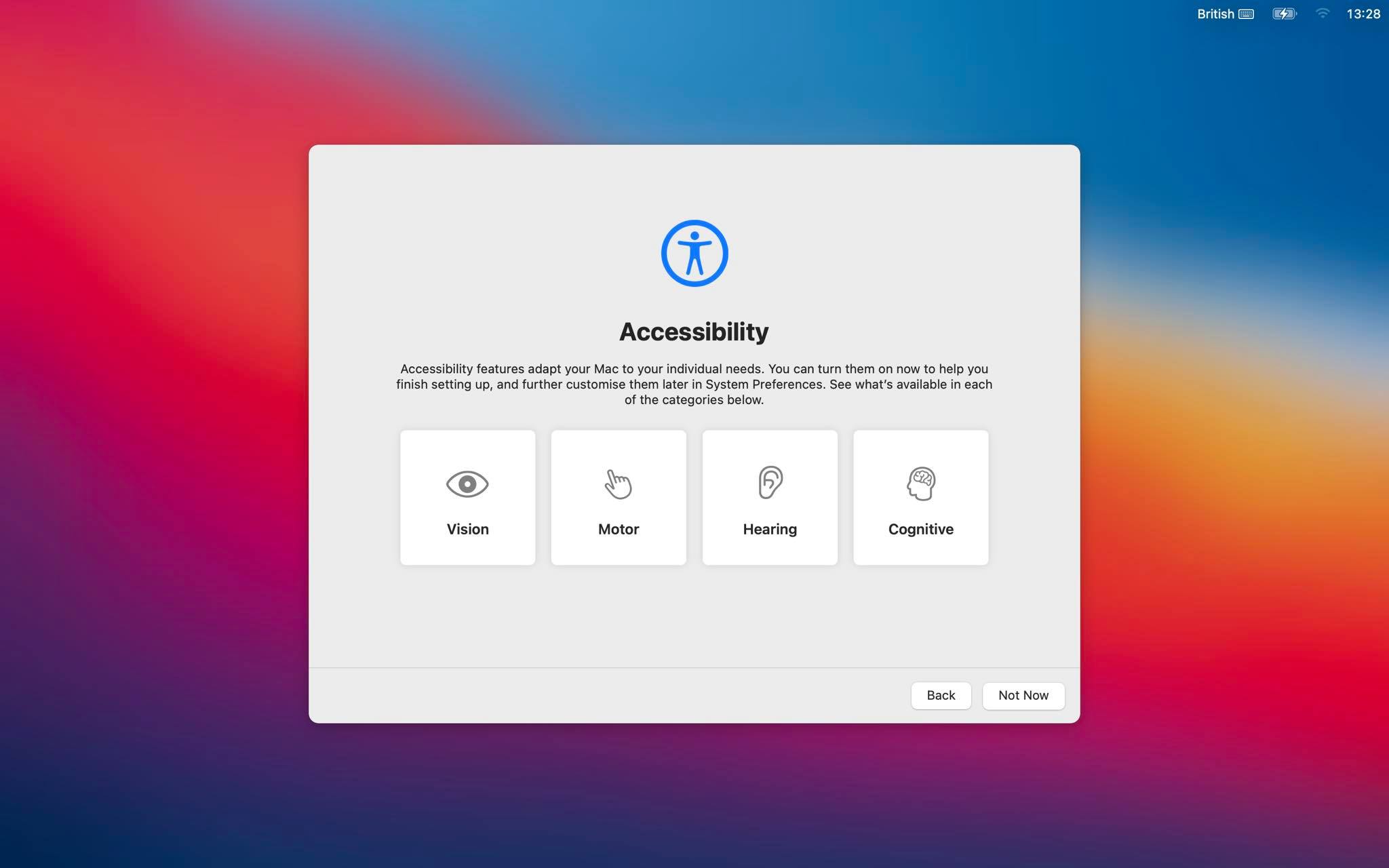
<p>Trên Windows 7, Windows 8.1 hay Windows 10, Microsoft thường sử dụng tông màu khá tối ở màn hình thiết lập cài đặt. Nhưng ở Windows 11, Microsoft lại chủ động chỉnh tông màu phần thiết lập sáng sủa hơn. Ngôn ngữ thiết kế này khá tương đồng với macOS Big Sur, khi mà thiết kế mô phỏng đồ vật đã được thay thế bằng giao diện màu sắc sặc sỡ.</p>
<figure id="attachment_395655" aria-describedby="caption-attachment-395655" style="width: 1026px" class="wp-caption aligncenter"><img loading="lazy" class="wp-image-395655 size-full" title="Giao diện thiết lập cài đặt trên Windows 10 khá tối và tù túng. (Ảnh: Internet)" src="https://bloganchoi.com/wp-content/uploads/2021/06/windows-11-windows-10-setting.jpg" alt="Giao diện thiết lập cài đặt trên Windows 10 khá tối và tù túng. (Ảnh: Internet)" width="1026" height="764" srcset="https://bloganchoi.com/wp-content/uploads/2021/06/windows-11-windows-10-setting.jpg 1026w, https://bloganchoi.com/wp-content/uploads/2021/06/windows-11-windows-10-setting-300x223.jpg 300w, https://bloganchoi.com/wp-content/uploads/2021/06/windows-11-windows-10-setting-1024x763.jpg 1024w, https://bloganchoi.com/wp-content/uploads/2021/06/windows-11-windows-10-setting-768x572.jpg 768w, https://bloganchoi.com/wp-content/uploads/2021/06/windows-11-windows-10-setting-80x60.jpg 80w, https://bloganchoi.com/wp-content/uploads/2021/06/windows-11-windows-10-setting-265x198.jpg 265w, https://bloganchoi.com/wp-content/uploads/2021/06/windows-11-windows-10-setting-696x518.jpg 696w, https://bloganchoi.com/wp-content/uploads/2021/06/windows-11-windows-10-setting-564x420.jpg 564w" sizes="(max-width: 1026px) 100vw, 1026px" /><figcaption id="caption-attachment-395655" class="wp-caption-text">Giao diện thiết lập cài đặt trên Windows 10 khá tối và tù túng. (Ảnh: Internet)</figcaption></figure>
<figure id="attachment_395654" aria-describedby="caption-attachment-395654" style="width: 960px" class="wp-caption aligncenter"><img loading="lazy" class="wp-image-395654 size-full" title="Màn hình thiết lập ban đầu trên Windows 11. Lối thiết kế này, trùng hợp thay, lại khá tương đồng với... (Ảnh: Internet)" src="https://bloganchoi.com/wp-content/uploads/2021/06/windows-11-country-region-setting.jpg" alt="Màn hình thiết lập ban đầu trên Windows 11. Lối thiết kế này, trùng hợp thay, lại khá tương đồng với... (Ảnh: Internet)" width="960" height="720" srcset="https://bloganchoi.com/wp-content/uploads/2021/06/windows-11-country-region-setting.jpg 960w, https://bloganchoi.com/wp-content/uploads/2021/06/windows-11-country-region-setting-300x225.jpg 300w, https://bloganchoi.com/wp-content/uploads/2021/06/windows-11-country-region-setting-768x576.jpg 768w, https://bloganchoi.com/wp-content/uploads/2021/06/windows-11-country-region-setting-80x60.jpg 80w, https://bloganchoi.com/wp-content/uploads/2021/06/windows-11-country-region-setting-265x198.jpg 265w, https://bloganchoi.com/wp-content/uploads/2021/06/windows-11-country-region-setting-696x522.jpg 696w, https://bloganchoi.com/wp-content/uploads/2021/06/windows-11-country-region-setting-560x420.jpg 560w" sizes="(max-width: 960px) 100vw, 960px" /><figcaption id="caption-attachment-395654" class="wp-caption-text">Màn hình thiết lập ban đầu trên Windows 11. Lối thiết kế này, trùng hợp thay, lại khá tương đồng với&#8230; (Ảnh: Internet)</figcaption></figure>
<figure id="attachment_395656" aria-describedby="caption-attachment-395656" style="width: 2048px" class="wp-caption aligncenter"><img loading="lazy" class="wp-image-395656 size-full" title="...màn hình thiết lập của macOS Big Sur (Ảnh: Internet)." src="https://bloganchoi.com/wp-content/uploads/2021/06/windows-11-big-sur-screen-4.jpg" alt="...màn hình thiết lập của macOS Big Sur (Ảnh: Internet)." width="2048" height="1280" srcset="https://bloganchoi.com/wp-content/uploads/2021/06/windows-11-big-sur-screen-4.jpg 2048w, https://bloganchoi.com/wp-content/uploads/2021/06/windows-11-big-sur-screen-4-300x188.jpg 300w, https://bloganchoi.com/wp-content/uploads/2021/06/windows-11-big-sur-screen-4-1024x640.jpg 1024w, https://bloganchoi.com/wp-content/uploads/2021/06/windows-11-big-sur-screen-4-768x480.jpg 768w, https://bloganchoi.com/wp-content/uploads/2021/06/windows-11-big-sur-screen-4-1536x960.jpg 1536w, https://bloganchoi.com/wp-content/uploads/2021/06/windows-11-big-sur-screen-4-696x435.jpg 696w, https://bloganchoi.com/wp-content/uploads/2021/06/windows-11-big-sur-screen-4-1068x668.jpg 1068w, https://bloganchoi.com/wp-content/uploads/2021/06/windows-11-big-sur-screen-4-672x420.jpg 672w" sizes="(max-width: 2048px) 100vw, 2048px" /><figcaption id="caption-attachment-395656" class="wp-caption-text">&#8230;màn hình thiết lập của macOS Big Sur (Ảnh: Internet).</figcaption></figure>
<p><iframe loading="lazy" class="youtube-player" width="640" height="360" src="https://www.youtube.com/embed/zLG5zgu9DqQ?version=3&#038;rel=1&#038;showsearch=0&#038;showinfo=1&#038;iv_load_policy=1&#038;fs=1&#038;hl=vi&#038;autohide=2&#038;wmode=transparent" allowfullscreen="true" style="border:0;" sandbox="allow-scripts allow-same-origin allow-popups allow-presentation"></iframe></p>
<h2><strong>5. Snap Layout của Windows 11</strong></h2>
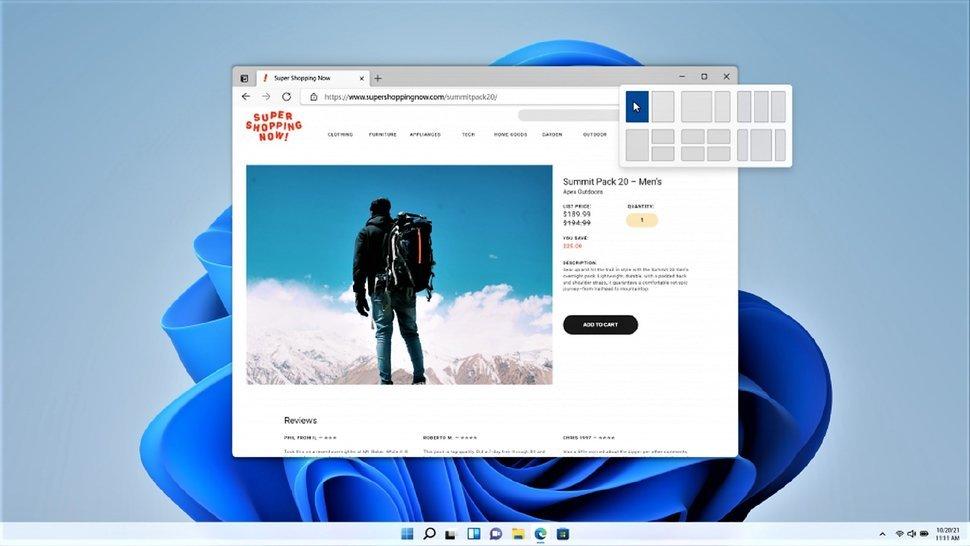
<p>Từ trước đến nay, người dùng Windows sẽ phải căn chỉnh thủ công độ rộng của hai ứng dụng nếu muốn làm việc đa nhiệm. Điểm bất tiện này đã được cải thiện dần dần qua tính năng Task View trên Windows 10. Tuy vậy phải đến Windows 11 thì tính năng <em>Snap Layout</em> mới thật sự trở nên lợi hại. Giờ đây <em>Snap</em> <em>Layout</em> đã cho phép người dùng có thể làm việc đồng thời lên tới 4 ứng dụng cùng một lúc trên một màn hình.</p>
<figure id="attachment_396151" aria-describedby="caption-attachment-396151" style="width: 970px" class="wp-caption aligncenter"><img loading="lazy" class="wp-image-396151 size-full" title="Snap Layout trên Windows 11. Tuy đi sau đối thủ macOS đến 6 năm, Windows 11 vẫn đem lại trải nghiệm tuyệt vời hơn do hỗ trợ đồng thời tới 4 màn hình làm việc. (Ảnh: Internet)" src="https://bloganchoi.com/wp-content/uploads/2021/06/windows-11-snap-layout.jpeg" alt="Snap Layout trên Windows 11. Tuy đi sau đối thủ macOS đến 6 năm, Windows 11 vẫn đem lại trải nghiệm tuyệt vời hơn do hỗ trợ đồng thời tới 4 màn hình làm việc. (Ảnh: Internet)" width="970" height="546" srcset="https://bloganchoi.com/wp-content/uploads/2021/06/windows-11-snap-layout.jpeg 970w, https://bloganchoi.com/wp-content/uploads/2021/06/windows-11-snap-layout-300x169.jpeg 300w, https://bloganchoi.com/wp-content/uploads/2021/06/windows-11-snap-layout-768x432.jpeg 768w, https://bloganchoi.com/wp-content/uploads/2021/06/windows-11-snap-layout-696x392.jpeg 696w, https://bloganchoi.com/wp-content/uploads/2021/06/windows-11-snap-layout-746x420.jpeg 746w" sizes="(max-width: 970px) 100vw, 970px" /><figcaption id="caption-attachment-396151" class="wp-caption-text">Snap Layout trên Windows 11. Tuy đi sau đối thủ macOS đến 6 năm, Windows 11 vẫn đem lại trải nghiệm tuyệt vời hơn do hỗ trợ đồng thời tới 4 màn hình làm việc. (Ảnh: Internet)</figcaption></figure>
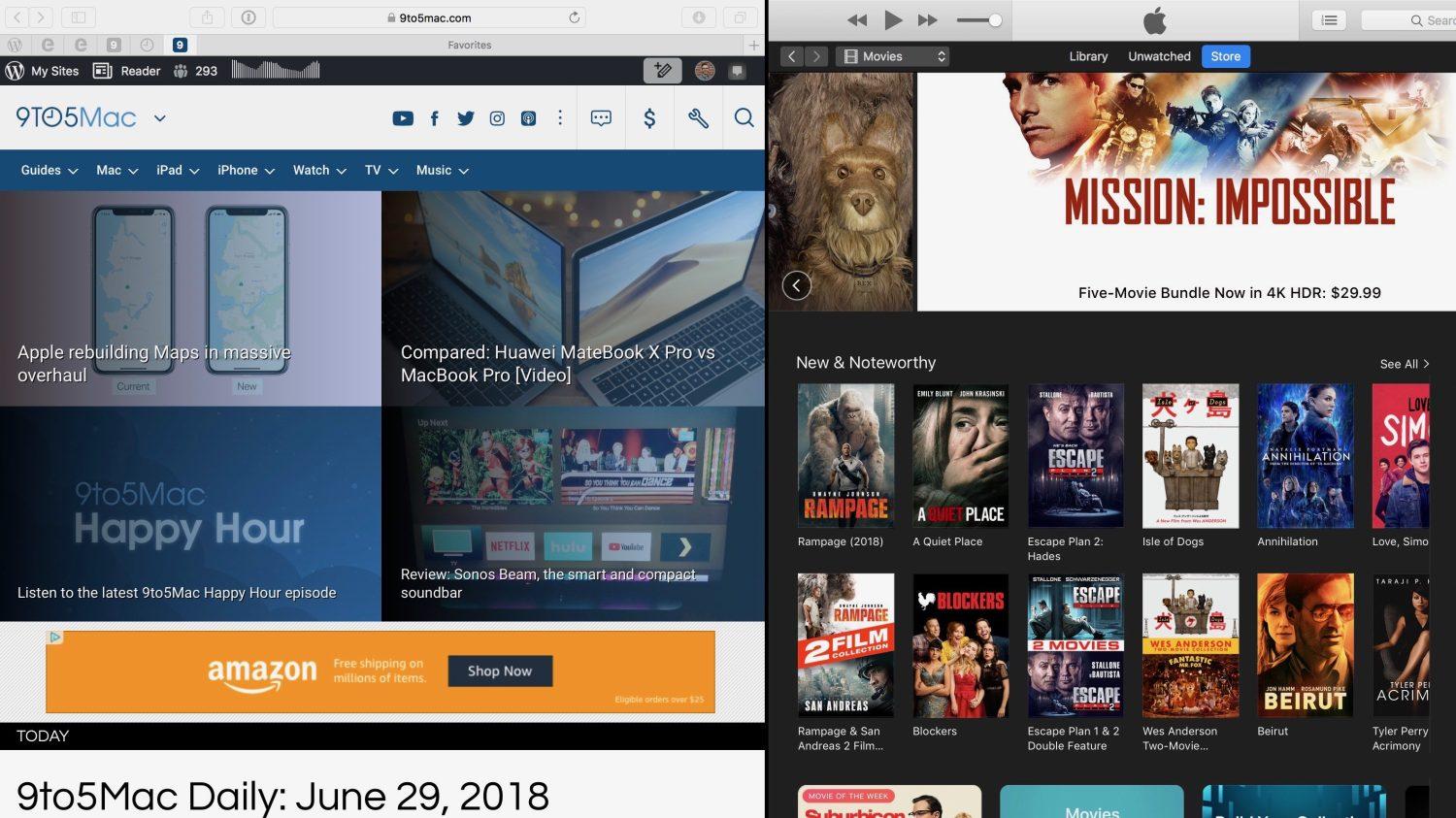
<p>So với Windows, macOS đã có tính năng tương tự mang tên Split View, được ra mắt trên OS X El Capitan (2015). Tuy đi sau macOS đến 6 năm ở tính năng này, người dùng Windows có thể cảm thấy tự hào về khoản làm việc đa nhiệm lên tới 4 màn hình, so với 2 của macOS.</p>
<p><iframe loading="lazy" class="youtube-player" width="640" height="360" src="https://www.youtube.com/embed/R_WpfsB9cao?version=3&#038;rel=1&#038;showsearch=0&#038;showinfo=1&#038;iv_load_policy=1&#038;fs=1&#038;hl=vi&#038;autohide=2&#038;wmode=transparent" allowfullscreen="true" style="border:0;" sandbox="allow-scripts allow-same-origin allow-popups allow-presentation"></iframe></p>
<figure id="attachment_396149" aria-describedby="caption-attachment-396149" style="width: 1500px" class="wp-caption aligncenter"><img loading="lazy" class="wp-image-396149 size-full" title="Tính năng Split View trên macOS được ra mắt lần đầu trên macOS X El Capitan (2015). Kể cả trên phiên bản macOS Montery vừa rồi, số lượng ứng dụng đa nhiệm tối đa vẫn chỉ là 2 (Ảnh: Internet)." src="https://bloganchoi.com/wp-content/uploads/2021/06/windows-11-macos-split-view.jpg" alt="Tính năng Split View trên macOS được ra mắt lần đầu trên macOS X El Capitan (2015). Kể cả trên phiên bản macOS Montery vừa rồi, số lượng ứng dụng đa nhiệm tối đa vẫn chỉ là 2 (Ảnh: Internet)." width="1500" height="843" srcset="https://bloganchoi.com/wp-content/uploads/2021/06/windows-11-macos-split-view.jpg 1500w, https://bloganchoi.com/wp-content/uploads/2021/06/windows-11-macos-split-view-300x169.jpg 300w, https://bloganchoi.com/wp-content/uploads/2021/06/windows-11-macos-split-view-1024x575.jpg 1024w, https://bloganchoi.com/wp-content/uploads/2021/06/windows-11-macos-split-view-768x432.jpg 768w, https://bloganchoi.com/wp-content/uploads/2021/06/windows-11-macos-split-view-696x391.jpg 696w, https://bloganchoi.com/wp-content/uploads/2021/06/windows-11-macos-split-view-1068x600.jpg 1068w, https://bloganchoi.com/wp-content/uploads/2021/06/windows-11-macos-split-view-747x420.jpg 747w" sizes="(max-width: 1500px) 100vw, 1500px" /><figcaption id="caption-attachment-396149" class="wp-caption-text">Tính năng Split View trên macOS được ra mắt lần đầu trên macOS X El Capitan (2015). Kể cả trên phiên bản macOS Montery vừa rồi, số lượng ứng dụng đa nhiệm tối đa vẫn chỉ là 2 (Ảnh: Internet).</figcaption></figure>
<h2><strong>6. Windows 11 cho phép chạy native ứng dụng Android </strong></h2>
<p>Một trong những tính năng vô cùng hấp dẫn được chờ đón trên Windows 11 là khả năng chạy ứng dụng Android trực tiếp mà không cần thông qua bất kỳ bên thứ 3 nào. Tuy nhiên thay vì tải trực tiếp ứng dụng từ Google Play, Microsoft đã &#8220;bắt tay&#8221; với Amazon AppStore để tích hợp tài nguyên có sẵn vào kho ứng dụng Microsoft Store. Bạn cần phải có tài khoản Amazon để có thể cài đặt ứng dụng Android trên Windows 11.</p>
<p><iframe loading="lazy" class="youtube-player" width="640" height="360" src="https://www.youtube.com/embed/hfXXMGei4Ys?version=3&#038;rel=1&#038;showsearch=0&#038;showinfo=1&#038;iv_load_policy=1&#038;fs=1&#038;hl=vi&#038;autohide=2&#038;wmode=transparent" allowfullscreen="true" style="border:0;" sandbox="allow-scripts allow-same-origin allow-popups allow-presentation"></iframe></p>
<p>Theo thông tin nội bộ, bạn hoàn toàn có thể cài đặt file APK trực tiếp lên Windows 11 mà không phải thông qua Microsoft Store hay Amazon Appstore. Tính năng này hiện vẫn chưa có mặt trên phiên bản Windows 11 hiện tại, nhưng sẽ được sớm ra mắt trong phiên bản chính thức.</p>
<p><iframe loading="lazy" class="youtube-player" width="640" height="360" src="https://www.youtube.com/embed/9ul3kuxwgwE?version=3&#038;rel=1&#038;showsearch=0&#038;showinfo=1&#038;iv_load_policy=1&#038;fs=1&#038;hl=vi&#038;autohide=2&#038;wmode=transparent" allowfullscreen="true" style="border:0;" sandbox="allow-scripts allow-same-origin allow-popups allow-presentation"></iframe></p>
<p>Cả macOS và Windows 11 đã đều phát triển khả năng chạy ứng dụng di động ngay trên nền tảng PC. Tuy nhiên chúng ta vẫn phải chờ đợi thêm thời gian nữa mới có thể thực sự có một trải nghiệm hoàn hảo về việc chạy ứng dụng iOS/Android trên PC hoặc laptop của mình.</p>
<p><strong>Mời bạn xem thêm những bài viết liên quan của BlogAnChoi:</strong></p>
<ul>
<li><a href="https://bloganchoi.com/nhung-ly-do-windows-10-van-con-giu-lai-control-panel/"><strong>Vì sao Windows 10 vẫn còn giữ lại Control Panel?</strong></a></li>
<li><a href="https://bloganchoi.com/macbook-la-gi-thong-tin-co-ban-ve-laptop-macbook-apple/#:~:text=MacBook%20l%C3%A0%20d%C3%B2ng%20s%E1%BA%A3n%20ph%E1%BA%A9m,(%E1%BA%A2nh%3A%20Internet)."><strong>Macbook là gì? Macbook rẻ hay đắt? Macbook Air, Macbook Pro là gì?</strong></a></li>
<li><a href="https://bloganchoi.com/mac-pro-ban-cao-cap-nhat-co-gia-52-600-usd/"><strong>Mac Pro &#8220;không dành cho người sợ lỗ&#8221; giá hơn 1 tỉ, có gì mà đắt đến như vậy?</strong></a></li>
</ul>
<p>Hãy đón xem BlogAnChoi mỗi ngày để nhận được nhiều thông tin thú vị cho cuộc sống bạn nhé!</p>]]></content>
		
					<link rel="replies" type="text/html" href="https://bloganchoi.com/windows-11-tinh-nang-moi-so-voi-windows-10-windows-8-1-va-macos/#comments" thr:count="0" />
			<link rel="replies" type="application/atom+xml" href="https://bloganchoi.com/windows-11-tinh-nang-moi-so-voi-windows-10-windows-8-1-va-macos/feed/atom/" thr:count="0" />
			<thr:total>0</thr:total>
			</entry>
		<entry>
		<author>
			<name>lhp</name>
					</author>

		<title type="html"><![CDATA[Những tính năng nổi bật của Settings trên Windows 10]]></title>
		<link rel="alternate" type="text/html" href="https://bloganchoi.com/nhung-tinh-nang-noi-bat-cua-settings-tren-windows-10/" />

		<id>https://bloganchoi.com/?p=54589</id>
		<updated>2017-07-11T10:20:23Z</updated>
		<published>2017-07-08T13:51:20Z</published>
		<category scheme="https://bloganchoi.com" term="Thủ thuật" /><category scheme="https://bloganchoi.com" term="control panel" /><category scheme="https://bloganchoi.com" term="Mobile hotspot windows" /><category scheme="https://bloganchoi.com" term="setting trên windows 10" /><category scheme="https://bloganchoi.com" term="thủ thuật windows 10" /><category scheme="https://bloganchoi.com" term="windows 10" /><category scheme="https://bloganchoi.com" term="Windows Store" />
		<summary type="html"><![CDATA[Ở bài viết trước, BlogAnChoi đã lý giải tại sao Windows 10 đã qua 3 phiên bản update nhưng vẫn chưa khai tử Control Panel. Tuy nhiên, Settings của Windows 10 vẫn có chỗ đứng và được tích hợp những tính năng quan trọng. Bạn có thể xem lại bài viết: Những lý do Windows]]></summary>

					<content type="html" xml:base="https://bloganchoi.com/nhung-tinh-nang-noi-bat-cua-settings-tren-windows-10/"><![CDATA[<p><strong>Ở bài viết trước, BlogAnChoi đã lý giải tại sao Windows 10 đã qua 3 phiên bản update nhưng vẫn chưa khai tử Control Panel. Tuy nhiên, Settings của Windows 10 vẫn có chỗ đứng và được tích hợp những tính năng quan trọng.</strong></p>
<p><span id="more-54589"></span></p>
<p><em><strong>Bạn có thể xem lại bài viết: <a href="https://bloganchoi.com/nhung-ly-do-windows-10-van-con-giu-lai-control-panel/">Những lý do Windows 10 vẫn còn giữ lại Control Panel</a></strong></em></p>
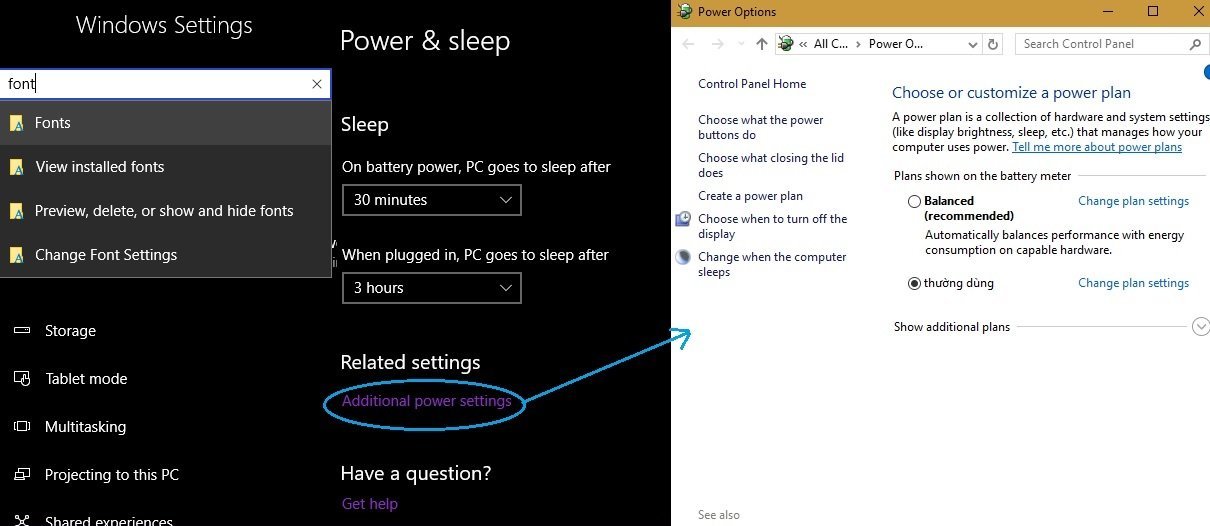
<p>Settings trên Windows 10 đã thay thế 80 &#8211; 90% chức năng của Control Panel. Những tính năng còn thiếu của Settings được bù đắp bằng cách tham chiếu đến các cửa sổ điều khiển bên Control Panel, ví dụ như khi bạn tìm kiếm <strong>Font Settings</strong> hoặc thiết lập <strong>Power Option</strong>.</p>
<figure id="attachment_54833" aria-describedby="caption-attachment-54833" style="width: 1210px" class="wp-caption aligncenter"><img loading="lazy" class="wp-image-54833 size-full" src="https://bloganchoi.com/wp-content/uploads/2017/07/power-plan.jpg" alt="power plan" width="1210" height="526" srcset="https://bloganchoi.com/wp-content/uploads/2017/07/power-plan.jpg 1210w, https://bloganchoi.com/wp-content/uploads/2017/07/power-plan-300x130.jpg 300w, https://bloganchoi.com/wp-content/uploads/2017/07/power-plan-768x334.jpg 768w, https://bloganchoi.com/wp-content/uploads/2017/07/power-plan-1024x445.jpg 1024w, https://bloganchoi.com/wp-content/uploads/2017/07/power-plan-696x303.jpg 696w, https://bloganchoi.com/wp-content/uploads/2017/07/power-plan-1068x464.jpg 1068w, https://bloganchoi.com/wp-content/uploads/2017/07/power-plan-966x420.jpg 966w" sizes="(max-width: 1210px) 100vw, 1210px" /><figcaption id="caption-attachment-54833" class="wp-caption-text">Font Setting và Power Option đều được tham chiếu từ Control Panel. Ảnh: Phu Hoang</figcaption></figure>
<h2><strong>Apps &amp; Feature và Default Apps</strong></h2>
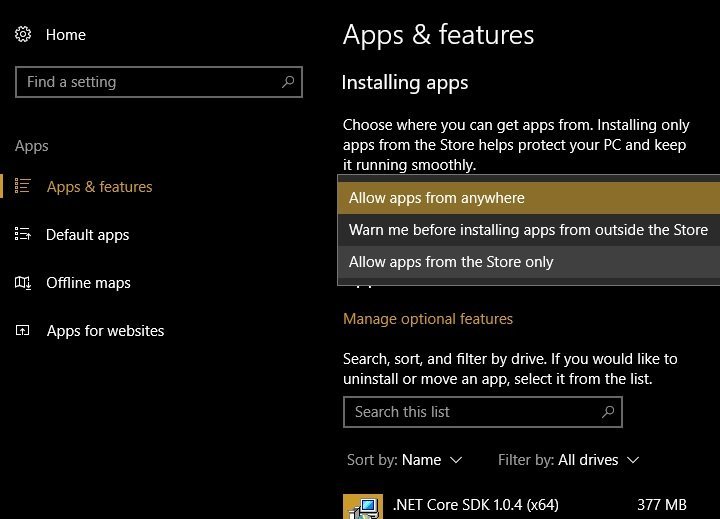
<p>Nếu Control Panel là bảng điều khiển duy nhất &#8220;đụng được&#8221; các Windows Features, thì Settings chứa đầy đủ các phương thức quản lý những gói ứng dụng đã cài. Giao diện Apps &amp; Features cho phép hiển thị ứng dụng đã cài trên ổ đĩa khác với ổ C, tính năng mà mãi đến Windows 10 mới có, và Modify ứng dụng đó (chuyển sang ổ khác), hoặc cài lại &#8211; gỡ bỏ.</p>
<figure id="attachment_54836" aria-describedby="caption-attachment-54836" style="width: 720px" class="wp-caption aligncenter"><img loading="lazy" class="wp-image-54836 size-full" src="https://bloganchoi.com/wp-content/uploads/2017/07/apps-and-features.jpg" alt="apps and features" width="720" height="519" srcset="https://bloganchoi.com/wp-content/uploads/2017/07/apps-and-features.jpg 720w, https://bloganchoi.com/wp-content/uploads/2017/07/apps-and-features-300x216.jpg 300w, https://bloganchoi.com/wp-content/uploads/2017/07/apps-and-features-324x235.jpg 324w, https://bloganchoi.com/wp-content/uploads/2017/07/apps-and-features-696x502.jpg 696w, https://bloganchoi.com/wp-content/uploads/2017/07/apps-and-features-583x420.jpg 583w" sizes="(max-width: 720px) 100vw, 720px" /><figcaption id="caption-attachment-54836" class="wp-caption-text">Trình quản lý Apps &amp; Features mạnh mẽ trong Settings của Windows 10. Ảnh: Phu Hoang</figcaption></figure>
<p>Ứng dụng trên nền Metro cài đặt từ Windows Store cũng được hiển thị vào danh sách này (và tất nhiên cho phép phân loại ra một category riêng). Ngoài ra, ở phần <strong>Manage Optional Features</strong> các gói ngôn ngữ &#8211; bàn phím đã cài, một số plug-in đặc thù của Windows Metro cũng có trong bảng dữ liệu này.</p>
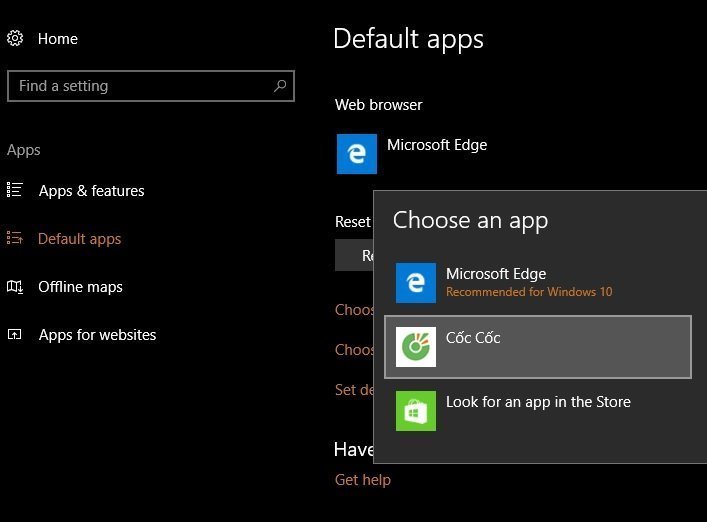
<p>Tuy nhiên, một thứ quan trọng không kém hai tính năng kể trên, mà đáng ra phải hỗ trợ từ Windows 7, là bảng quản lý Default Apps. Cửa sổ tùy chọn ứng dụng mặc định như thế này nên được tích hợp từ sớm chứ không phải mãi đến Windows 10 mới xuất hiện.</p>
<figure id="attachment_55218" aria-describedby="caption-attachment-55218" style="width: 707px" class="wp-caption aligncenter"><img loading="lazy" class="wp-image-55218 size-full" src="https://bloganchoi.com/wp-content/uploads/2017/07/coc-coc-trinh-duyet-mac-dinh.jpg" alt="Cốc cốc: trình duyệt mặc định" width="707" height="522" srcset="https://bloganchoi.com/wp-content/uploads/2017/07/coc-coc-trinh-duyet-mac-dinh.jpg 707w, https://bloganchoi.com/wp-content/uploads/2017/07/coc-coc-trinh-duyet-mac-dinh-300x221.jpg 300w, https://bloganchoi.com/wp-content/uploads/2017/07/coc-coc-trinh-duyet-mac-dinh-80x60.jpg 80w, https://bloganchoi.com/wp-content/uploads/2017/07/coc-coc-trinh-duyet-mac-dinh-696x514.jpg 696w, https://bloganchoi.com/wp-content/uploads/2017/07/coc-coc-trinh-duyet-mac-dinh-569x420.jpg 569w" sizes="(max-width: 707px) 100vw, 707px" /><figcaption id="caption-attachment-55218" class="wp-caption-text">Trình quản lý Default Apps. Ảnh: Phu Hoang</figcaption></figure>
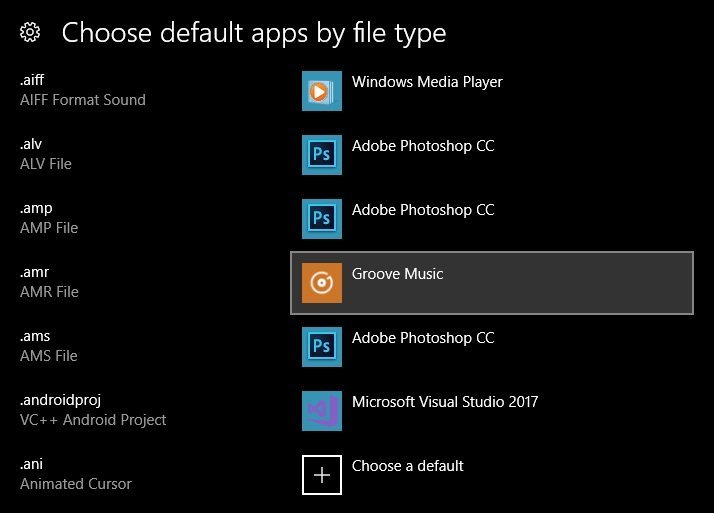
<p>Nếu click vào phần <strong>Choose default apps by file type</strong>, bảng quản lý còn cho phép chọn ứng dụng mặc định để mở từng loại đuôi file (phần mở rộng của tên). Đây là tính năng quản lý hay và trực quan nhất trên <strong>Apps &amp; Feature</strong> của Settings, mà mòn mỏi sau gần 10 năm Microsoft mới chịu thêm vào.</p>
<figure id="attachment_54838" aria-describedby="caption-attachment-54838" style="width: 714px" class="wp-caption aligncenter"><img loading="lazy" class="wp-image-54838 size-full" src="https://bloganchoi.com/wp-content/uploads/2017/07/chose-default.jpg" alt="choose default" width="714" height="513" srcset="https://bloganchoi.com/wp-content/uploads/2017/07/chose-default.jpg 714w, https://bloganchoi.com/wp-content/uploads/2017/07/chose-default-300x216.jpg 300w, https://bloganchoi.com/wp-content/uploads/2017/07/chose-default-696x500.jpg 696w, https://bloganchoi.com/wp-content/uploads/2017/07/chose-default-585x420.jpg 585w" sizes="(max-width: 714px) 100vw, 714px" /><figcaption id="caption-attachment-54838" class="wp-caption-text">Tùy chọn ứng dụng mặc định để &#8220;trị&#8221; từng định dạng file. Ảnh: Phu Hoang</figcaption></figure>
<h2><strong>Storage &#8211; Quản lý bộ nhớ chi tiết từng con ốc vít</strong></h2>
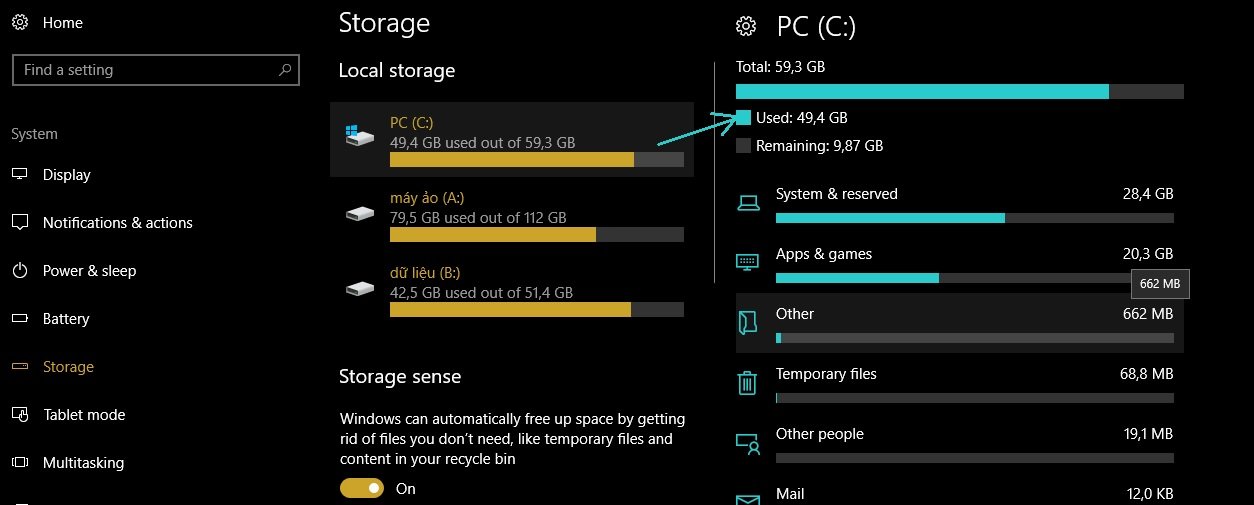
<p>Control Panel không đủ mạnh để quản lý bộ nhớ, nhưng Storage Settings của Windows 10 hoàn toàn làm được, thậm chí&#8230; dư thừa tính năng. Nó thống kê các loại dữ liệu trên những phân vùng dữ liệu Primary hiện (không bị ẩn) của ổ cứng mà Windows có thể đọc được, thông báo khi bộ nhớ bị đầy. Bạn hãy vào <em><strong>Settings -&gt; System -&gt; Storage</strong></em> để mò mẫm thử.</p>
<figure id="attachment_54840" aria-describedby="caption-attachment-54840" style="width: 1254px" class="wp-caption aligncenter"><img loading="lazy" class="wp-image-54840 size-full" src="https://bloganchoi.com/wp-content/uploads/2017/07/local-storage.jpg" alt="local storage" width="1254" height="505" srcset="https://bloganchoi.com/wp-content/uploads/2017/07/local-storage.jpg 1254w, https://bloganchoi.com/wp-content/uploads/2017/07/local-storage-300x121.jpg 300w, https://bloganchoi.com/wp-content/uploads/2017/07/local-storage-768x309.jpg 768w, https://bloganchoi.com/wp-content/uploads/2017/07/local-storage-1024x412.jpg 1024w, https://bloganchoi.com/wp-content/uploads/2017/07/local-storage-696x280.jpg 696w, https://bloganchoi.com/wp-content/uploads/2017/07/local-storage-1068x430.jpg 1068w, https://bloganchoi.com/wp-content/uploads/2017/07/local-storage-1043x420.jpg 1043w" sizes="(max-width: 1254px) 100vw, 1254px" /><figcaption id="caption-attachment-54840" class="wp-caption-text">Storage Settings phân loại từng nhóm tập tin, thống kê dung lượng. Ảnh: Phu Hoang</figcaption></figure>
<p>Vào tùy chọn ổ C, và đợi một chút để load xong bảng thống kê dữ liệu trên phân vùng ổ đĩa. Tùy vào ổ cứng của bạn mà cửa sổ load sẽ nhanh hay chậm.</p>
<p>Nếu bạn muốn máy tính load và ghi dữ liệu nhanh hơn, cứ mạnh dạn thay ổ cứng SSD sẽ thấy được sự khác biệt. <span style="color: #000000;">Bạn hãy</span> chọn mua ổ SSD phù hợp <span style="color: #000000;">với nhu cầu, nó rất đáng đồng tiền đấy. Ổ cứng SSD kết hợp với tính năng Fast Boot sẽ cho tốc độ nhanh gấp vài lần so với HDD truyền thống.<br />
</span></p>
<p><a href="https://bloganchoi.com/xredirect/?AID=2001205&PID=50915&afflink=1&nofollow=1&noindex=1&order=1&outlink=1&r=https%3A%2F%2Ftiki.vn%2Fo-cung-ssd%2Fc2146%3Forder%3D1%26xaff_net%3Doptimisemedia&rdtp=header&utm_campaign=bloganchoi.com%7C%7Carticle%7C%7Clink&utm_content=&utm_medium=%7C%7Chttps%3A%2F%2Ftiki.vn%2Fo-cung-ssd%2Fc2146%3Forder%3Dtop_seller%7C%7Cafflink%7C%7C&utm_source=https%3A%2F%2Fbloganchoi.com%2Fnhung-tinh-nang-noi-bat-cua-settings-tren-windows-10%2F&utm_term=&wafx=1&wpaflt=80c08a46&wpaflt_url_domain=tiki.vn&wpaflt_url_host=tiki.vn&wppepvndtecrv=26wcyfAHufh3nSSLitsBGxCnvTqMPxzNI27nyVV2QiQZjaI6gTvo3KNo7NZsZulaorSzp-7PevvQRPnXlUexyQFEVqsKlhNzFg9xaW3p2qd5eZ4nKWrhZrwOQ5OJ9WAYgVrj9RSA_TTadFCb329ay4ZRphSoeqBofe6wcibw2z5Xg-mzX9S2G7ADKRpvaWNiIUr_wHm818NHRx4aO82YQFUnUQzgMYLVnsNvpgL9IPQMoAtwnQ0-b9hsuP2Mz4LPvBe1EXorX2wW3yNcUuw5ntarSwHNcrytcpK_eY2-981Xhsj5_mmf5GNupEVRIAtVtODDEHsJp-h0J590W0jEi_042Hb3mR-cZEa3db2LzhPRhbTmcePHVwubWcaLVjxxMm7BShkfX5XS0141tjhl6JxCMxs2lVJ2KPD5pKwKAQLZ7WR8zZpBA0znBeBe5yp0hosH6srWBK1rJHGJE73ZNdomyEiUBqOr3RSgI4_aM9TyR9JGk7fxX-ogD3qxVUl02n4F4qOqQlSu3wxFOeLne93pfT9KAbB4u8_xylPkvgHDenztVtj8XjdRCQuxy79itpXP8Os65QIG_WRZ4xV4o9s-Xf5OID4_jhjeAgWiyF_wN5NOQ97ugTOTmKMcze7joLl7kmcRsNj4YQbfWCchkVKBiNuVvyC63zLxrYkjm8YLYF7FdQQYnwP75t0H4FTrYYjF_LfbXoGOuQ84DTpq-8VP7J629YSFTzDPUI_jYmHaH7htcK16UMN3I_SOjf2FY2ybxdBBi6mHAK5wxX4pIsGFj9idmmFwe9YkMdALKZtyIASsmy6KDPyvMOPCIoODazU-5IRsjoOxmv05e30FsGhpmWw_9iwCCGtF9k_DmBg_FsmWAi6KlvJmJO_Mx5VP9Ol_kr44fkuWgKODy9WkXZhEkFMummWKS1KAcvBHWDgV1U3P2U5DMDQMv564QOMb5vplxz8.&xaff_net=optimisemedia" target="_blank" rel="nofollow"><em><strong>Bạn có thể đặt mua ổ cứng SSD tại đây.</strong></em></a></p>
<p>Biểu đồ hiện rất chi tiết phần dữ liệu cho System &amp; Reserved, Apps &amp; Games, các dữ liệu khác (Other) không quản lý, và cả các file temporary. Nếu chọn vào phần Apps, nó sẽ tham chiếu đến cửa sổ Apps &amp; Features đã nêu ở mục trên. Chọn System, nó sẽ hiển thị phần dung lượng đã dùng cho file hệ thống, phần dung lượng cho page file, swap file&#8230;</p>
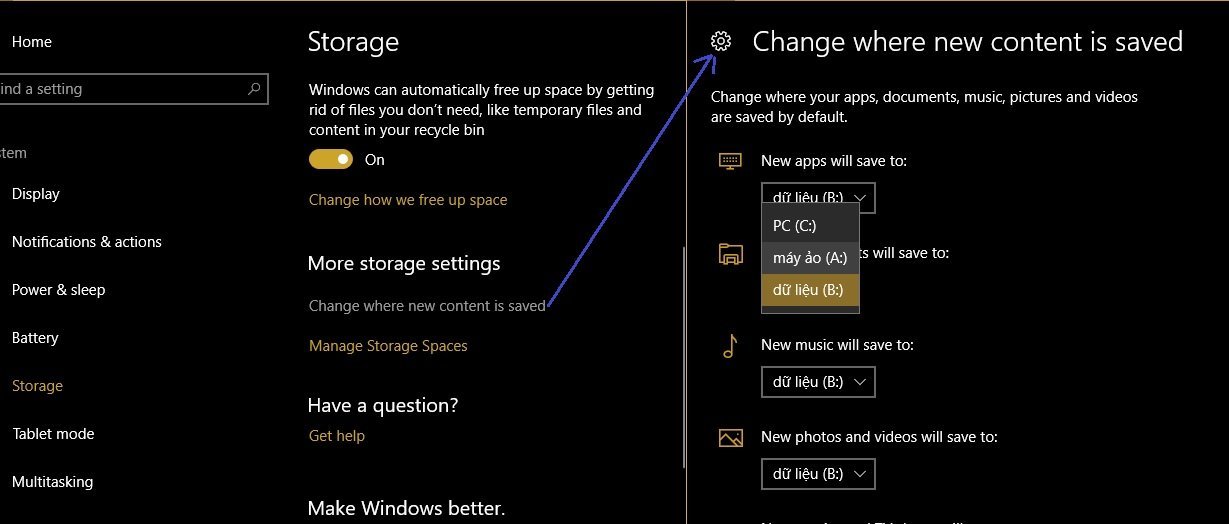
<figure id="attachment_54842" aria-describedby="caption-attachment-54842" style="width: 1229px" class="wp-caption aligncenter"><img loading="lazy" class="wp-image-54842 size-full" src="https://bloganchoi.com/wp-content/uploads/2017/07/save-new-content.jpg" alt="save new content" width="1229" height="524" srcset="https://bloganchoi.com/wp-content/uploads/2017/07/save-new-content.jpg 1229w, https://bloganchoi.com/wp-content/uploads/2017/07/save-new-content-300x128.jpg 300w, https://bloganchoi.com/wp-content/uploads/2017/07/save-new-content-768x327.jpg 768w, https://bloganchoi.com/wp-content/uploads/2017/07/save-new-content-1024x437.jpg 1024w, https://bloganchoi.com/wp-content/uploads/2017/07/save-new-content-696x297.jpg 696w, https://bloganchoi.com/wp-content/uploads/2017/07/save-new-content-1068x455.jpg 1068w, https://bloganchoi.com/wp-content/uploads/2017/07/save-new-content-985x420.jpg 985w" sizes="(max-width: 1229px) 100vw, 1229px" /><figcaption id="caption-attachment-54842" class="wp-caption-text">Các Apps tải từ Store sẽ được lưu ở phân vùng bạn muốn. Ảnh: Phu Hoang</figcaption></figure>
<p class="size-full wp-image-54840">Tuy nhiên, tính năng phụ của trình quản lý này hữu ích không kém. Đó là cho phép các ứng dụng cài đặt từ Windows Store, những dữ liệu tải về&#8230; mặc định lưu vào phân vùng mà bạn tùy thích, như vậy ổ đĩa C giảm tải đáng kể. Cách vào: ở phần <strong>More storage settings</strong>, chọn <strong>Change where new content is saved</strong>.</p>
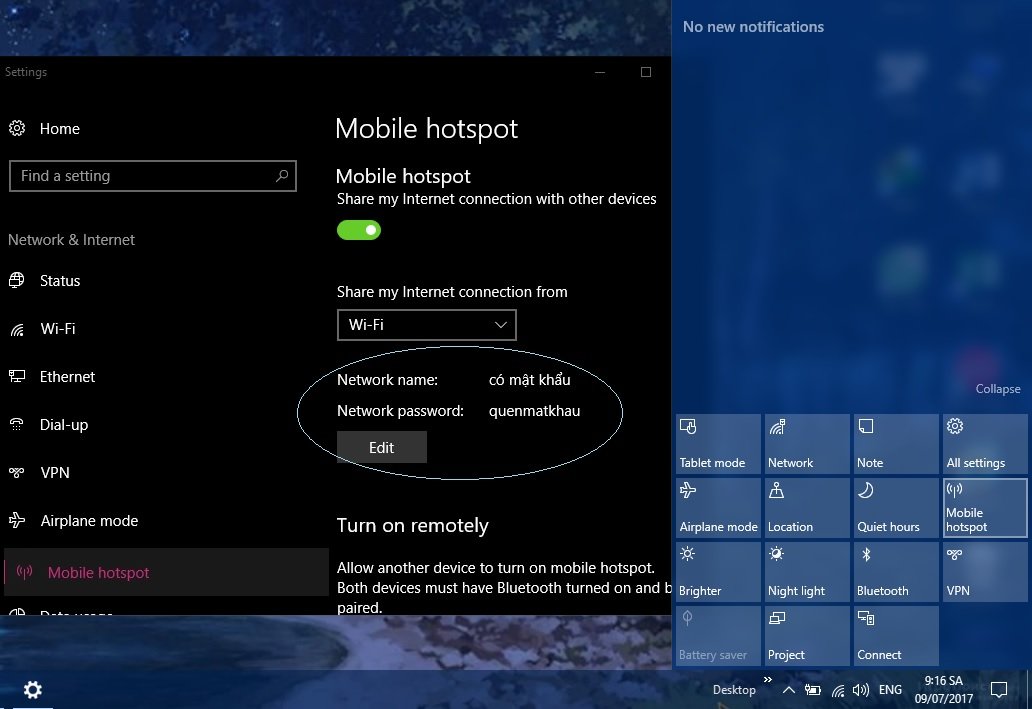
<h2><strong>Mobile hotspot &#8211; Chỉ có trên Settings của Windows 10 version 1703</strong></h2>
<p>Bạn đọc lưu ý, tính năng phát wifi này chỉ có ở bản cập nhật Creator Update, tức là version 1703 trở về sau mà thôi. Các build Insider Preview cũng được trang bị, ít nhiều có lỗi vặt. Còn riêng phiên bản Enterprise LTSB và các version từ 1607 (Anniversary) trở về trước không có sẵn Mobile hotspot. Có 2 cách truy cập vào nó:</p>
<ul>
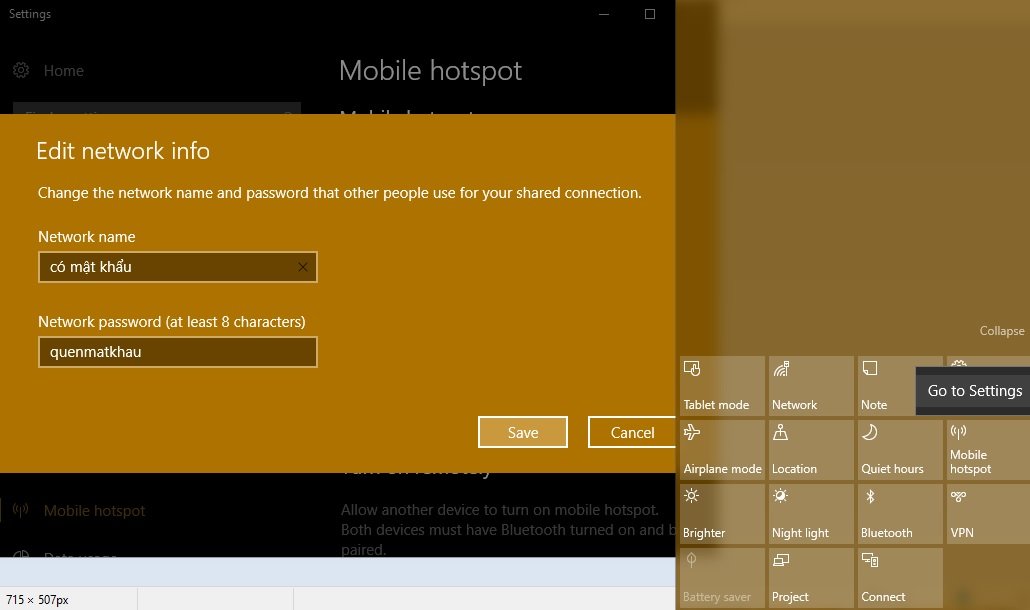
<li>Cách thứ nhất, vì quick button của Mobile hotspot nằm trong ngay thanh thông báo (notification bar) ở dưới góc phải thanh taskbar, bạn có thể click chuột phải vào <strong>Mobile hotspot</strong>, chọn<strong> Go to Settings</strong>.</li>
</ul>
<figure id="attachment_54839" aria-describedby="caption-attachment-54839" style="width: 1030px" class="wp-caption aligncenter"><img loading="lazy" class="wp-image-54839 size-full" src="https://bloganchoi.com/wp-content/uploads/2017/07/edit-hotspot.jpg" alt="edit hotspot" width="1030" height="610" srcset="https://bloganchoi.com/wp-content/uploads/2017/07/edit-hotspot.jpg 1030w, https://bloganchoi.com/wp-content/uploads/2017/07/edit-hotspot-300x178.jpg 300w, https://bloganchoi.com/wp-content/uploads/2017/07/edit-hotspot-768x455.jpg 768w, https://bloganchoi.com/wp-content/uploads/2017/07/edit-hotspot-1024x606.jpg 1024w, https://bloganchoi.com/wp-content/uploads/2017/07/edit-hotspot-696x412.jpg 696w, https://bloganchoi.com/wp-content/uploads/2017/07/edit-hotspot-709x420.jpg 709w" sizes="(max-width: 1030px) 100vw, 1030px" /><figcaption id="caption-attachment-54839" class="wp-caption-text">Vào Notification Center -&gt; click chuột phải Mobile hotspot -&gt; open Setting. Ảnh: Phu Hoang</figcaption></figure>
<ul>
<li>Còn cách thứ hai: vào thủ công <em><strong>Settings -&gt; Network and Internet -&gt; Mobile hotspot</strong></em>. Cũng có thể nhập tìm kiếm trong Settings cho cùng kết quả. Trong giao diện quản lý, hãy đặt lại mật khẩu và ID; nếu kích hoạt Mobile hotspot, nó hiện ra chi tiết những thiết bị nào đã kết nối wifi, tối đa cho phép 8 thiết bị kết nối cùng lúc.</li>
</ul>
<figure id="attachment_54841" aria-describedby="caption-attachment-54841" style="width: 1032px" class="wp-caption aligncenter"><img loading="lazy" class="wp-image-54841 size-full" src="https://bloganchoi.com/wp-content/uploads/2017/07/mobile-hotspot.jpg" alt="mobile hotspot" width="1032" height="709" srcset="https://bloganchoi.com/wp-content/uploads/2017/07/mobile-hotspot.jpg 1032w, https://bloganchoi.com/wp-content/uploads/2017/07/mobile-hotspot-300x206.jpg 300w, https://bloganchoi.com/wp-content/uploads/2017/07/mobile-hotspot-768x528.jpg 768w, https://bloganchoi.com/wp-content/uploads/2017/07/mobile-hotspot-1024x704.jpg 1024w, https://bloganchoi.com/wp-content/uploads/2017/07/mobile-hotspot-100x70.jpg 100w, https://bloganchoi.com/wp-content/uploads/2017/07/mobile-hotspot-218x150.jpg 218w, https://bloganchoi.com/wp-content/uploads/2017/07/mobile-hotspot-696x478.jpg 696w, https://bloganchoi.com/wp-content/uploads/2017/07/mobile-hotspot-611x420.jpg 611w" sizes="(max-width: 1032px) 100vw, 1032px" /><figcaption id="caption-attachment-54841" class="wp-caption-text">Dù hơi muộn, cuối cùng thì Windows 10 cũng phát được wifi trực tiếp mà không phải chỉnh gì. Ảnh: Phu Hoang</figcaption></figure>
<p>Ở version 1703, dù độ ổn định không bằng version 1607 nhưng các tính năng mới mẻ như Mobile hotspot được đánh giá cao. Nếu thật sự cần phát wifi, bạn hãy nhanh chóng update lên 1703 và trải nghiệm.</p>
<p><em><strong>Mời bạn đọc thêm bài viết: <a href="https://bloganchoi.com/tat-ung-dung-chay-nen-tren-windows-10/">Tắt ứng dụng chạy nền trên Windows 10</a></strong></em></p>
<p class="wp-image-54470 size-full">Sau khi đọc bài hướng dẫn, bạn đọc đã biết hoặc đã thử được những <strong><a href="https://bloganchoi.com/tin/cong-nghe/thu-thuat/"  target="_bank"   title="thủ thuật">thủ thuật</a></strong> Window 10 chưa? Dù sao, bạn cũng không nên lạm dụng Settings trên Windows 10 hoặc quá phụ thuộc vào Control Panel. BlogAnChoi khuyến khích nên sử dụng cân đối cả 2, để có thao tác nhanh nhất cho chính mình.</p>
<p class="wp-image-54470 size-full">Hãy tiếp tục theo dõi BlogAnChoi để biết thêm nhiều thủ thuật và các tin tức về công nghệ và cuộc sống nhé!</p>]]></content>
		
					<link rel="replies" type="text/html" href="https://bloganchoi.com/nhung-tinh-nang-noi-bat-cua-settings-tren-windows-10/#comments" thr:count="0" />
			<link rel="replies" type="application/atom+xml" href="https://bloganchoi.com/nhung-tinh-nang-noi-bat-cua-settings-tren-windows-10/feed/atom/" thr:count="0" />
			<thr:total>0</thr:total>
			</entry>
	</feed>