<?xml version="1.0" encoding="UTF-8"?><feed
	xmlns="http://www.w3.org/2005/Atom"
	xmlns:thr="http://purl.org/syndication/thread/1.0"
	xml:lang="vi"
	
	xmlns:georss="http://www.georss.org/georss"
	xmlns:geo="http://www.w3.org/2003/01/geo/wgs84_pos#"
	>
	<title type="text">Windows PC Health Check &#8211; BlogAnChoi</title>
	<subtitle type="text">Blog giải trí về du lịch, làm đẹp, quán ngon dành cho giới trẻ.</subtitle>

	<updated>2021-06-28T05:11:43Z</updated>

	<link rel="alternate" type="text/html" href="https://bloganchoi.com" />
	<id>https://bloganchoi.com/feed/atom/</id>
	<link rel="self" type="application/atom+xml" href="https://bloganchoi.com/tag/windows-pc-health-check/feed/atom/" />

	
	<entry>
		<author>
			<name>Dũng Nguyễn</name>
					</author>

		<title type="html"><![CDATA[Windows 11 &#8211; Vì sao máy tính cấu hình khủng chưa chắc chạy được?]]></title>
		<link rel="alternate" type="text/html" href="https://bloganchoi.com/he-dieu-hanh-windows-11/" />

		<id>https://bloganchoi.com/?p=395140</id>
		<updated>2021-06-28T05:11:43Z</updated>
		<published>2021-06-28T05:11:43Z</published>
		<category scheme="https://bloganchoi.com" term="Ứng dụng - Phần mềm" /><category scheme="https://bloganchoi.com" term="cách cài windows 11" /><category scheme="https://bloganchoi.com" term="cấu hình máy để cài windows 11" /><category scheme="https://bloganchoi.com" term="chip tpm" /><category scheme="https://bloganchoi.com" term="hệ điều hành windows" /><category scheme="https://bloganchoi.com" term="kiểm tra" /><category scheme="https://bloganchoi.com" term="laptop windows" /><category scheme="https://bloganchoi.com" term="máy tính" /><category scheme="https://bloganchoi.com" term="phần mềm" /><category scheme="https://bloganchoi.com" term="thiết bị" /><category scheme="https://bloganchoi.com" term="TPM 2 0" /><category scheme="https://bloganchoi.com" term="Windows" /><category scheme="https://bloganchoi.com" term="Windows 11" /><category scheme="https://bloganchoi.com" term="Windows PC Health Check" />
		<summary type="html"><![CDATA[Tối ngày 24/06/2021 (theo giờ Việt Nam), Microsoft đã chính thức ra mắt người dùng toàn cầu Windows 11 với nhiều cải tiến mới. Vậy cấu hình để cài Windows 11 là gì, kiểm tra máy bạn có chạy được Windows 11 bằng cách nào, hay vì sao những chiếc máy tính cấu hình khủng]]></summary>

					<content type="html" xml:base="https://bloganchoi.com/he-dieu-hanh-windows-11/"><![CDATA[<p><strong>Tối ngày 24/06/2021 (theo giờ Việt Nam), Microsoft đã chính thức ra mắt người dùng toàn cầu Windows 11 với nhiều cải tiến mới. Vậy cấu hình để cài Windows 11 là gì, kiểm tra máy bạn có chạy được Windows 11 bằng cách nào, hay vì sao những chiếc máy tính cấu hình khủng chưa chắc đã chạy được Windows 11? BlogAnChoi sẽ giải đáp những câu hỏi đó thông qua bài viết chi tiết dưới đây. </strong></p>
<p><span id="more-395140"></span></p>
<figure id="attachment_395143" aria-describedby="caption-attachment-395143" style="width: 1000px" class="wp-caption aligncenter"><img loading="lazy" class="wp-image-395143 size-full" title="Sau 6 năm kể từ Windows 10, người dùng lại tiếp tục chờ đón phiên bản Windows tiếp theo với những cải tiến quan trọng (Ảnh: Internet)." src="https://bloganchoi.com/wp-content/uploads/2021/06/windows-11-cai-dat.jpg" alt="Sau 6 năm kể từ Windows 10, người dùng lại tiếp tục chờ đón phiên bản Windows tiếp theo với những cải tiến quan trọng (Ảnh: Internet)." width="1000" height="563" srcset="https://bloganchoi.com/wp-content/uploads/2021/06/windows-11-cai-dat.jpg 1000w, https://bloganchoi.com/wp-content/uploads/2021/06/windows-11-cai-dat-300x169.jpg 300w, https://bloganchoi.com/wp-content/uploads/2021/06/windows-11-cai-dat-768x432.jpg 768w, https://bloganchoi.com/wp-content/uploads/2021/06/windows-11-cai-dat-696x392.jpg 696w, https://bloganchoi.com/wp-content/uploads/2021/06/windows-11-cai-dat-746x420.jpg 746w" sizes="(max-width: 1000px) 100vw, 1000px" /><figcaption id="caption-attachment-395143" class="wp-caption-text">Sau 6 năm kể từ Windows 10, người dùng lại tiếp tục chờ đón phiên bản Windows tiếp theo với những cải tiến quan trọng (Ảnh: Internet).</figcaption></figure>
<h2><strong>Cấu hình tối thiểu để cài đặt Windows 11 </strong></h2>
<ul>
<li><strong>Bộ vi xử lý:</strong> 1 GHz hoặc nhanh hơn với 2 lõi trở lên</li>
<li><strong>RAM:</strong> 4 GB trở lên</li>
<li><strong>Ổ cứng:</strong> 64 GB hoặc cao hơn</li>
<li><strong>Firmware:</strong> Hỗ trợ chế độ UEFI</li>
<li><strong>Đồ họa:</strong> Đồ họa tương thích DirectX 12 hoặc WDDM 2.x</li>
<li><strong>TPM 2.0:</strong> Con chip Trusted Platform Module (TPM) thường được trang bị trên hầu hết các thiết bị ra đời từ năm 2016 trở đi (đây chính là lý do khiến nhiều PC cấu hình khủng không thể chạy được Windows 11).</li>
<li><strong>Kích thước và độ phân giải màn hình:</strong> Các thiết bị có màn hình lớn hơn 9 inch với độ phân giải tối thiểu là HD (720p)</li>
<li><strong>Yêu cầu:</strong> Cần có tài khoản Microsoft và kết nối Internet để hoàn tất các bước thiết lập khi cài đặt Windows 11.</li>
</ul>
<h2><strong>Kiểm tra xem máy tính có lên Windows 11 được hay không bằng Windows PC Health Check</strong></h2>
<p><strong>Bước 1:</strong> Bạn tải về ứng dụng Windows PC Health Check của Microsoft.</p>
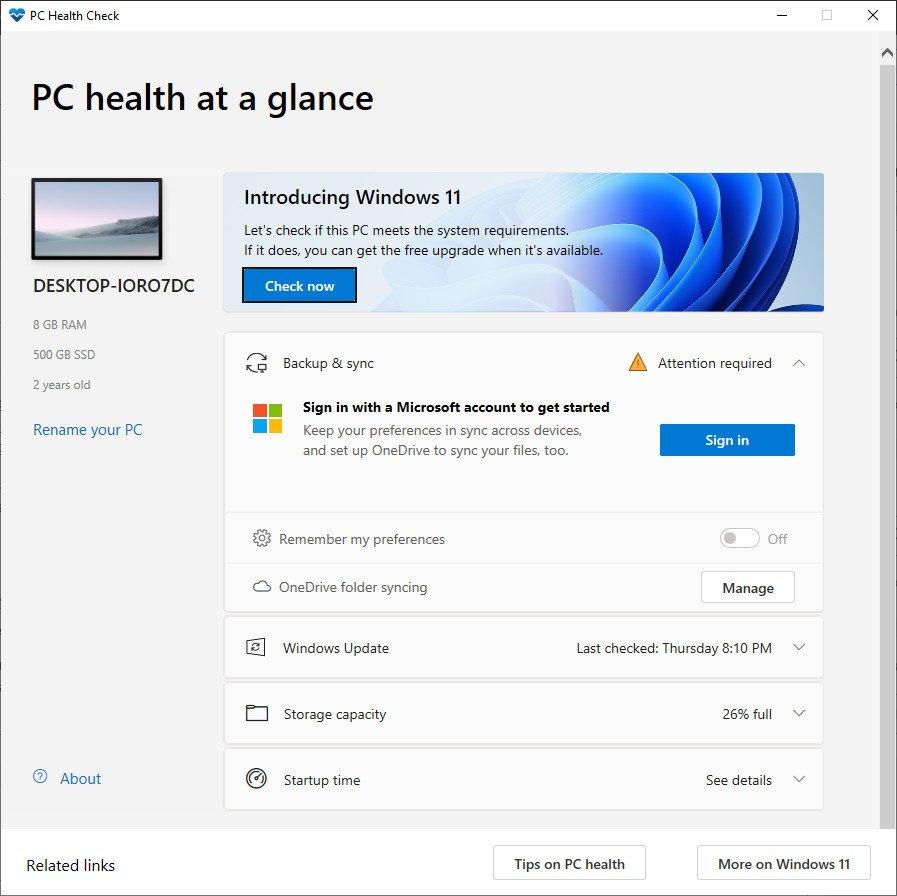
<p><b>Bước 2: </b>Cài đặt thành công PC Health Check, tại banner Introducing Windows 11, bạn chọn <em>Check now</em>.</p>
<figure id="attachment_395173" aria-describedby="caption-attachment-395173" style="width: 897px" class="wp-caption aligncenter"><img loading="lazy" class="wp-image-395173 size-full" title="Giao diện của Windows PC Health Check (Ảnh: Internet)." src="https://bloganchoi.com/wp-content/uploads/2021/06/windows-11-pc-health-check-check-now.jpg" alt="Giao diện của Windows PC Health Check (Ảnh: Internet)." width="897" height="896" srcset="https://bloganchoi.com/wp-content/uploads/2021/06/windows-11-pc-health-check-check-now.jpg 897w, https://bloganchoi.com/wp-content/uploads/2021/06/windows-11-pc-health-check-check-now-300x300.jpg 300w, https://bloganchoi.com/wp-content/uploads/2021/06/windows-11-pc-health-check-check-now-150x150.jpg 150w, https://bloganchoi.com/wp-content/uploads/2021/06/windows-11-pc-health-check-check-now-768x767.jpg 768w, https://bloganchoi.com/wp-content/uploads/2021/06/windows-11-pc-health-check-check-now-696x695.jpg 696w, https://bloganchoi.com/wp-content/uploads/2021/06/windows-11-pc-health-check-check-now-420x420.jpg 420w" sizes="(max-width: 897px) 100vw, 897px" /><figcaption id="caption-attachment-395173" class="wp-caption-text">Giao diện của Windows PC Health Check (Ảnh: Internet).</figcaption></figure>
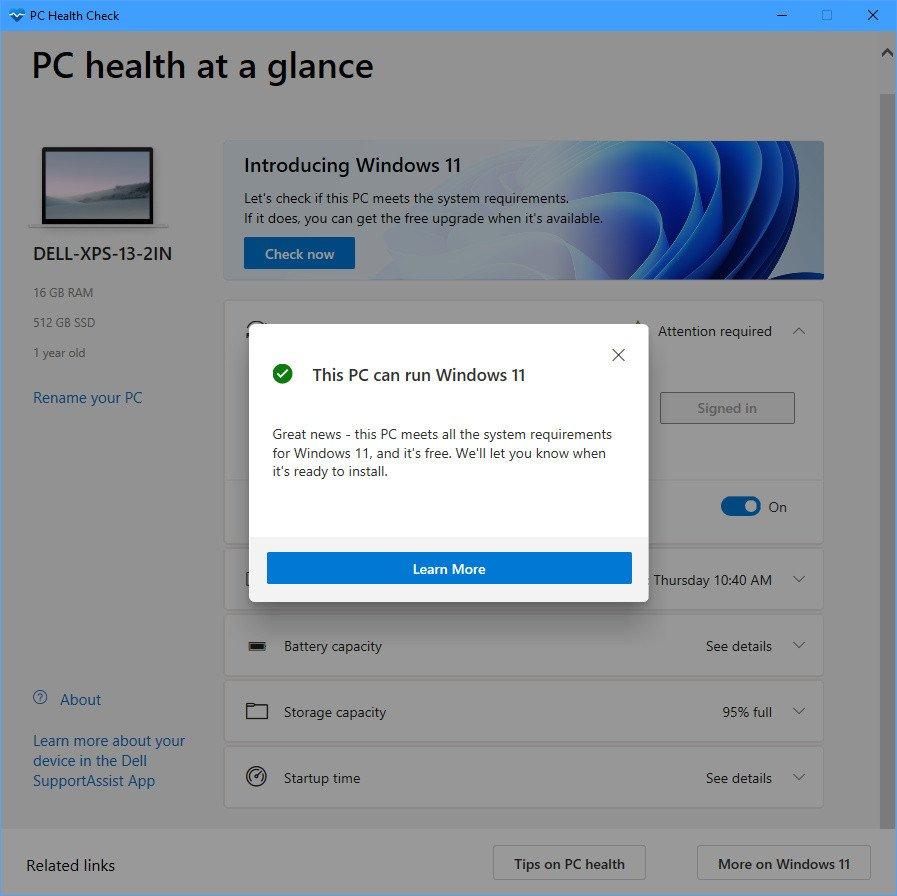
<p><b>Bước 3. </b>Nếu máy bạn đủ điều kiện nâng cấp lên Windows 11, ứng dụng sẽ hiện tick xanh và hiện thông báo <em>This PC can run Windows 11.</em></p>
<figure id="attachment_395174" aria-describedby="caption-attachment-395174" style="width: 897px" class="wp-caption aligncenter"><img loading="lazy" class="wp-image-395174 size-full" title="PC đủ điều kiện nâng cấp lên Windows 11 (Ảnh: Internet)." src="https://bloganchoi.com/wp-content/uploads/2021/06/windows-pc-health-check-4.jpg" alt="PC đủ điều kiện nâng cấp lên Windows 11 (Ảnh: Internet)." width="897" height="896" srcset="https://bloganchoi.com/wp-content/uploads/2021/06/windows-pc-health-check-4.jpg 897w, https://bloganchoi.com/wp-content/uploads/2021/06/windows-pc-health-check-4-300x300.jpg 300w, https://bloganchoi.com/wp-content/uploads/2021/06/windows-pc-health-check-4-150x150.jpg 150w, https://bloganchoi.com/wp-content/uploads/2021/06/windows-pc-health-check-4-768x767.jpg 768w, https://bloganchoi.com/wp-content/uploads/2021/06/windows-pc-health-check-4-696x695.jpg 696w, https://bloganchoi.com/wp-content/uploads/2021/06/windows-pc-health-check-4-420x420.jpg 420w" sizes="(max-width: 897px) 100vw, 897px" /><figcaption id="caption-attachment-395174" class="wp-caption-text">PC đủ điều kiện nâng cấp lên Windows 11 (Ảnh: Internet).</figcaption></figure>
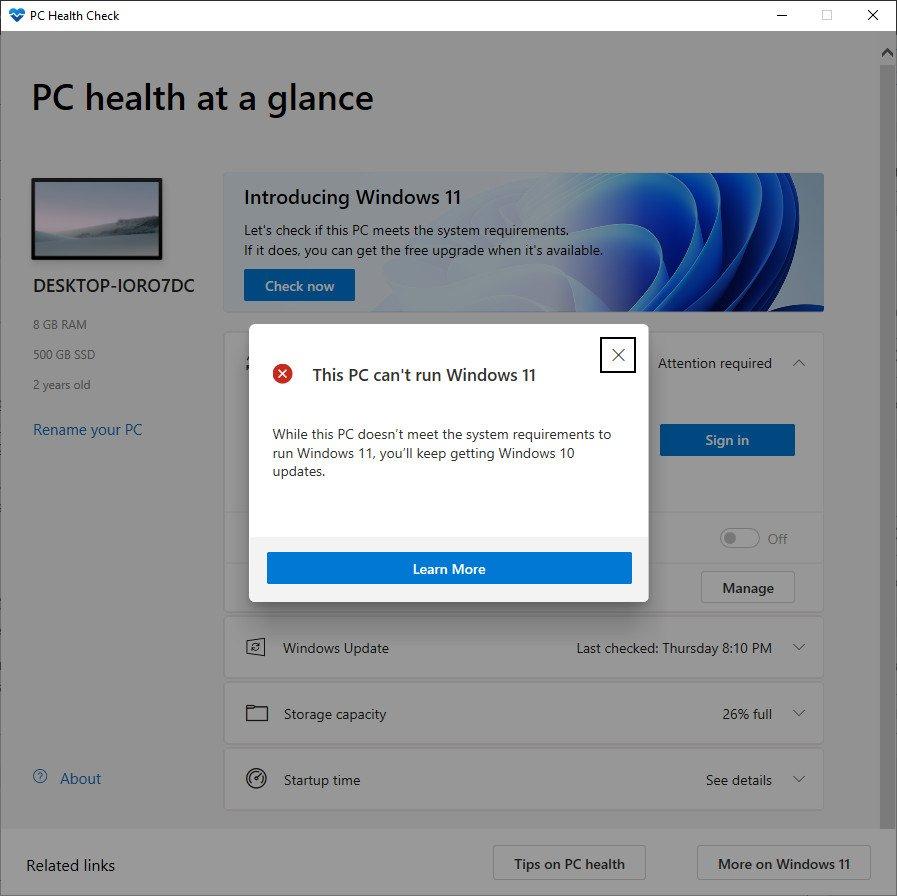
<figure id="attachment_395170" aria-describedby="caption-attachment-395170" style="width: 897px" class="wp-caption aligncenter"><img loading="lazy" class="wp-image-395170 size-full" title="Thông báo máy tính bạn không đủ điều kiện nâng cấp Windows 11 (Ảnh: Internet)." src="https://bloganchoi.com/wp-content/uploads/2021/06/windows-11-pc-health-check-001.jpg" alt="Thông báo máy tính bạn không đủ điều kiện nâng cấp Windows 11 (Ảnh: Internet)." width="897" height="896" srcset="https://bloganchoi.com/wp-content/uploads/2021/06/windows-11-pc-health-check-001.jpg 897w, https://bloganchoi.com/wp-content/uploads/2021/06/windows-11-pc-health-check-001-300x300.jpg 300w, https://bloganchoi.com/wp-content/uploads/2021/06/windows-11-pc-health-check-001-150x150.jpg 150w, https://bloganchoi.com/wp-content/uploads/2021/06/windows-11-pc-health-check-001-768x767.jpg 768w, https://bloganchoi.com/wp-content/uploads/2021/06/windows-11-pc-health-check-001-696x695.jpg 696w, https://bloganchoi.com/wp-content/uploads/2021/06/windows-11-pc-health-check-001-420x420.jpg 420w" sizes="(max-width: 897px) 100vw, 897px" /><figcaption id="caption-attachment-395170" class="wp-caption-text">Thông báo máy tính bạn không đủ điều kiện nâng cấp Windows 11 (Ảnh: Internet).</figcaption></figure>
<p><iframe loading="lazy" class="youtube-player" width="560" height="315" src="https://www.youtube.com/embed/E4e6c1uhR5g?version=3&#038;rel=1&#038;showsearch=0&#038;showinfo=1&#038;iv_load_policy=1&#038;fs=1&#038;hl=vi&#038;autohide=2&#038;wmode=transparent" allowfullscreen="true" style="border:0;" sandbox="allow-scripts allow-same-origin allow-popups allow-presentation"></iframe></p>
<h2><strong>Nghịch lý khó hiểu của Windows 11: Máy cấu hình khủng chưa chắc chạy được?</strong></h2>
<p>Jacob Roach, một biên tập viên của DigitalTrends đã gặp phải vấn đề dở khóc dở cười như vậy. Anh sở hữu một máy tính chơi game với card đồ hoạ RTX 2080 và chip Intel Core i9-10900K. Anh rất háo hức cài đặt Windows 11 lên chiếc PC của mình để trải nghiệm hệ điều hành mới nhất.</p>
<p>Nhưng chiếc PC của anh không cài đặt được, và mọi chuyện bắt nguồn từ Trusted Module Platform (TPM) 2.0.</p>
<h3><strong>Chip TPM là gì?</strong></h3>
<ul>
<li>TPM là một con chip bảo mật được hàn lên bo mạch chủ của máy tính.</li>
<li>TPM có nhiệm vụ lưu trữ các khoá bảo mật (key) để xử lý các vấn đề mã hoá với BitLocker hoặc lưu trữ dữ liệu sinh trắc học cho Windows Hello.</li>
<li>Do chip TPM được hàn lên bo mạch chủ, Windows 11 có thể truy cập nó trực tiếp mà không cần kết nối Internet hay sự can thiệp của bên ngoài.</li>
</ul>
<p><iframe loading="lazy" class="youtube-player" width="640" height="360" src="https://www.youtube.com/embed/26BkLs9DiiA?version=3&#038;rel=1&#038;showsearch=0&#038;showinfo=1&#038;iv_load_policy=1&#038;fs=1&#038;hl=vi&#038;autohide=2&#038;wmode=transparent" allowfullscreen="true" style="border:0;" sandbox="allow-scripts allow-same-origin allow-popups allow-presentation"></iframe></p>
<h3><strong>Chip TPM được trang bị cho những thiết bị nào?</strong></h3>
<p>Kể từ năm 2016, Windows đã yêu cầu nhà sản xuất PC tích hợp chip TPM 2.0 trên các máy tính chạy Windows. Do chỉ là yêu cầu, không phải quy định chung nên vẫn có khả năng bo mạch chủ bạn sở hữu gần đây không có con chip TPM 2.0.</p>
<p>Nhiều bo mạch chủ phổ thông không cài đặt chip TPM, ví dụ như bo mạch Asus Tuf Gaming Z490-Plus của Jacob.</p>
<h3><strong>Cách kiểm tra máy tính của bạn có hỗ trợ chip TPM hay không</strong></h3>
<p><strong>Bước 1.</strong> Bạn bấm tổ hợp phím Windows + R, rồi gõ “tpm.msc”.</p>
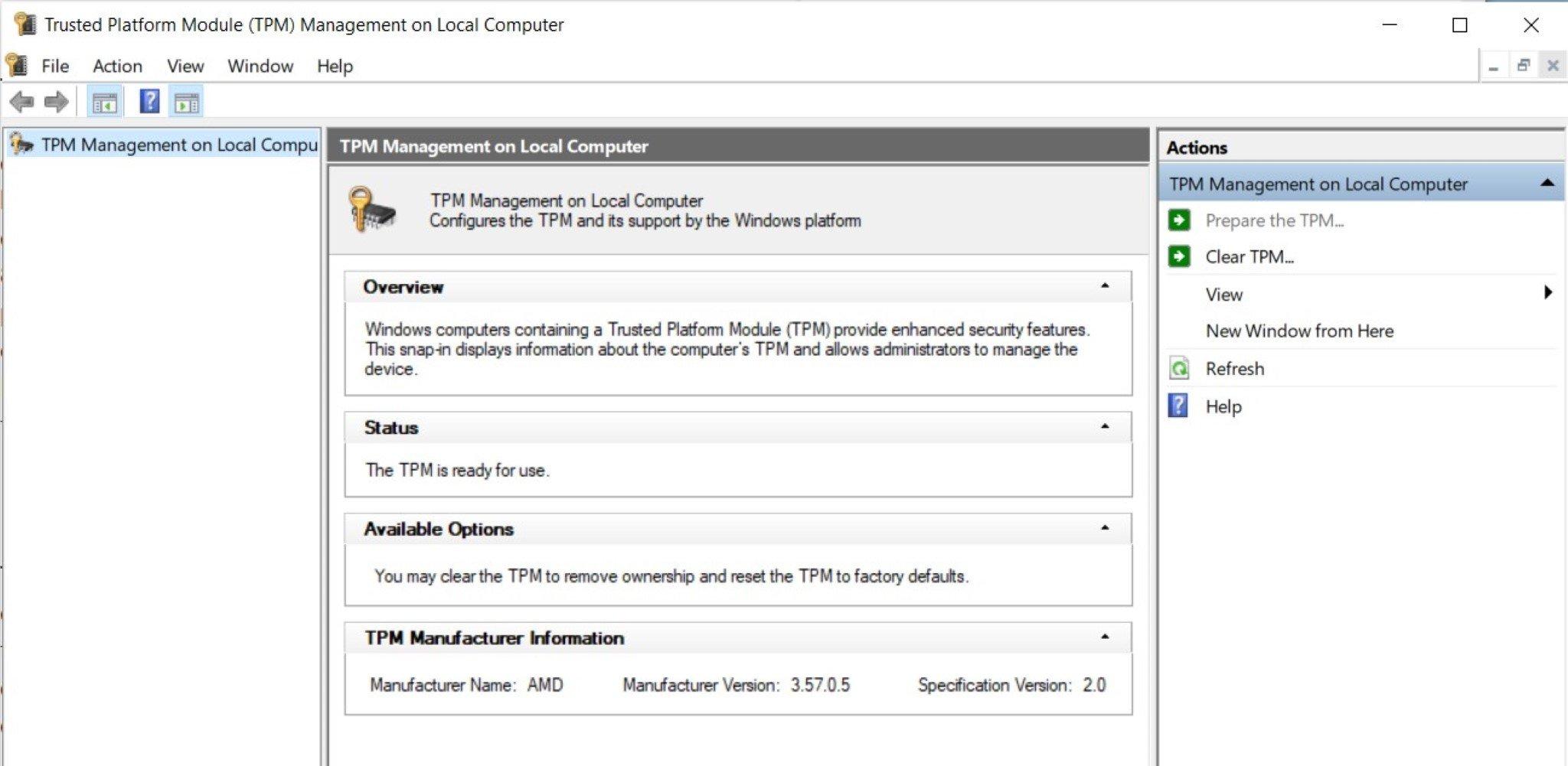
<p><strong>Bước 2.</strong> Máy bạn sẽ hiện lên trình quản lý TPM. Tại đây bạn có thể thấy thông tin chi tiết về TPM trên máy.</p>
<figure id="attachment_395179" aria-describedby="caption-attachment-395179" style="width: 2048px" class="wp-caption aligncenter"><img loading="lazy" class="wp-image-395179 size-full" title="Máy tính có TPM 2.0, hỗ trợ nâng cấp lên Windows 11 (Ảnh: BlogAnChoi)." src="https://bloganchoi.com/wp-content/uploads/2021/06/windows-11-tpm-2.jpg" alt="Máy tính có TPM 2.0, hỗ trợ nâng cấp lên Windows 11 (Ảnh: BlogAnChoi)." width="2048" height="1001" srcset="https://bloganchoi.com/wp-content/uploads/2021/06/windows-11-tpm-2.jpg 2048w, https://bloganchoi.com/wp-content/uploads/2021/06/windows-11-tpm-2-300x147.jpg 300w, https://bloganchoi.com/wp-content/uploads/2021/06/windows-11-tpm-2-1024x501.jpg 1024w, https://bloganchoi.com/wp-content/uploads/2021/06/windows-11-tpm-2-768x375.jpg 768w, https://bloganchoi.com/wp-content/uploads/2021/06/windows-11-tpm-2-1536x751.jpg 1536w, https://bloganchoi.com/wp-content/uploads/2021/06/windows-11-tpm-2-533x261.jpg 533w, https://bloganchoi.com/wp-content/uploads/2021/06/windows-11-tpm-2-696x340.jpg 696w, https://bloganchoi.com/wp-content/uploads/2021/06/windows-11-tpm-2-1068x522.jpg 1068w, https://bloganchoi.com/wp-content/uploads/2021/06/windows-11-tpm-2-859x420.jpg 859w" sizes="(max-width: 2048px) 100vw, 2048px" /><figcaption id="caption-attachment-395179" class="wp-caption-text">Máy tính có TPM 2.0, hỗ trợ nâng cấp lên Windows 11 (Ảnh: BlogAnChoi).</figcaption></figure>
<p><iframe loading="lazy" class="youtube-player" width="640" height="360" src="https://www.youtube.com/embed/OrF3Fb2kzkY?version=3&#038;rel=1&#038;showsearch=0&#038;showinfo=1&#038;iv_load_policy=1&#038;fs=1&#038;hl=vi&#038;autohide=2&#038;wmode=transparent" allowfullscreen="true" style="border:0;" sandbox="allow-scripts allow-same-origin allow-popups allow-presentation"></iframe></p>
<h2><strong>Cài Windows 11 cho máy không có TPM như thế nào?</strong></h2>
<h3><strong>Giải pháp về phần cứng</strong></h3>
<ul>
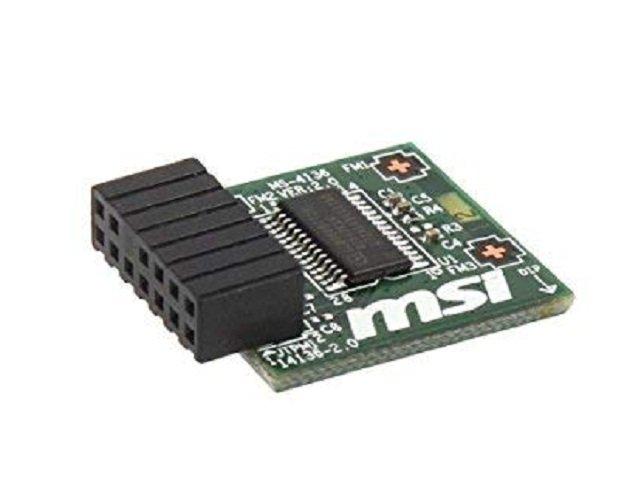
<li>Bạn có thể mua các Module TPM với giá khoảng 50 USD (khoảng hơn 1 triệu đồng) và gắn vào trong bo mạch chủ của dàn PC nhà mình.</li>
</ul>
<figure id="attachment_395302" aria-describedby="caption-attachment-395302" style="width: 644px" class="wp-caption aligncenter"><img loading="lazy" class="wp-image-395302 size-full" title="Chip TPM của MSI (Ảnh: Internet)." src="https://bloganchoi.com/wp-content/uploads/2021/06/windows-11-tpm-msi-1.jpg" alt="Chip TPM của MSI (Ảnh: Internet)." width="644" height="503" srcset="https://bloganchoi.com/wp-content/uploads/2021/06/windows-11-tpm-msi-1.jpg 644w, https://bloganchoi.com/wp-content/uploads/2021/06/windows-11-tpm-msi-1-300x234.jpg 300w, https://bloganchoi.com/wp-content/uploads/2021/06/windows-11-tpm-msi-1-538x420.jpg 538w" sizes="(max-width: 644px) 100vw, 644px" /><figcaption id="caption-attachment-395302" class="wp-caption-text">Chip TPM của MSI (Ảnh: Internet).</figcaption></figure>
<h3><strong>Giải pháp về phần mềm</strong></h3>
<ul>
<li>Tuy một số bo mạch chủ không có chip TPM, nhưng họ có cung cấp phần mềm TPM với tính năng tương tự.</li>
<li>Bạn có thể kích hoạt tính năng TPM trong BIOS/UEFI.</li>
</ul>
<p><iframe loading="lazy" class="youtube-player" width="640" height="360" src="https://www.youtube.com/embed/5qfrqvs0ry8?version=3&#038;rel=1&#038;showsearch=0&#038;showinfo=1&#038;iv_load_policy=1&#038;fs=1&#038;hl=vi&#038;autohide=2&#038;wmode=transparent" allowfullscreen="true" style="border:0;" sandbox="allow-scripts allow-same-origin allow-popups allow-presentation"></iframe></p>
<h3><strong>Nếu không thể cài đặt Windows 11 thì sao?</strong></h3>
<ul>
<li>Nếu đã thử hết các cách trên mà bạn vẫn không thể cài đặt được Windows 11 thì có thể do dàn PC của bạn đã quá cũ.</li>
<li>Bạn có thể tiếp tục sử dụng Windows 10 và nhận được sự hỗ trợ liên tục trong vòng 5 năm tiếp theo.</li>
</ul>
<p><iframe loading="lazy" class="youtube-player" width="640" height="360" src="https://www.youtube.com/embed/GkzPwUjf960?version=3&#038;rel=1&#038;showsearch=0&#038;showinfo=1&#038;iv_load_policy=1&#038;fs=1&#038;hl=vi&#038;autohide=2&#038;wmode=transparent" allowfullscreen="true" style="border:0;" sandbox="allow-scripts allow-same-origin allow-popups allow-presentation"></iframe></p>
<p><strong>Mời bạn xem thêm những bài viết liên quan của BlogAnChoi:</strong></p>
<ul>
<li><strong><a href="https://bloganchoi.com/slide-to-shutdown-tinh-nang-truot-dep-mat-tren-windows-10/">Windows 10 &#8211; Slide to Shutdown, tính năng trượt đẹp mắt trên Windows 10</a></strong></li>
<li><strong><a href="https://bloganchoi.com/windows-10-da-vuot-qua-windows-7-tro-thanh-he-dieu-hanh-pho-bien-nhat-the-gioi/#gsc.tab=0">Windows 10 đã vượt qua Windows 7 trở thành hệ điều hành phổ biến nhất thế giới</a></strong></li>
</ul>
<p>Hãy đón xem BlogAnChoi mỗi ngày để nhận được nhiều thông tin thú vị cho cuộc sống bạn nhé!</p>]]></content>
		
					<link rel="replies" type="text/html" href="https://bloganchoi.com/he-dieu-hanh-windows-11/#comments" thr:count="1" />
			<link rel="replies" type="application/atom+xml" href="https://bloganchoi.com/he-dieu-hanh-windows-11/feed/atom/" thr:count="1" />
			<thr:total>1</thr:total>
			</entry>
	</feed>