<?xml version="1.0" encoding="UTF-8"?><feed
	xmlns="http://www.w3.org/2005/Atom"
	xmlns:thr="http://purl.org/syndication/thread/1.0"
	xml:lang="vi"
	
	xmlns:georss="http://www.georss.org/georss"
	xmlns:geo="http://www.w3.org/2003/01/geo/wgs84_pos#"
	>
	<title type="text">tính năng trượt trên windows &#8211; BlogAnChoi</title>
	<subtitle type="text">Blog giải trí về du lịch, làm đẹp, quán ngon dành cho giới trẻ.</subtitle>

	<updated>2017-07-12T10:45:31Z</updated>

	<link rel="alternate" type="text/html" href="https://bloganchoi.com" />
	<id>https://bloganchoi.com/feed/atom/</id>
	<link rel="self" type="application/atom+xml" href="https://bloganchoi.com/tag/tinh-nang-truot-tren-windows/feed/atom/" />

	
	<entry>
		<author>
			<name>lhp</name>
					</author>

		<title type="html"><![CDATA[Slide to Shutdown: Tính năng trượt đẹp mắt trên Windows 10]]></title>
		<link rel="alternate" type="text/html" href="https://bloganchoi.com/slide-to-shutdown-tinh-nang-truot-dep-mat-tren-windows-10/" />

		<id>https://bloganchoi.com/?p=55472</id>
		<updated>2017-07-12T10:45:31Z</updated>
		<published>2017-07-12T04:00:23Z</published>
		<category scheme="https://bloganchoi.com" term="Thủ thuật" /><category scheme="https://bloganchoi.com" term="slide to shutdown" /><category scheme="https://bloganchoi.com" term="thủ thuật" /><category scheme="https://bloganchoi.com" term="thủ thuật Windows" /><category scheme="https://bloganchoi.com" term="thủ thuật windows 10" /><category scheme="https://bloganchoi.com" term="tính năng trượt trên windows" /><category scheme="https://bloganchoi.com" term="windows 10" /><category scheme="https://bloganchoi.com" term="Windows 8" />
		<summary type="html"><![CDATA[Bạn cảm thấy nhàm chán với giao diện phẳng lì của Windows 10. Nhiều người tự hỏi, kiểu dáng Windows 7 bóng lộn xưa kia đâu mất rồi? Tuy nhiên, từ bản build 9400 về sau lại có tính năng rất hay ho mà không phải ai cũng biết: Slide to Shutdown trên Windows 10]]></summary>

					<content type="html" xml:base="https://bloganchoi.com/slide-to-shutdown-tinh-nang-truot-dep-mat-tren-windows-10/"><![CDATA[<p><strong>Bạn cảm thấy nhàm chán với giao diện phẳng lì của Windows 10. Nhiều người tự hỏi, kiểu dáng Windows 7 bóng lộn xưa kia đâu mất rồi? Tuy nhiên, từ bản build 9400 về sau lại có tính năng rất hay ho mà không phải ai cũng biết: Slide to Shutdown trên Windows 10 và Windows 8. Hãy cùng BlogAnChoi khám phá tính năng thú vị này nhé!</strong><span id="more-55472"></span></p>
<h2><strong>Nghịch với Slide to Shutdown &#8211; tính năng trượt trên Windows 10 và Windows 8</strong></h2>
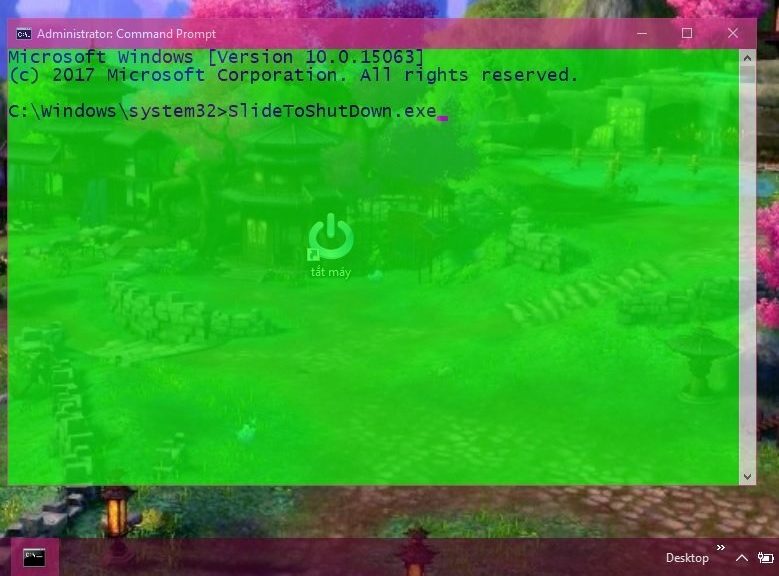
<p>Chức năng này đơn thuần là một script Node.js của các phiên bản Windows 8 trở lên hỗ trợ. Người dùng thực thi nó bằng cách kéo thả chuột và nó sẽ làm thay lệnh shutdown của hệ thống. Muốn kích hoạt được nó, cần khởi chạy dòng lệnh <em><strong>cd C:\Windows\System32</strong></em> trong CMD và nhập vào <em><strong>SlideToShutDown.exe</strong></em>. Để rõ hơn, bạn xem hình minh họa bên dưới:</p>
<figure id="attachment_55693" aria-describedby="caption-attachment-55693" style="width: 779px" class="wp-caption aligncenter"><img class="wp-image-55693 size-full" src="https://bloganchoi.com/wp-content/uploads/2017/07/slide-to-shutdown-cmd-1.jpg" alt="Slide to shutdown cmd" width="779" height="576" srcset="https://bloganchoi.com/wp-content/uploads/2017/07/slide-to-shutdown-cmd-1.jpg 779w, https://bloganchoi.com/wp-content/uploads/2017/07/slide-to-shutdown-cmd-1-300x222.jpg 300w, https://bloganchoi.com/wp-content/uploads/2017/07/slide-to-shutdown-cmd-1-768x568.jpg 768w, https://bloganchoi.com/wp-content/uploads/2017/07/slide-to-shutdown-cmd-1-80x60.jpg 80w, https://bloganchoi.com/wp-content/uploads/2017/07/slide-to-shutdown-cmd-1-696x515.jpg 696w, https://bloganchoi.com/wp-content/uploads/2017/07/slide-to-shutdown-cmd-1-568x420.jpg 568w" sizes="(max-width: 779px) 100vw, 779px" /><figcaption id="caption-attachment-55693" class="wp-caption-text">Thao tác thủ công Slide to Shutdown trên Windows 10. Ảnh: Phu Hoang</figcaption></figure>
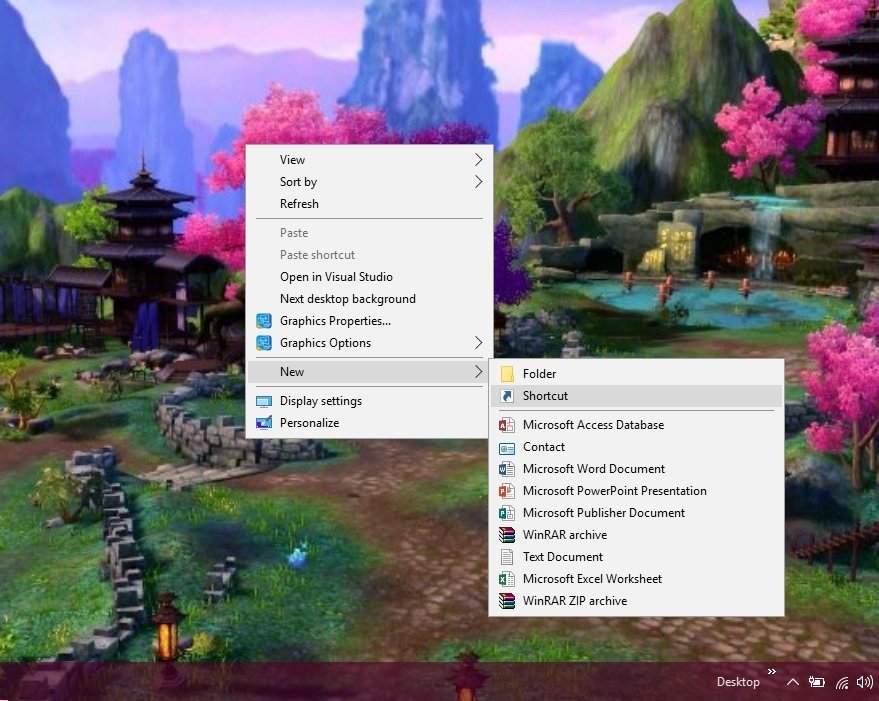
<p>Slide to Shutdown trên Windows 10 mới nghe có vẻ phức tạp, nhưng thật may mắn, các lệnh thông thường của CMD đều dễ dàng thực hiện thông qua link shortcut. Bước thứ nhất, hãy tạo mới một file shortcut, nên tạo ngoài màn hình desktop cho tiện.</p>
<figure id="attachment_55507" aria-describedby="caption-attachment-55507" style="width: 879px" class="wp-caption aligncenter"><img loading="lazy" class="wp-image-55507 size-full" src="https://bloganchoi.com/wp-content/uploads/2017/07/new-shortcut.jpg" alt="Tạo mới shortcut" width="879" height="701" srcset="https://bloganchoi.com/wp-content/uploads/2017/07/new-shortcut.jpg 879w, https://bloganchoi.com/wp-content/uploads/2017/07/new-shortcut-300x239.jpg 300w, https://bloganchoi.com/wp-content/uploads/2017/07/new-shortcut-768x612.jpg 768w, https://bloganchoi.com/wp-content/uploads/2017/07/new-shortcut-696x555.jpg 696w, https://bloganchoi.com/wp-content/uploads/2017/07/new-shortcut-527x420.jpg 527w" sizes="(max-width: 879px) 100vw, 879px" /><figcaption id="caption-attachment-55507" class="wp-caption-text">Click chuột phải chọn New/Shortcut. Đa số người dùng quen với New Folder chứ ít ai đụng đến Shortcut. Ảnh: Phu Hoang</figcaption></figure>
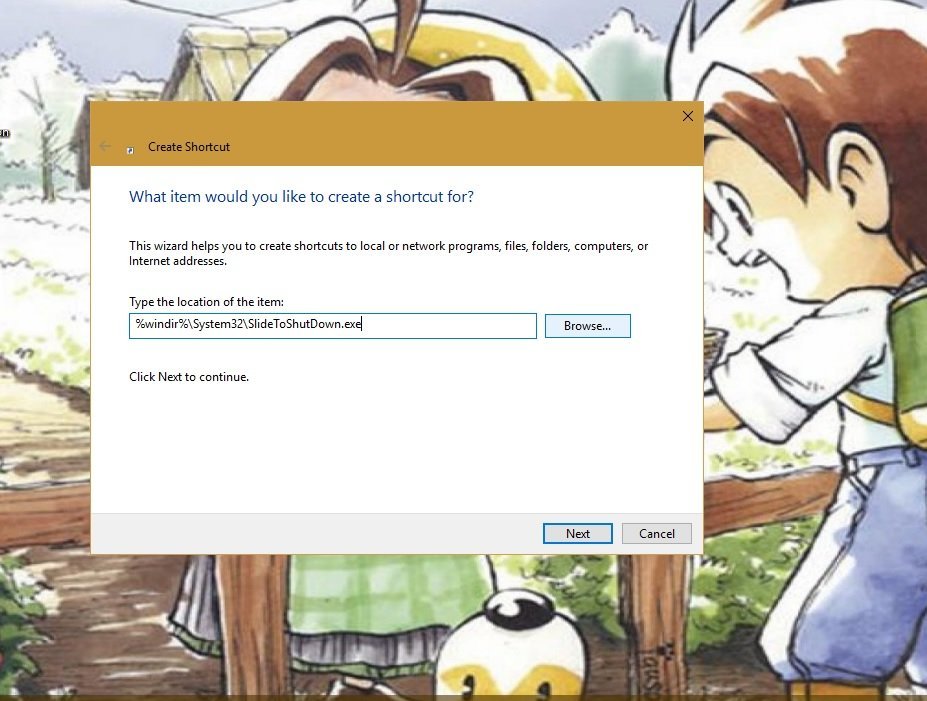
<p>Bước tiếp theo, trong khung <strong>Type the location of the item</strong> bạn nhập dòng lệnh sau: <em><strong>%windir%\System32\SlideToShutDown.exe</strong></em></p>
<figure id="attachment_55511" aria-describedby="caption-attachment-55511" style="width: 927px" class="wp-caption aligncenter"><img loading="lazy" class="wp-image-55511 size-full" src="https://bloganchoi.com/wp-content/uploads/2017/07/tao-shortcut-slide.jpg" alt="Tạo shortcut slide" width="927" height="701" srcset="https://bloganchoi.com/wp-content/uploads/2017/07/tao-shortcut-slide.jpg 927w, https://bloganchoi.com/wp-content/uploads/2017/07/tao-shortcut-slide-300x227.jpg 300w, https://bloganchoi.com/wp-content/uploads/2017/07/tao-shortcut-slide-768x581.jpg 768w, https://bloganchoi.com/wp-content/uploads/2017/07/tao-shortcut-slide-80x60.jpg 80w, https://bloganchoi.com/wp-content/uploads/2017/07/tao-shortcut-slide-696x526.jpg 696w, https://bloganchoi.com/wp-content/uploads/2017/07/tao-shortcut-slide-555x420.jpg 555w" sizes="(max-width: 927px) 100vw, 927px" /><figcaption id="caption-attachment-55511" class="wp-caption-text">Có thể Browse đến file Slide cũng được. Ảnh: Phu Hoang</figcaption></figure>
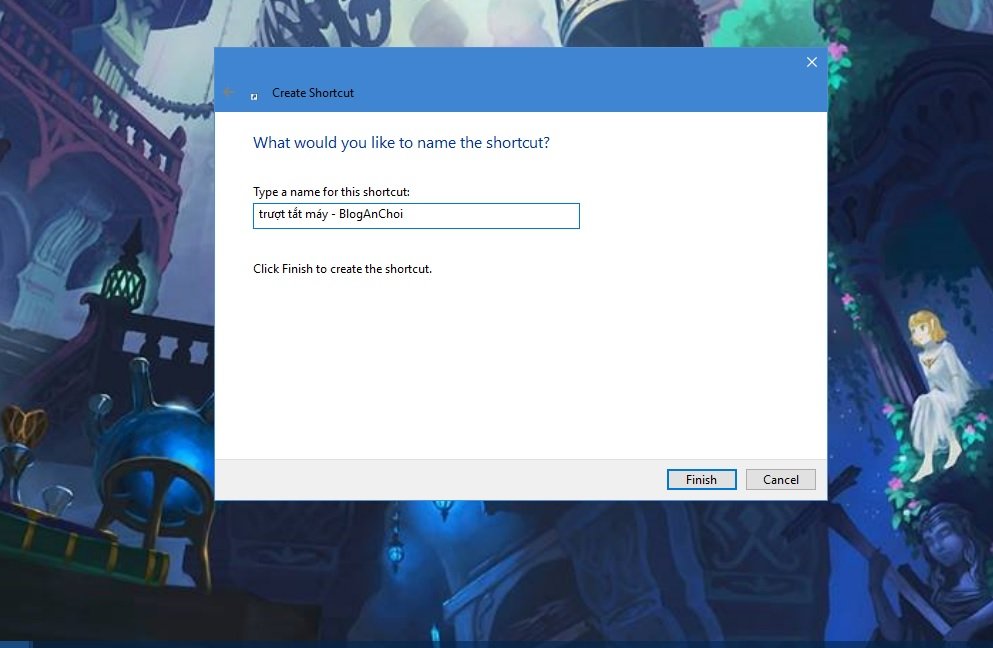
<p>Sau đó chọn <strong>Next</strong> và đặt tên file cho nó, đừng đặt trùng tên với file nào khác ở cùng đường dẫn nhé. Đặt tên xong rồi thì cũng đừng ngại ngùng mà nhấn <strong>Finish</strong>.</p>
<figure id="attachment_55506" aria-describedby="caption-attachment-55506" style="width: 993px" class="wp-caption aligncenter"><img loading="lazy" class="wp-image-55506 size-full" src="https://bloganchoi.com/wp-content/uploads/2017/07/dat-ten-roi-finish.jpg" alt="Đặt tên rồi finish" width="993" height="648" srcset="https://bloganchoi.com/wp-content/uploads/2017/07/dat-ten-roi-finish.jpg 993w, https://bloganchoi.com/wp-content/uploads/2017/07/dat-ten-roi-finish-300x196.jpg 300w, https://bloganchoi.com/wp-content/uploads/2017/07/dat-ten-roi-finish-768x501.jpg 768w, https://bloganchoi.com/wp-content/uploads/2017/07/dat-ten-roi-finish-696x454.jpg 696w, https://bloganchoi.com/wp-content/uploads/2017/07/dat-ten-roi-finish-644x420.jpg 644w" sizes="(max-width: 993px) 100vw, 993px" /><figcaption id="caption-attachment-55506" class="wp-caption-text">Đặt tên, ví dụ bloganchoi.lnk rồi Finish, chú ý tránh trùng tên. Ảnh: Phu Hoang.</figcaption></figure>
<p>Bước cuối cùng: Shortcut đã được tạo ra và bạn có thể túy ý đặt lại tên, hoặc click chuột phải chọn Properties để thay đổi icon cho nó. Bạn có thể troll bạn bè bằng cách tạo ra shortcut này và đặt icon giống hệt với phần mềm Unikey chẳng hạn. Hãy kiểm tra thử xem có dùng được hay không nhé.</p>
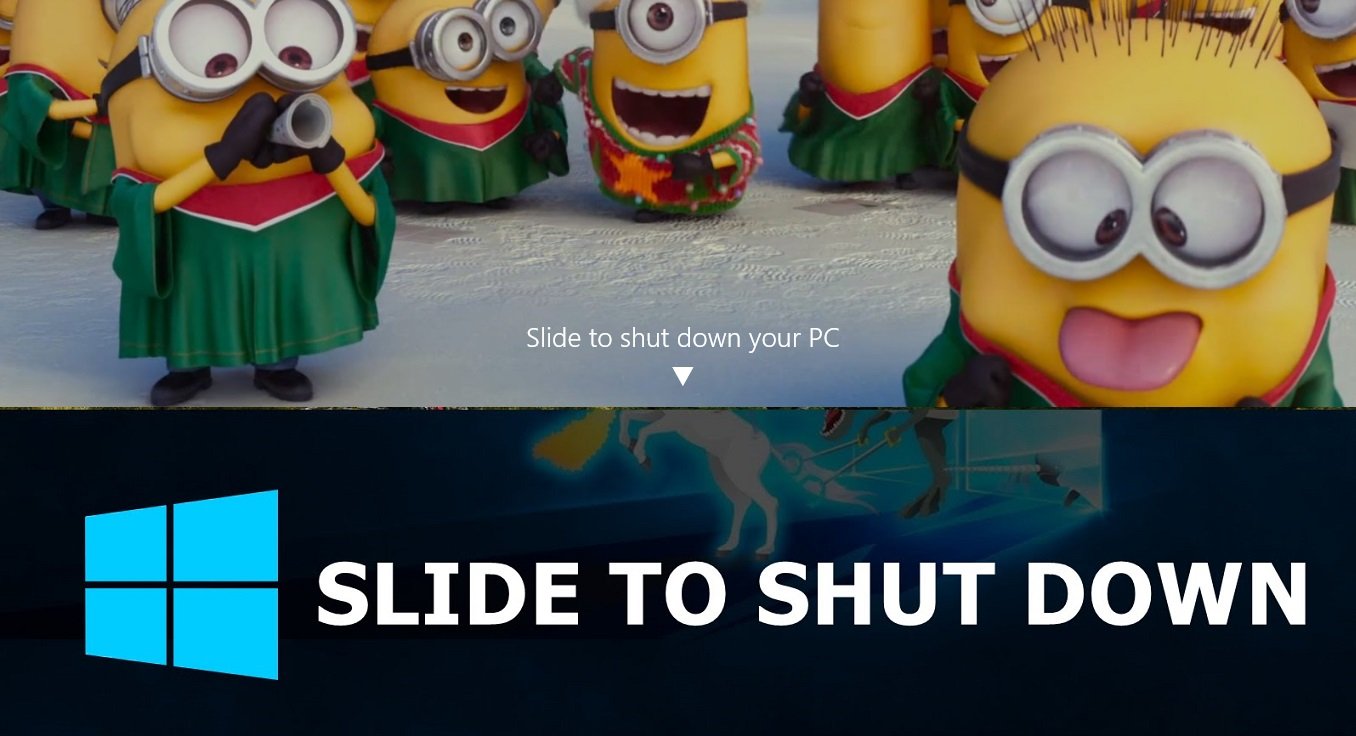
<p>Sau khi nhấp đôi chuột vào icon, màn hình sẽ hiện ra như thế này. Nếu như bạn có chọn ảnh nền cho màn hình khóa của Windows, vùng bên trên sẽ là hình ảnh đó, kèm với dòng chữ thân thiện.</p>
<figure id="attachment_55495" aria-describedby="caption-attachment-55495" style="width: 1356px" class="wp-caption aligncenter"><img loading="lazy" class="wp-image-55495 size-full" src="https://bloganchoi.com/wp-content/uploads/2017/07/slide-to-shutdown.jpg" alt="Slide to shutdown" width="1356" height="736" srcset="https://bloganchoi.com/wp-content/uploads/2017/07/slide-to-shutdown.jpg 1356w, https://bloganchoi.com/wp-content/uploads/2017/07/slide-to-shutdown-300x163.jpg 300w, https://bloganchoi.com/wp-content/uploads/2017/07/slide-to-shutdown-768x417.jpg 768w, https://bloganchoi.com/wp-content/uploads/2017/07/slide-to-shutdown-1024x556.jpg 1024w, https://bloganchoi.com/wp-content/uploads/2017/07/slide-to-shutdown-696x378.jpg 696w, https://bloganchoi.com/wp-content/uploads/2017/07/slide-to-shutdown-1068x580.jpg 1068w, https://bloganchoi.com/wp-content/uploads/2017/07/slide-to-shutdown-774x420.jpg 774w" sizes="(max-width: 1356px) 100vw, 1356px" /><figcaption id="caption-attachment-55495" class="wp-caption-text">Slide to Shutdown &#8211; Tắt máy với hiệu ứng trượt. Ảnh: Phu Hoang</figcaption></figure>
<p>Bạn giữ chuột ở vùng bên trên và kéo thả chuột đụng xuống thanh tác vụ thì lập tức máy tính sẽ Shutdown không xin phép. Nếu nhấn một phím bất kỳ trên bàn phím, hoặc nhấp chuột vào vùng trống bên dưới, hiệu ứng sẽ biến mất. Hoặc&#8230; có thể kéo thả nhưng kéo lên kéo xuống chơi chơi chứ không đụng xuống, hiệu ứng cũng sẽ không thực hiện.</p>
<p>Slide to Shutdown trên Windows 10 giúp bạn thích mắt với hiệu ứng mượt mà không thua gì tablet hay smartphone đúng không? Các thử nghiệm cho thấy cấu hình máy trung bình, với RAM 2Gb là đã cho hiệu ứng trượt trơn tru. Nếu máy tính của bạn chưa đến 2G RAM, hãy nâng cấp giúp máy tính của bạn có thể chạy tốt Windows 10 nhé.</p>
<p><strong><a href="https://bloganchoi.com/xredirect/?AID=2001205&PID=50915&afflink=1&nofollow=1&noindex=1&order=1&outlink=1&r=https%3A%2F%2Ftiki.vn%2Fram-may-tinh%2Fc2680%3Forder%3D1%26xaff_net%3Doptimisemedia&rdtp=header&utm_campaign=bloganchoi.com%7C%7Carticle%7C%7Clink&utm_content=&utm_medium=%7C%7Chttps%3A%2F%2Ftiki.vn%2Fram-may-tinh%2Fc2680%3Forder%3Dtop_seller%7C%7Cafflink%7C%7C&utm_source=https%3A%2F%2Fbloganchoi.com%2Fslide-to-shutdown-tinh-nang-truot-dep-mat-tren-windows-10%2F&utm_term=&wafx=1&wpaflt=80c08a46&wpaflt_url_domain=tiki.vn&wpaflt_url_host=tiki.vn&wppepvndtecrv=Bzj1rXgNBDqWUzbpDrtxXpkD4nXXQQaICshVnsd7ISU8Z-9ZLV7JqMBnOGnKGanyadSonQPk-i290LopFRYLKa-7myvy3GKA6RlihMZQWEUyumufJmaX4jzgTvD7hYfRIV6ZblpiZGBNuylHBK6JPPNNaviw-0zlE_otrcQnFIx_PjpbJiAD3WIbXUzSWzm6KCrSP2x6taP650ynh2OEJofg7GRq5yEzLHn8QFp5RyDRit4kljef4I9FI7JqEJbPA4eOPRa3PNeYdorxRbr8HIHZOrzCswo1_o-wgfX5hzhZvFqC72RbE-3sZQAXWbe5AQew0R6oX9N6KAQHc61BumT_SftSVpsIdBF9WIYQoU_fWFetCQ7YLLQL6JjD8ZjSlSisFQ22bEs84L9TEJ9pYaFSmNALrTQMbT174M3LqkD-Cr14cUuGwQTwyZb6mVfabxQNerqg9XWl_NdQSzl4USeK3zfjV3uipO7ivUYxCNRSp6bSY4t0alxfvlaWGCRLO5wBpnoRV723RF70MK9N89nmNbZvpZo3QhFyg1D14byzNY5vBj-nMidmXRMowxGITsQnXzPkUl0fRag-zCkAK8kr7id-hg8Bv4b7khBIYqn4owx-V0SJTvYlbvSli8aTnJpqMBMOBoFu6xKwqm8_aaGFBU89kvfisH4dWsUGKGJ65rKApogDlOZmE0y-Es2xx6tq7clnD9c-VDT5P6XGsuR_NWpDW4KF1kE2pl9XUMeCsJ9RgTmNk44J30u7x9vYDTS7FjnXKOpfq-bJHEkUBqHexS0lACOqx_yt6bz6Hr4HKMOEm21JR1sPudUmyCdPCnbFODH8VXAp7pWgcCgxnbm32BRxKnuUb0dBfBtEU8__rN6WX5F6qpohqJtdX5qwTDNlP1x96TwonUkisNQgK8ORSj1AddeSKaDBrxPjDFIah_tD4k-yec57MHTp1kRKQDRr0xLhUbttGTDHP9s.&xaff_net=optimisemedia" target="_blank" rel="nofollow">Bạn có thể vào đây để tìm mua thanh RAM ưng ý</a></strong></p>
<h2><strong>Tạo shortcut tắt máy nhanh trên Windows 10</strong></h2>
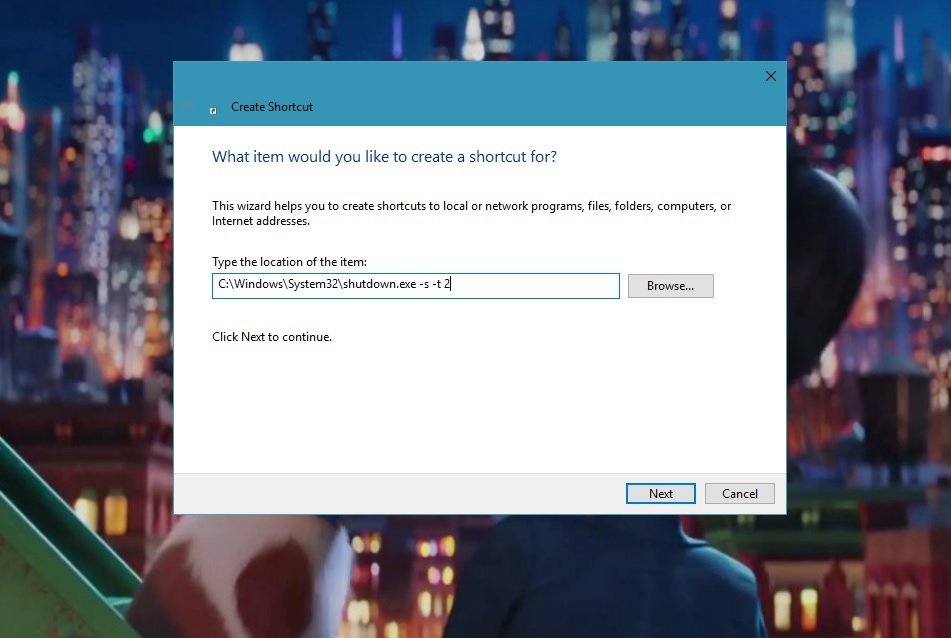
<p>Vẫn thao tác <strong>New -&gt; Shortcut</strong> như bên trên, chỉ khác ở bước 2 bạn thay đổi dòng lệnh thành <em><strong>C:\Windows\System32\shutdown.exe -s -t 2</strong></em>. Cũng là lệnh trên CMD, nhưng có cách thực thi hơi khác so với Slide to Shutdown trên Windows 10. Nó giúp khởi chạy file hệ thống shutdown.exe (trong khi lệnh Slide to Shutdown khởi chạy file SlidetoShutdown.exe).</p>
<figure id="attachment_55520" aria-describedby="caption-attachment-55520" style="width: 951px" class="wp-caption aligncenter"><img loading="lazy" class="wp-image-55520 size-full" src="https://bloganchoi.com/wp-content/uploads/2017/07/tao-icon-shutdown.jpg" alt="Tạo icon shutdown" width="951" height="638" srcset="https://bloganchoi.com/wp-content/uploads/2017/07/tao-icon-shutdown.jpg 951w, https://bloganchoi.com/wp-content/uploads/2017/07/tao-icon-shutdown-300x201.jpg 300w, https://bloganchoi.com/wp-content/uploads/2017/07/tao-icon-shutdown-768x515.jpg 768w, https://bloganchoi.com/wp-content/uploads/2017/07/tao-icon-shutdown-696x467.jpg 696w, https://bloganchoi.com/wp-content/uploads/2017/07/tao-icon-shutdown-626x420.jpg 626w" sizes="(max-width: 951px) 100vw, 951px" /><figcaption id="caption-attachment-55520" class="wp-caption-text">Dòng lệnh cơ bản với 3 tham số. Ảnh: Phu Hoang</figcaption></figure>
<p>Đằng sau <strong>Shutdown.exe</strong> là các tham số, lưu ý phải cách ra cho đúng chuẩn. Tham số <strong>-s</strong> nghĩa là thực thi hành động tắt máy, tham số <strong>-t</strong> cho phép có thêm độ trễ tùy ý, và con số đằng sau là khoảng thời gian trễ bạn muốn, tính bằng mili giây.</p>
<p>Nếu bạn thay <strong>–s</strong> bằng <strong>–r</strong>, shortcut sẽ mang hành động reboot lại máy. Còn nếu muốn thực hiện ngay lập tức (bạn ghét phải chờ) thì bỏ <strong>-t</strong> và và con số đi là xong.</p>
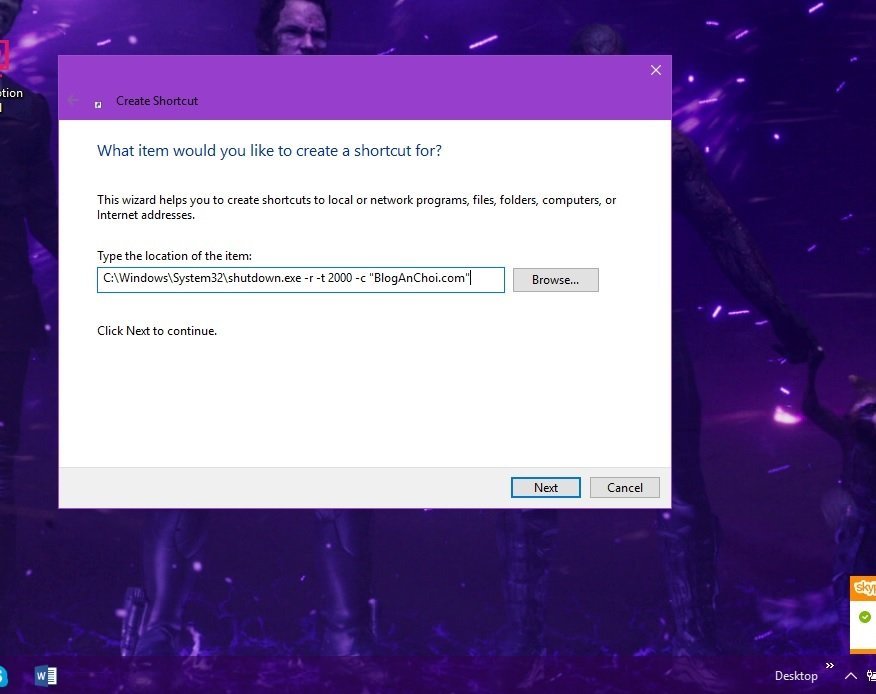
<figure id="attachment_55509" aria-describedby="caption-attachment-55509" style="width: 876px" class="wp-caption aligncenter"><img loading="lazy" class="wp-image-55509 size-full" src="https://bloganchoi.com/wp-content/uploads/2017/07/shut-down-kem-thong-bao.jpg" alt="Shut down kèm thông báo" width="876" height="694" srcset="https://bloganchoi.com/wp-content/uploads/2017/07/shut-down-kem-thong-bao.jpg 876w, https://bloganchoi.com/wp-content/uploads/2017/07/shut-down-kem-thong-bao-300x238.jpg 300w, https://bloganchoi.com/wp-content/uploads/2017/07/shut-down-kem-thong-bao-768x608.jpg 768w, https://bloganchoi.com/wp-content/uploads/2017/07/shut-down-kem-thong-bao-696x551.jpg 696w, https://bloganchoi.com/wp-content/uploads/2017/07/shut-down-kem-thong-bao-530x420.jpg 530w" sizes="(max-width: 876px) 100vw, 876px" /><figcaption id="caption-attachment-55509" class="wp-caption-text">Cách tạo shortcut tắt máy chớp nhoáng kèm theo một đoạn text. Ảnh: Phu Hoang.</figcaption></figure>
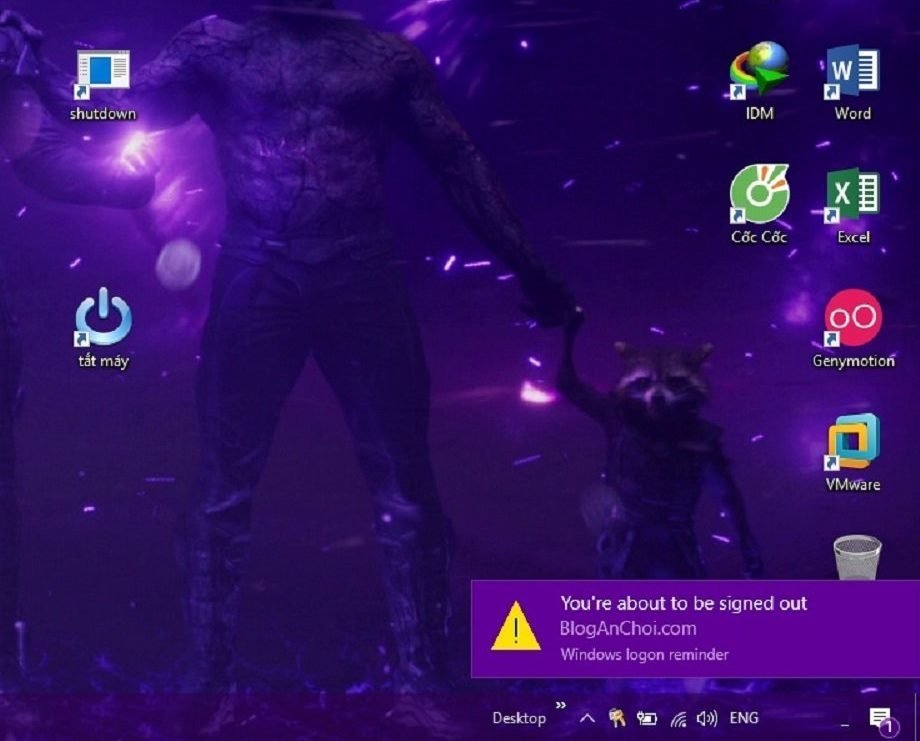
<p>Có một tham số khác thú vị hơn, tham số <strong>-c</strong> cho phép hiện ra một thông báo nho nhỏ, với đoạn text bạn muốn. Ví dụ ta thêm vào tham số <strong>–c &#8220;BlogAnChoi.com&#8221;</strong> kết quả hiện ra như hình dưới đây. Sử dụng shortcut này để troll bạn bè cũng vui.</p>
<figure id="attachment_55692" aria-describedby="caption-attachment-55692" style="width: 920px" class="wp-caption aligncenter"><img loading="lazy" class="wp-image-55692 size-full" src="https://bloganchoi.com/wp-content/uploads/2017/07/notification-bloganchoi-1.jpg" alt="Notification trên Windows 10" width="920" height="741" srcset="https://bloganchoi.com/wp-content/uploads/2017/07/notification-bloganchoi-1.jpg 920w, https://bloganchoi.com/wp-content/uploads/2017/07/notification-bloganchoi-1-300x242.jpg 300w, https://bloganchoi.com/wp-content/uploads/2017/07/notification-bloganchoi-1-768x619.jpg 768w, https://bloganchoi.com/wp-content/uploads/2017/07/notification-bloganchoi-1-696x561.jpg 696w, https://bloganchoi.com/wp-content/uploads/2017/07/notification-bloganchoi-1-521x420.jpg 521w" sizes="(max-width: 920px) 100vw, 920px" /><figcaption id="caption-attachment-55692" class="wp-caption-text">Trên Windows 10, đoạn text này xuất hiện bên trong một dòng Notification. Ảnh: Phu Hoang.</figcaption></figure>
<p><em><strong>Bạn có thể đọc thêm bài viết về <strong><a href="https://bloganchoi.com/tin/cong-nghe/thu-thuat/"  target="_bank"   title="thủ thuật">thủ thuật</a></strong> Windows, thủ thuật Windows 10:</strong></em></p>
<ul>
<li><em><strong><a href="https://bloganchoi.com/tuyet-chieu-tat-may-tinh-windows-khi-dang-cap-nhat/?utm_source=mbx_sd&utm_medium=_mbxm_s232_r25_&utm_campaign=mbx_p20945_">Tuyệt chiêu tắt máy tính Windows khi đang cập nhật</a></strong></em></li>
<li><em><a href="https://bloganchoi.com/nhung-tinh-nang-noi-bat-cua-settings-tren-windows-10/#gsc.tab=0"><strong>Những tính năng nổi bật của Settings trên Windows 10</strong></a></em></li>
<li><em><a href="https://bloganchoi.com/nhung-ly-do-windows-10-van-con-giu-lai-control-panel/#gsc.tab=0"><strong>Những lý do Windows 10 vẫn còn giữ lại Control Panel</strong></a></em></li>
</ul>
<p>Tính năng Slide to Shutdown trên Windows 10 còn áp dụng cho cả Windows 8. Riêng cách tắt máy với shortcut Shutdown.exe hoạt động được cho tất cả các phiên bản Windows. Bạn hãy tham khảo thêm nhiều thủ thuật hữu ích khác tại BlogAnChoi nhé.</p>]]></content>
		
					<link rel="replies" type="text/html" href="https://bloganchoi.com/slide-to-shutdown-tinh-nang-truot-dep-mat-tren-windows-10/#comments" thr:count="0" />
			<link rel="replies" type="application/atom+xml" href="https://bloganchoi.com/slide-to-shutdown-tinh-nang-truot-dep-mat-tren-windows-10/feed/atom/" thr:count="0" />
			<thr:total>0</thr:total>
			</entry>
	</feed>