<?xml version="1.0" encoding="UTF-8"?><feed
	xmlns="http://www.w3.org/2005/Atom"
	xmlns:thr="http://purl.org/syndication/thread/1.0"
	xml:lang="vi"
	
	xmlns:georss="http://www.georss.org/georss"
	xmlns:geo="http://www.w3.org/2003/01/geo/wgs84_pos#"
	>
	<title type="text">thủ thuật tắt máy tính &#8211; BlogAnChoi</title>
	<subtitle type="text">Blog giải trí về du lịch, làm đẹp, quán ngon dành cho giới trẻ.</subtitle>

	<updated>2016-09-01T03:48:38Z</updated>

	<link rel="alternate" type="text/html" href="https://bloganchoi.com" />
	<id>https://bloganchoi.com/feed/atom/</id>
	<link rel="self" type="application/atom+xml" href="https://bloganchoi.com/tag/thu-thuat-tat-may-tinh/feed/atom/" />

	
	<entry>
		<author>
			<name>LÊ ẨN</name>
					</author>

		<title type="html"><![CDATA[Tuyệt chiêu tắt máy tính bỏ qua cập nhật trong Windows 10]]></title>
		<link rel="alternate" type="text/html" href="https://bloganchoi.com/tuyet-chieu-tat-may-tinh-windows-khi-dang-cap-nhat/" />

		<id>http://bloganchoi.com/?p=20945</id>
		<updated>2016-09-01T03:48:38Z</updated>
		<published>2016-08-30T02:42:48Z</published>
		<category scheme="https://bloganchoi.com" term="Thủ thuật" /><category scheme="https://bloganchoi.com" term="cập nhật phần mềm" /><category scheme="https://bloganchoi.com" term="thủ thuật tắt máy tính" /><category scheme="https://bloganchoi.com" term="windows 10" />
		<summary type="html"><![CDATA[Bạn quá tốn thời gian cho việc cập nhật của Windows khi có việc gấp, nhất là tính năng này lại đi kèm trong thao tác Shut Down? Thủ thuật bên dưới sẽ giúp bạn tắt được máy tính để thuận tiện cho công việc trong khi vẫn có thể hoàn tất quá trình cập]]></summary>

					<content type="html" xml:base="https://bloganchoi.com/tuyet-chieu-tat-may-tinh-windows-khi-dang-cap-nhat/"><![CDATA[<p><strong>Bạn quá tốn thời gian cho việc cập nhật của Windows khi có việc gấp, nhất là tính năng này lại đi kèm trong thao tác Shut Down? Thủ thuật bên dưới sẽ giúp bạn tắt được máy tính để thuận tiện cho công việc trong khi vẫn có thể hoàn tất quá trình cập nhật phần mềm, bản vá lỗi&#8230; vào giờ rỗi. </strong></p>
<p><span id="more-20945"></span></p>
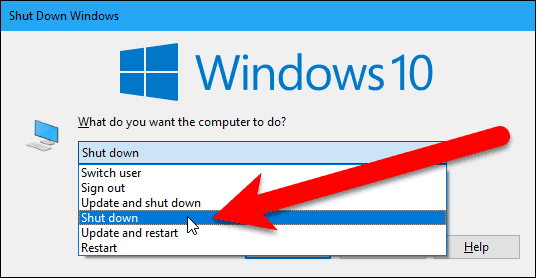
<p>Cách đơn giản nhất là bạn di chuyển đến màn hình Desktop, nếu bạn chưa ở Desktop hãy nhấn tổ hợp phím tắt <em>Windows + D</em>. Sau đó, bạn nhấn<em> Alt + F4</em> để truy cập vào hộp thoại <em>Shutdown Windows</em>. Để tắt máy, và không cần cài đặt cập nhật, hãy chọn <em>Shut down</em> từ danh sách xổ xuống.</p>
<p><img loading="lazy" class="size-full wp-image-20946 aligncenter" src="http://bloganchoi.com/wp-content/uploads/2016/08/shutdown-windows-without-installing-updates-1.png" alt="shutdown-windows-without-installing-updates-1" width="536" height="278" srcset="https://bloganchoi.com/wp-content/uploads/2016/08/shutdown-windows-without-installing-updates-1.png 536w, https://bloganchoi.com/wp-content/uploads/2016/08/shutdown-windows-without-installing-updates-1-300x156.png 300w, https://bloganchoi.com/wp-content/uploads/2016/08/shutdown-windows-without-installing-updates-1-534x278.png 534w" sizes="(max-width: 536px) 100vw, 536px" /></p>
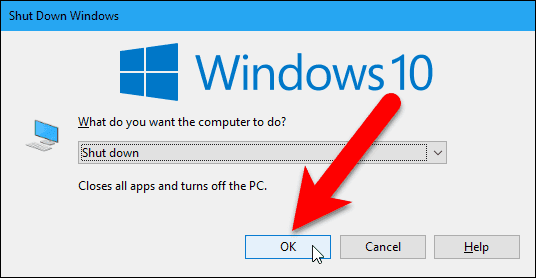
<p>Tiếp đến, nhấn nút <em>OK</em> và máy tính của bạn sẽ tắt ngay tức thời.</p>
<p><img loading="lazy" class="size-full wp-image-20947 aligncenter" src="http://bloganchoi.com/wp-content/uploads/2016/08/shutdown-windows-without-installing-updates-2.png" alt="shutdown-windows-without-installing-updates-2" width="536" height="278" srcset="https://bloganchoi.com/wp-content/uploads/2016/08/shutdown-windows-without-installing-updates-2.png 536w, https://bloganchoi.com/wp-content/uploads/2016/08/shutdown-windows-without-installing-updates-2-300x156.png 300w, https://bloganchoi.com/wp-content/uploads/2016/08/shutdown-windows-without-installing-updates-2-534x278.png 534w" sizes="(max-width: 536px) 100vw, 536px" /></p>
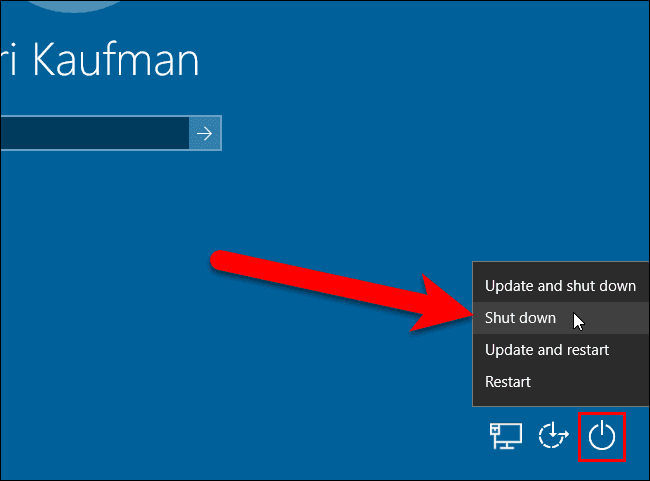
<p>Bạn cũng có thể tắt máy ngay lập tức từ màn hình đăng nhập. Chỉ cần nhấn <em>Windows + L </em>để khóa màn hình, hoặc đăng xuất. Kế đến, ở phía dưới góc phải của màn hình đăng nhập, bạn nhấp vào nút <em>Power</em> và chọn <em>Shutdown</em> từ trình đơn hiện ra. Máy tính của bạn sẽ tắt và không cài đặt cập nhật.</p>
<p><img loading="lazy" class="size-full wp-image-20948 aligncenter" src="http://bloganchoi.com/wp-content/uploads/2016/08/shutdown-windows-without-installing-updates-3.png" alt="shutdown-windows-without-installing-updates-3" width="650" height="481" srcset="https://bloganchoi.com/wp-content/uploads/2016/08/shutdown-windows-without-installing-updates-3.png 650w, https://bloganchoi.com/wp-content/uploads/2016/08/shutdown-windows-without-installing-updates-3-300x222.png 300w, https://bloganchoi.com/wp-content/uploads/2016/08/shutdown-windows-without-installing-updates-3-80x60.png 80w, https://bloganchoi.com/wp-content/uploads/2016/08/shutdown-windows-without-installing-updates-3-568x420.png 568w" sizes="(max-width: 650px) 100vw, 650px" /></p>
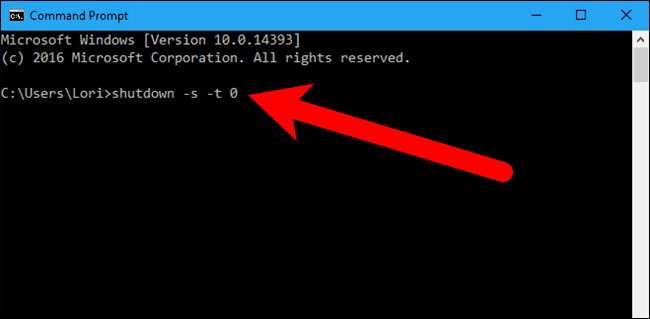
<p>Cuối cùng, nếu bạn muốn thực hiện việc này bằng dòng lệnh, bạn hãy mở <em>Command Prompt (CMD)</em>, gõ dòng lệnh bên dưới, và nhấn Enter. Ký tự cuối cùng là số <em>không</em>.</p>
<p><em>shutdown -s -t 0</em></p>
<p>Máy tính của bạn sẽ tắt ngay và tạm thời bỏ qua bước cài đặt cập nhật.</p>
<p><img loading="lazy" class="size-full wp-image-20949 aligncenter" src="http://bloganchoi.com/wp-content/uploads/2016/08/shutdown-windows-without-installing-updates-4.png" alt="shutdown-windows-without-installing-updates-4" width="650" height="319" srcset="https://bloganchoi.com/wp-content/uploads/2016/08/shutdown-windows-without-installing-updates-4.png 650w, https://bloganchoi.com/wp-content/uploads/2016/08/shutdown-windows-without-installing-updates-4-300x147.png 300w, https://bloganchoi.com/wp-content/uploads/2016/08/shutdown-windows-without-installing-updates-4-324x160.png 324w, https://bloganchoi.com/wp-content/uploads/2016/08/shutdown-windows-without-installing-updates-4-533x261.png 533w" sizes="(max-width: 650px) 100vw, 650px" /></p>]]></content>
		
					<link rel="replies" type="text/html" href="https://bloganchoi.com/tuyet-chieu-tat-may-tinh-windows-khi-dang-cap-nhat/#comments" thr:count="0" />
			<link rel="replies" type="application/atom+xml" href="https://bloganchoi.com/tuyet-chieu-tat-may-tinh-windows-khi-dang-cap-nhat/feed/atom/" thr:count="0" />
			<thr:total>0</thr:total>
			</entry>
	</feed>