<?xml version="1.0" encoding="UTF-8"?><feed
	xmlns="http://www.w3.org/2005/Atom"
	xmlns:thr="http://purl.org/syndication/thread/1.0"
	xml:lang="vi"
	
	xmlns:georss="http://www.georss.org/georss"
	xmlns:geo="http://www.w3.org/2003/01/geo/wgs84_pos#"
	>
	<title type="text">chip tpm &#8211; BlogAnChoi</title>
	<subtitle type="text">Blog giải trí về du lịch, làm đẹp, quán ngon dành cho giới trẻ.</subtitle>

	<updated>2021-07-02T04:02:06Z</updated>

	<link rel="alternate" type="text/html" href="https://bloganchoi.com" />
	<id>https://bloganchoi.com/feed/atom/</id>
	<link rel="self" type="application/atom+xml" href="https://bloganchoi.com/tag/chip-tpm/feed/atom/" />

	
	<entry>
		<author>
			<name>Dũng Nguyễn</name>
					</author>

		<title type="html"><![CDATA[Windows 11 có tính năng gì mới so với Windows 10, Windows 8.1 và macOS?]]></title>
		<link rel="alternate" type="text/html" href="https://bloganchoi.com/windows-11-tinh-nang-moi-so-voi-windows-10-windows-8-1-va-macos/" />

		<id>https://bloganchoi.com/?p=395601</id>
		<updated>2021-07-02T04:02:06Z</updated>
		<published>2021-07-02T04:02:06Z</published>
		<category scheme="https://bloganchoi.com" term="Ứng dụng - Phần mềm" /><category scheme="https://bloganchoi.com" term="cách cài windows 11" /><category scheme="https://bloganchoi.com" term="cấu hình máy để cài windows 11" /><category scheme="https://bloganchoi.com" term="chính sách bảo mật" /><category scheme="https://bloganchoi.com" term="chip tpm" /><category scheme="https://bloganchoi.com" term="Cortana của Microsoft" /><category scheme="https://bloganchoi.com" term="giả lập trên windows" /><category scheme="https://bloganchoi.com" term="hệ điều hành MacOS" /><category scheme="https://bloganchoi.com" term="hệ điều hành windows" /><category scheme="https://bloganchoi.com" term="laptop MacOS" /><category scheme="https://bloganchoi.com" term="macos" /><category scheme="https://bloganchoi.com" term="macos bigsur" /><category scheme="https://bloganchoi.com" term="Microsoft" /><category scheme="https://bloganchoi.com" term="Microsoft Authenticator" /><category scheme="https://bloganchoi.com" term="Microsoft Edge" /><category scheme="https://bloganchoi.com" term="Microsoft Edge 15" /><category scheme="https://bloganchoi.com" term="Microsoft Flight Simulator" /><category scheme="https://bloganchoi.com" term="microsoft surface" /><category scheme="https://bloganchoi.com" term="multi-windows" /><category scheme="https://bloganchoi.com" term="phần mềm microsoft" /><category scheme="https://bloganchoi.com" term="phương pháp bảo mật" /><category scheme="https://bloganchoi.com" term="setting trên windows 10" /><category scheme="https://bloganchoi.com" term="start menu" /><category scheme="https://bloganchoi.com" term="surface windows" /><category scheme="https://bloganchoi.com" term="tính năng" /><category scheme="https://bloganchoi.com" term="trình duyệt Microsoft Edge" /><category scheme="https://bloganchoi.com" term="ứng dụng" /><category scheme="https://bloganchoi.com" term="vấn đề bảo mật" /><category scheme="https://bloganchoi.com" term="windows 10" /><category scheme="https://bloganchoi.com" term="Windows 11" /><category scheme="https://bloganchoi.com" term="windows 7" /><category scheme="https://bloganchoi.com" term="Windows 8" /><category scheme="https://bloganchoi.com" term="Windows Store" />
		<summary type="html"><![CDATA[Tối ngày 24/06/2021 (theo giờ Việt Nam), Microsoft đã chính thức ra mắt Windows 11 với nhiều cải tiến mới. Vậy là sau 5 năm kể từ Windows 10, Microsoft đã đem tới người dùng một phiên bản Windows tốt hơn, mở hơn. Trong bài viết này, BlogAnChoi sẽ tổng hợp lại những điểm thay]]></summary>

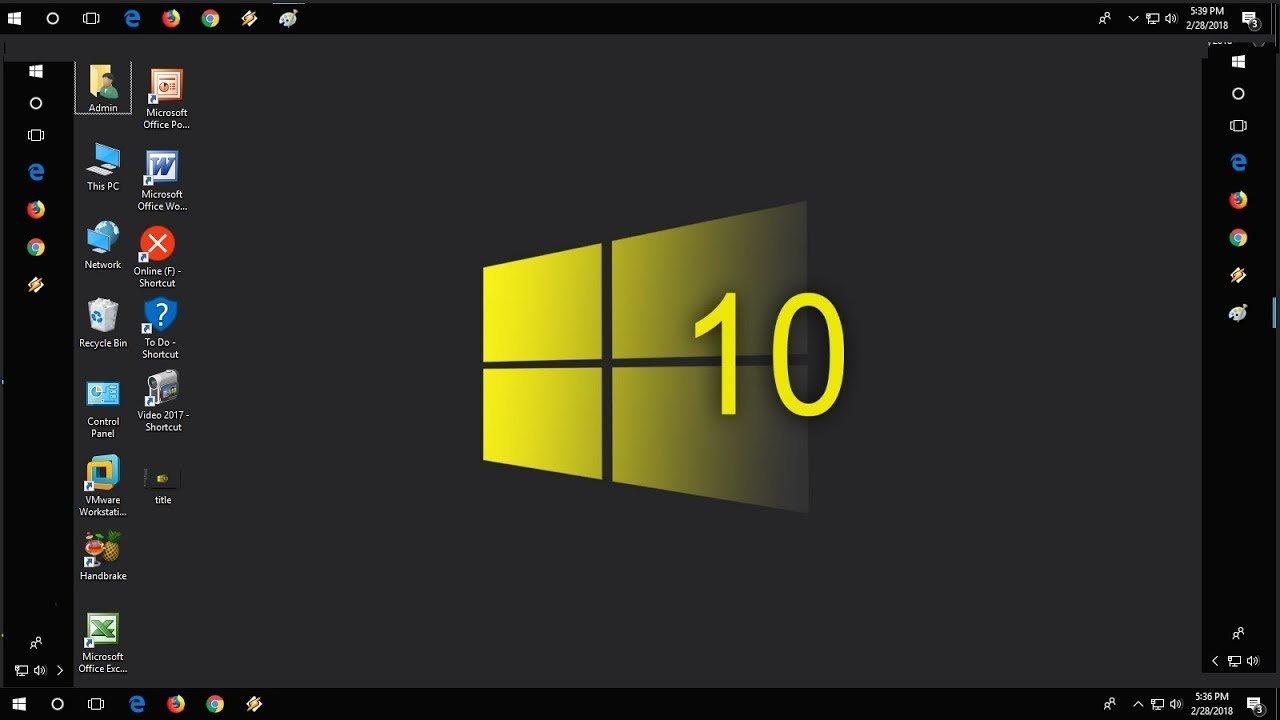
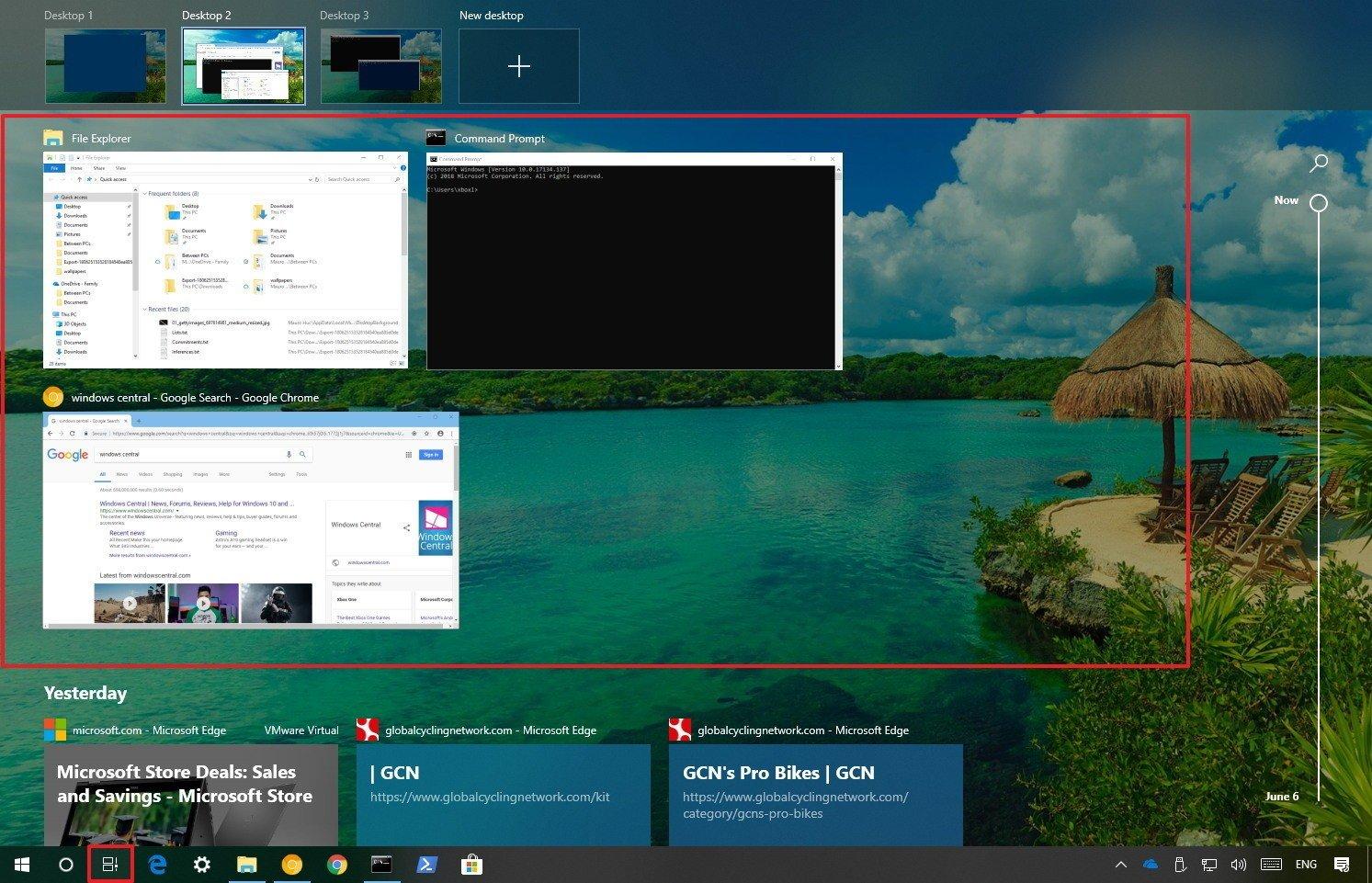
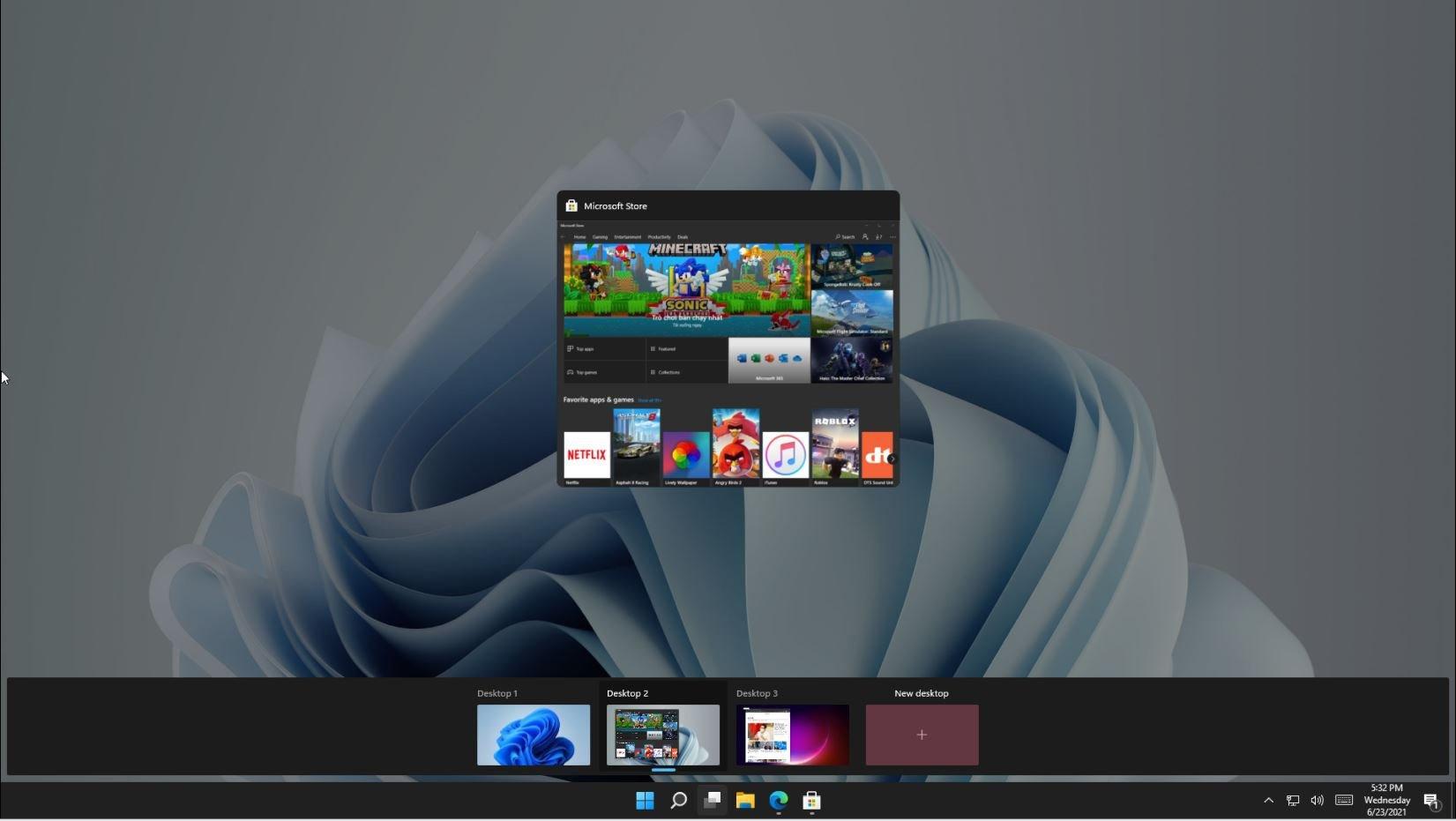
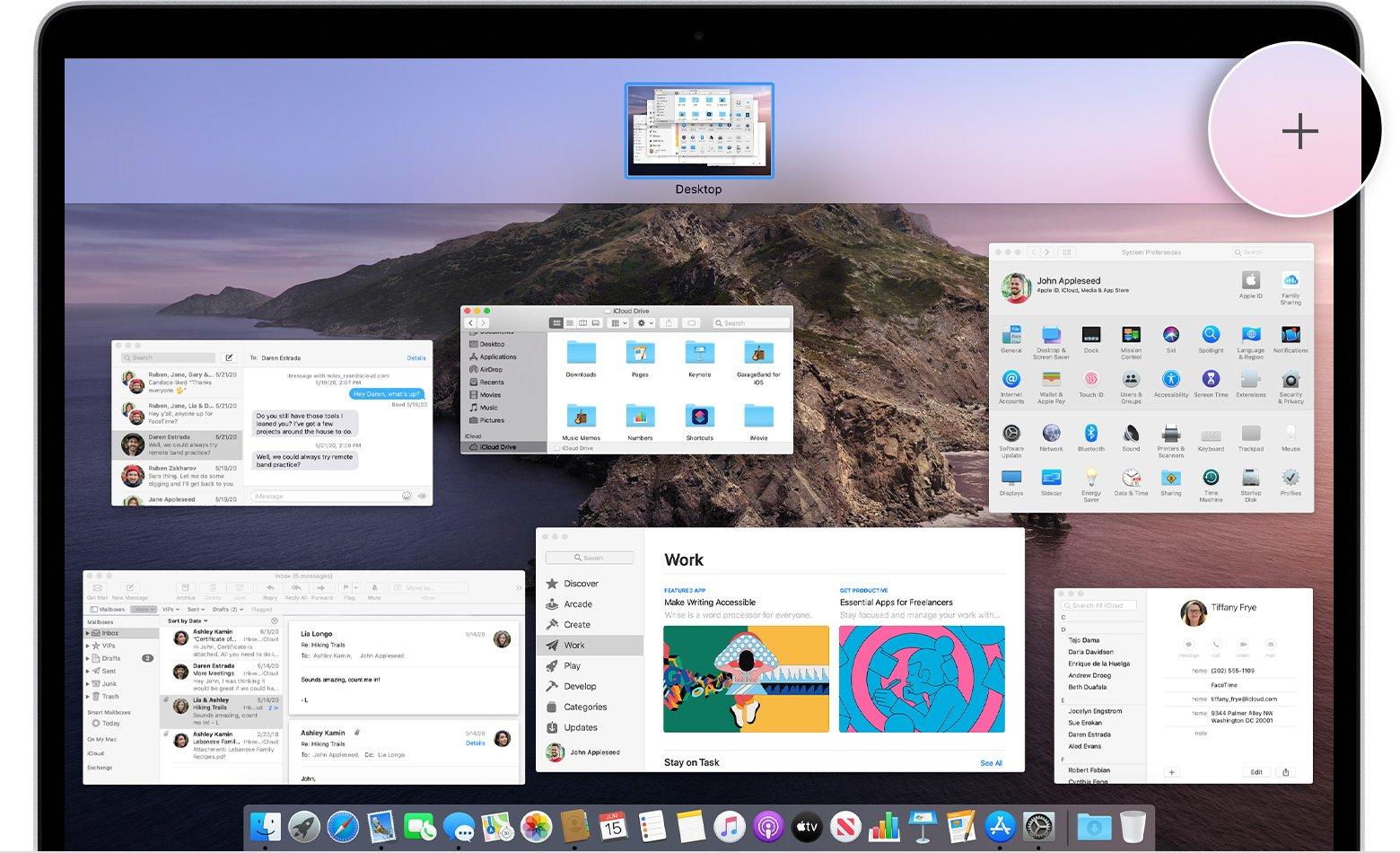
					<content type="html" xml:base="https://bloganchoi.com/windows-11-tinh-nang-moi-so-voi-windows-10-windows-8-1-va-macos/"><![CDATA[<p><strong>Tối ngày 24/06/2021 (theo giờ Việt Nam), Microsoft đã chính thức ra mắt Windows 11 với nhiều cải tiến mới. Vậy là sau 5 năm kể từ Windows 10, Microsoft đã đem tới người dùng một phiên bản Windows tốt hơn, mở hơn. Trong bài viết này, BlogAnChoi sẽ tổng hợp lại những điểm thay đổi trên Windows 11 so với hai &#8220;người tiền nhiệm&#8221; Windows 8.1 và Windows 10, nhằm giúp <strong><a href="https://bloganchoi.com/tin/ban-doc/"  target="_bank"   title="bạn đọc">bạn đọc</a></strong> có thêm thông tin để quyết định có nên nâng cấp máy tính của mình lên phiên bản Windows mới nhất này hay không.</strong></p>
<p><span id="more-395601"></span></p>
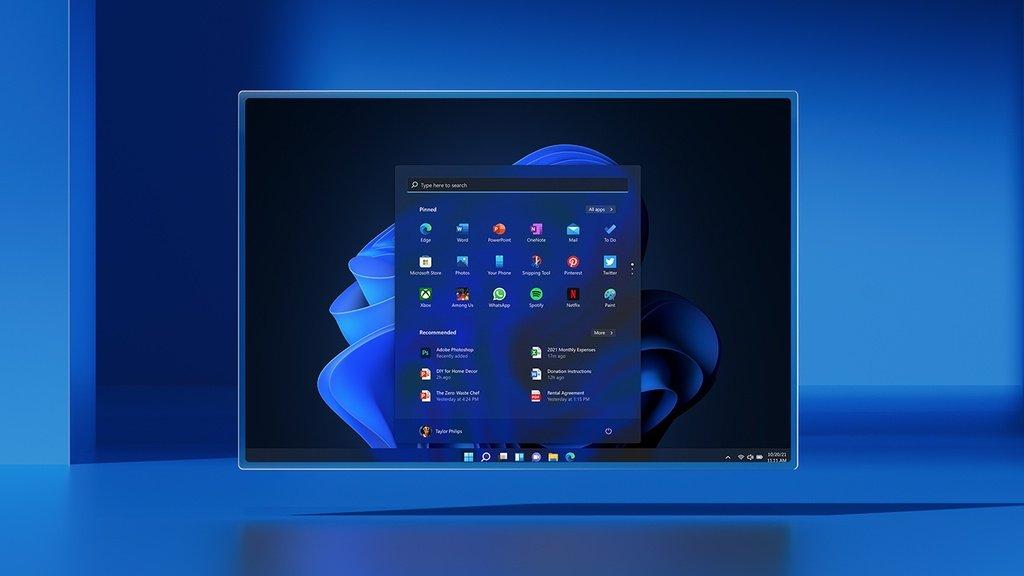
<figure id="attachment_395622" aria-describedby="caption-attachment-395622" style="width: 1024px" class="wp-caption aligncenter"><img loading="lazy" class="wp-image-395622 size-full" title="Windows 11 đi kèm với Start Menu hoàn toàn mới (Ảnh: Internet)." src="https://bloganchoi.com/wp-content/uploads/2021/06/windows-11-tinh-nang-moi-01.jpg" alt="Windows 11 đi kèm với Start Menu hoàn toàn mới (Ảnh: Internet)." width="1024" height="576" srcset="https://bloganchoi.com/wp-content/uploads/2021/06/windows-11-tinh-nang-moi-01.jpg 1024w, https://bloganchoi.com/wp-content/uploads/2021/06/windows-11-tinh-nang-moi-01-300x169.jpg 300w, https://bloganchoi.com/wp-content/uploads/2021/06/windows-11-tinh-nang-moi-01-768x432.jpg 768w, https://bloganchoi.com/wp-content/uploads/2021/06/windows-11-tinh-nang-moi-01-696x392.jpg 696w, https://bloganchoi.com/wp-content/uploads/2021/06/windows-11-tinh-nang-moi-01-747x420.jpg 747w" sizes="(max-width: 1024px) 100vw, 1024px" /><figcaption id="caption-attachment-395622" class="wp-caption-text">Windows 11 đi kèm với Start Menu hoàn toàn mới (Ảnh: Internet).</figcaption></figure>
<h2><strong>1. Windows 11 có Start Menu mới</strong></h2>
<p>Đập vào mắt người dùng trên Windows 11 đó chính là Start Menu. Kể từ Windows 8.1 hay Windows 10, Microsoft đã cố gắng lồng ghép nhiều tính năng vào Start Menu nhằm tăng sự tương tác cũng như trải nghiệm người dùng, song không phải cải tiến nào cũng đáng giá.</p>
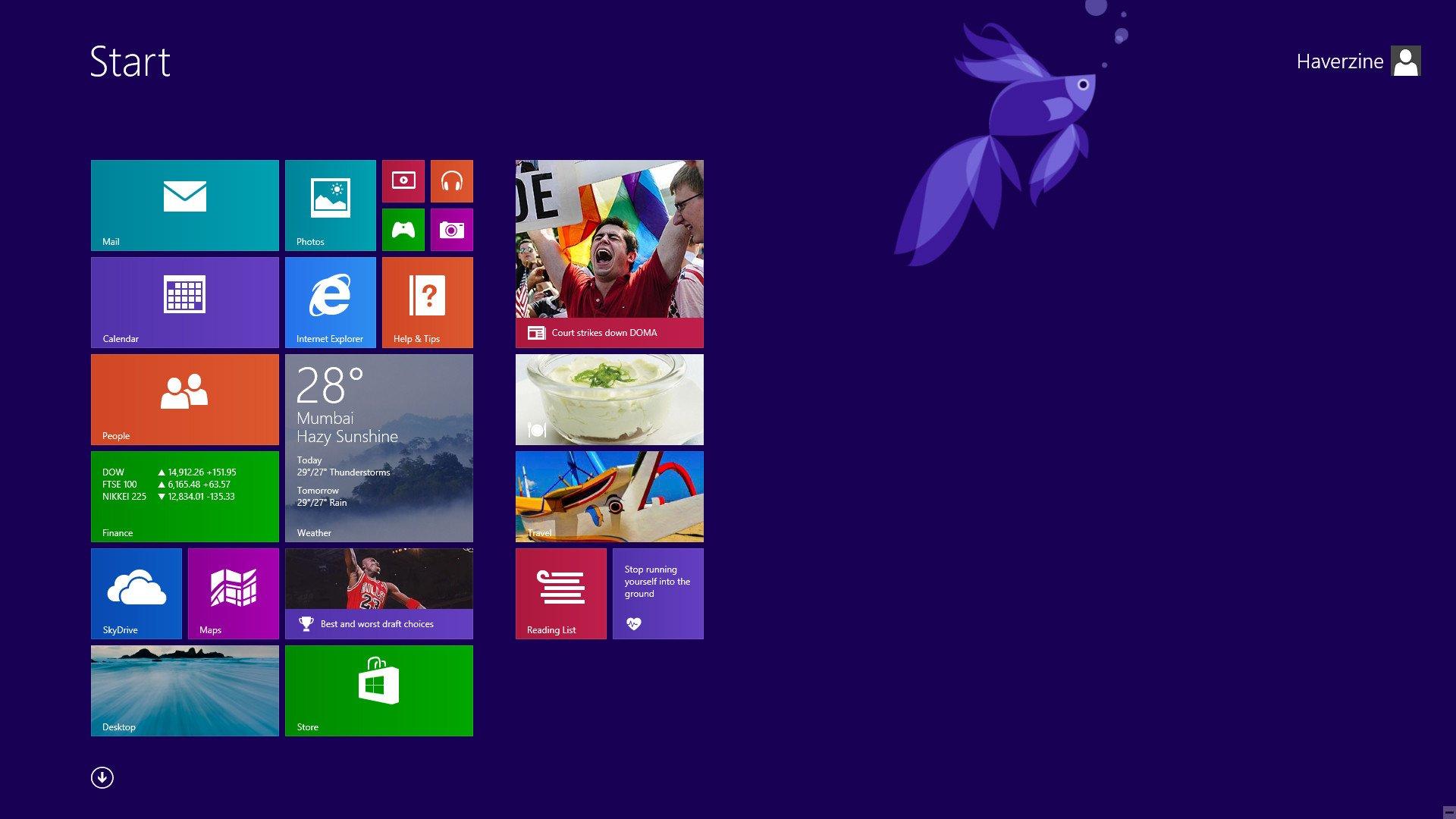
<figure id="attachment_395627" aria-describedby="caption-attachment-395627" style="width: 1920px" class="wp-caption aligncenter"><img loading="lazy" class="wp-image-395627 size-full" title="Start Menu trên Windows 8.1. Người dùng thường hay đùa vui rằng đây là Start Screen chứ không phải Start Menu mà họ muốn. (Ảnh: Internet)" src="https://bloganchoi.com/wp-content/uploads/2021/06/windows-11-windows-8-1-start-menu.jpg" alt="Start Menu trên Windows 8.1. Người dùng thường hay đùa vui rằng đây là Start Screen chứ không phải Start Menu mà họ muốn. (Ảnh: Internet)" width="1920" height="1080" srcset="https://bloganchoi.com/wp-content/uploads/2021/06/windows-11-windows-8-1-start-menu.jpg 1920w, https://bloganchoi.com/wp-content/uploads/2021/06/windows-11-windows-8-1-start-menu-300x169.jpg 300w, https://bloganchoi.com/wp-content/uploads/2021/06/windows-11-windows-8-1-start-menu-1024x576.jpg 1024w, https://bloganchoi.com/wp-content/uploads/2021/06/windows-11-windows-8-1-start-menu-768x432.jpg 768w, https://bloganchoi.com/wp-content/uploads/2021/06/windows-11-windows-8-1-start-menu-1536x864.jpg 1536w, https://bloganchoi.com/wp-content/uploads/2021/06/windows-11-windows-8-1-start-menu-696x392.jpg 696w, https://bloganchoi.com/wp-content/uploads/2021/06/windows-11-windows-8-1-start-menu-1068x601.jpg 1068w, https://bloganchoi.com/wp-content/uploads/2021/06/windows-11-windows-8-1-start-menu-747x420.jpg 747w" sizes="(max-width: 1920px) 100vw, 1920px" /><figcaption id="caption-attachment-395627" class="wp-caption-text">Start Menu trên Windows 8.1. Người dùng thường hay đùa vui rằng đây là Start Screen chứ không phải Start Menu mà họ muốn. (Ảnh: Internet)</figcaption></figure>
<p>Trên Windows 8.1, người dùng thường xuyên kêu ca về việc họ chỉ có Start Screen chứ không phải Start Menu thực sự. Hoạt động thiếu ổn định đi kèm với giao diện khá rối mắt khiến Start Screen thực sự là một điểm trừ lớn của phiên bản Windows 8.1 vốn đã thiếu sự ổn định so với Windows 7.</p>
<p><iframe loading="lazy" class="youtube-player" width="640" height="360" src="https://www.youtube.com/embed/_KY3y3SdPWg?version=3&#038;rel=1&#038;showsearch=0&#038;showinfo=1&#038;iv_load_policy=1&#038;fs=1&#038;hl=vi&#038;autohide=2&#038;wmode=transparent" allowfullscreen="true" style="border:0;" sandbox="allow-scripts allow-same-origin allow-popups allow-presentation"></iframe></p>
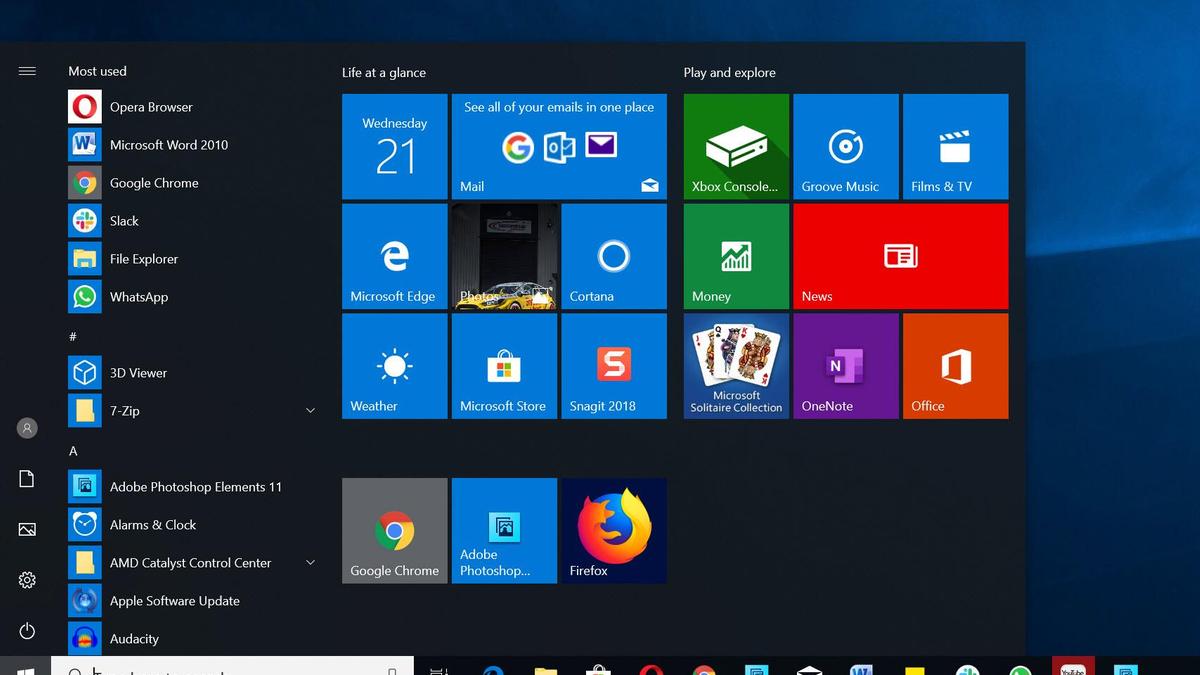
<figure id="attachment_395633" aria-describedby="caption-attachment-395633" style="width: 1200px" class="wp-caption aligncenter"><img loading="lazy" class="wp-image-395633 size-full" title="Start Menu trên Windows 10: bạn sẽ phải tốn thời gian để tinh chỉnh lại nếu muốn Start Menu của mình đỡ lộn xộn hơn (Ảnh: Internet)." src="https://bloganchoi.com/wp-content/uploads/2021/06/windows-11-windows-10-start-menu-1.jpg" alt="Start Menu trên Windows 10: bạn sẽ phải tốn thời gian để tinh chỉnh lại nếu muốn Start Menu của mình đỡ lộn xộn hơn (Ảnh: Internet)." width="1200" height="675" srcset="https://bloganchoi.com/wp-content/uploads/2021/06/windows-11-windows-10-start-menu-1.jpg 1200w, https://bloganchoi.com/wp-content/uploads/2021/06/windows-11-windows-10-start-menu-1-300x169.jpg 300w, https://bloganchoi.com/wp-content/uploads/2021/06/windows-11-windows-10-start-menu-1-1024x576.jpg 1024w, https://bloganchoi.com/wp-content/uploads/2021/06/windows-11-windows-10-start-menu-1-768x432.jpg 768w, https://bloganchoi.com/wp-content/uploads/2021/06/windows-11-windows-10-start-menu-1-696x392.jpg 696w, https://bloganchoi.com/wp-content/uploads/2021/06/windows-11-windows-10-start-menu-1-1068x601.jpg 1068w, https://bloganchoi.com/wp-content/uploads/2021/06/windows-11-windows-10-start-menu-1-747x420.jpg 747w" sizes="(max-width: 1200px) 100vw, 1200px" /><figcaption id="caption-attachment-395633" class="wp-caption-text">Start Menu trên Windows 10: bạn sẽ phải tốn thời gian để tinh chỉnh lại nếu muốn Start Menu của mình đỡ lộn xộn hơn (Ảnh: Internet).</figcaption></figure>
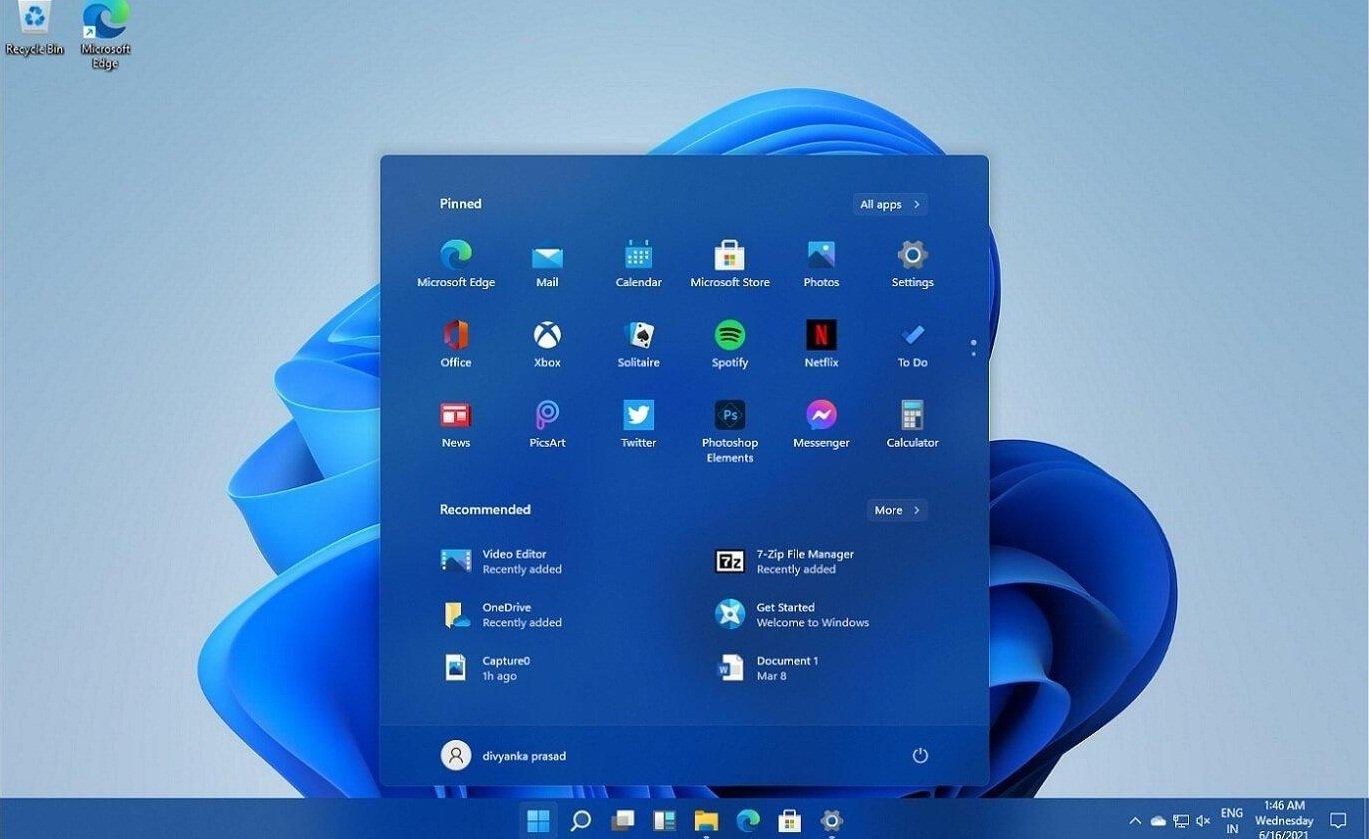
<p>Ở Windows 11, người dùng sẽ thấy một Start Menu gọn gàng, chi tiết. Bạn có thể ghim những ứng dụng thường xuyên sử dụng và truy cập nhanh đến chúng. So với Windows 8.1 hay Windows 10, đây chính là một điểm cộng khiến người dùng muốn nâng cấp lên Windows 11.</p>
<figure id="attachment_396404" aria-describedby="caption-attachment-396404" style="width: 1369px" class="wp-caption aligncenter"><img loading="lazy" class="wp-image-396404 size-full" title="Start Menu trên Windows 11 (Ảnh: Internet)." src="https://bloganchoi.com/wp-content/uploads/2021/06/windows-11-start-menu-1.jpg" alt="Start Menu trên Windows 11 (Ảnh: Internet)." width="1369" height="839" srcset="https://bloganchoi.com/wp-content/uploads/2021/06/windows-11-start-menu-1.jpg 1369w, https://bloganchoi.com/wp-content/uploads/2021/06/windows-11-start-menu-1-300x184.jpg 300w, https://bloganchoi.com/wp-content/uploads/2021/06/windows-11-start-menu-1-1024x628.jpg 1024w, https://bloganchoi.com/wp-content/uploads/2021/06/windows-11-start-menu-1-768x471.jpg 768w, https://bloganchoi.com/wp-content/uploads/2021/06/windows-11-start-menu-1-696x427.jpg 696w, https://bloganchoi.com/wp-content/uploads/2021/06/windows-11-start-menu-1-1068x655.jpg 1068w, https://bloganchoi.com/wp-content/uploads/2021/06/windows-11-start-menu-1-685x420.jpg 685w" sizes="(max-width: 1369px) 100vw, 1369px" /><figcaption id="caption-attachment-396404" class="wp-caption-text">Start Menu trên Windows 11 (Ảnh: Internet).</figcaption></figure>
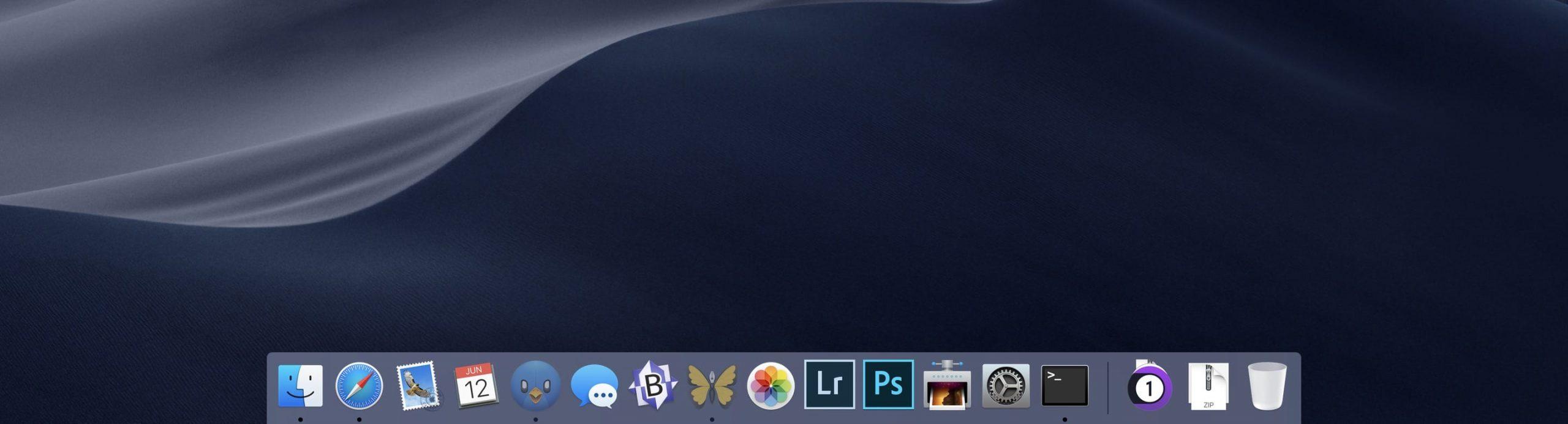
<figure id="attachment_395636" aria-describedby="caption-attachment-395636" style="width: 2560px" class="wp-caption aligncenter"><img loading="lazy" class="wp-image-395636 size-full" title="Nhiều người cho rằng Start Menu trên Windows 11 khá tương đồng với Dock Menu trên macOS (Ảnh: Internet)." src="https://bloganchoi.com/wp-content/uploads/2021/06/windows-11-dock-menu-macos-scaled.jpg" alt="Nhiều người cho rằng Start Menu trên Windows 11 khá tương đồng với Dock Menu trên macOS (Ảnh: Internet)." width="2560" height="693" srcset="https://bloganchoi.com/wp-content/uploads/2021/06/windows-11-dock-menu-macos-scaled.jpg 2560w, https://bloganchoi.com/wp-content/uploads/2021/06/windows-11-dock-menu-macos-300x81.jpg 300w, https://bloganchoi.com/wp-content/uploads/2021/06/windows-11-dock-menu-macos-1024x277.jpg 1024w, https://bloganchoi.com/wp-content/uploads/2021/06/windows-11-dock-menu-macos-768x208.jpg 768w, https://bloganchoi.com/wp-content/uploads/2021/06/windows-11-dock-menu-macos-1536x416.jpg 1536w, https://bloganchoi.com/wp-content/uploads/2021/06/windows-11-dock-menu-macos-2048x555.jpg 2048w, https://bloganchoi.com/wp-content/uploads/2021/06/windows-11-dock-menu-macos-696x189.jpg 696w, https://bloganchoi.com/wp-content/uploads/2021/06/windows-11-dock-menu-macos-1068x289.jpg 1068w, https://bloganchoi.com/wp-content/uploads/2021/06/windows-11-dock-menu-macos-1551x420.jpg 1551w" sizes="(max-width: 2560px) 100vw, 2560px" /><figcaption id="caption-attachment-395636" class="wp-caption-text">Nhiều người cho rằng Start Menu trên Windows 11 khá tương đồng với Dock Menu trên macOS (Ảnh: Internet).</figcaption></figure>
<h2><strong>2. Windows 11 không cho di chuyển Task Bar</strong></h2>
<p>So với macOS, người dùng Windows luôn có một sự “tự do” hơn nhất định. Họ có thể thoải mái tuỳ chỉnh hệ điều hành mình sử dụng ở mọi khía cạnh: từ giao diện cho đến những thiết lập ảnh hưởng đến sự vận hành của hệ thống. Một trong những điều đó là khả năng di chuyển thanh Taskbar từ trên, dưới, trái hay phải.</p>
<figure id="attachment_395642" aria-describedby="caption-attachment-395642" style="width: 1280px" class="wp-caption aligncenter"><img loading="lazy" class="wp-image-395642 size-full" title="Bốn vị trí mà người dùng có thể thoải mái &quot;xê dịch&quot; thanh Taskbar trên Windows 10 (Ảnh: Internet)." src="https://bloganchoi.com/wp-content/uploads/2021/06/windows-11-windows-10-taskbar.jpg" alt="Bốn vị trí mà người dùng có thể thoải mái &quot;xê dịch&quot; thanh Taskbar trên Windows 10 (Ảnh: Internet)." width="1280" height="720" srcset="https://bloganchoi.com/wp-content/uploads/2021/06/windows-11-windows-10-taskbar.jpg 1280w, https://bloganchoi.com/wp-content/uploads/2021/06/windows-11-windows-10-taskbar-300x169.jpg 300w, https://bloganchoi.com/wp-content/uploads/2021/06/windows-11-windows-10-taskbar-1024x576.jpg 1024w, https://bloganchoi.com/wp-content/uploads/2021/06/windows-11-windows-10-taskbar-768x432.jpg 768w, https://bloganchoi.com/wp-content/uploads/2021/06/windows-11-windows-10-taskbar-696x392.jpg 696w, https://bloganchoi.com/wp-content/uploads/2021/06/windows-11-windows-10-taskbar-1068x601.jpg 1068w, https://bloganchoi.com/wp-content/uploads/2021/06/windows-11-windows-10-taskbar-747x420.jpg 747w" sizes="(max-width: 1280px) 100vw, 1280px" /><figcaption id="caption-attachment-395642" class="wp-caption-text">Bốn vị trí mà người dùng có thể thoải mái &#8220;xê dịch&#8221; thanh Taskbar trên Windows 10 (Ảnh: Internet).</figcaption></figure>
<p>Tuy nhiên theo phản hồi của nhiều người dùng thì họ không thể di chuyển Task Bar trên Windows 11 một cách tuỳ ý như trên những phiên bản tiền nhiệm. Thanh Taskbar trên Windows 11 sẽ chỉ nằm cố định ở phía dưới cùng của góc màn hình. Hy vọng rằng ở những bản cập nhật trong tương lai Microsoft có thể khắc phục được điều này và cho phép người dùng tự do hơn trong việc đặt thanh Taskbar.</p>
<figure id="attachment_395622" aria-describedby="caption-attachment-395622" style="width: 1024px" class="wp-caption aligncenter"><img loading="lazy" class="wp-image-395622 size-full" title="Windows 11 có giao diện rất đẹp, chỉ là không cho thay đổi vị trí Taskbar mà thôi (Ảnh: Internet)." src="https://bloganchoi.com/wp-content/uploads/2021/06/windows-11-tinh-nang-moi-01.jpg" alt="Windows 11 có giao diện rất đẹp, chỉ là không cho thay đổi vị trí Taskbar mà thôi (Ảnh: Internet)." width="1024" height="576" srcset="https://bloganchoi.com/wp-content/uploads/2021/06/windows-11-tinh-nang-moi-01.jpg 1024w, https://bloganchoi.com/wp-content/uploads/2021/06/windows-11-tinh-nang-moi-01-300x169.jpg 300w, https://bloganchoi.com/wp-content/uploads/2021/06/windows-11-tinh-nang-moi-01-768x432.jpg 768w, https://bloganchoi.com/wp-content/uploads/2021/06/windows-11-tinh-nang-moi-01-696x392.jpg 696w, https://bloganchoi.com/wp-content/uploads/2021/06/windows-11-tinh-nang-moi-01-747x420.jpg 747w" sizes="(max-width: 1024px) 100vw, 1024px" /><figcaption id="caption-attachment-395622" class="wp-caption-text">Windows 11 có giao diện rất đẹp, chỉ là không cho thay đổi vị trí Taskbar mà thôi (Ảnh: Internet).</figcaption></figure>
<p><iframe loading="lazy" class="youtube-player" width="640" height="360" src="https://www.youtube.com/embed/cp6D8RzqgTQ?version=3&#038;rel=1&#038;showsearch=0&#038;showinfo=1&#038;iv_load_policy=1&#038;fs=1&#038;hl=vi&#038;autohide=2&#038;wmode=transparent" allowfullscreen="true" style="border:0;" sandbox="allow-scripts allow-same-origin allow-popups allow-presentation"></iframe></p>
<h2><strong>3. Task View của Windows 11 </strong></h2>
<p>Trên Windows 11, tính năng Task View đã được update và cải thiện. Việc tạo ra các desktop mới để làm việc đa tác vụ đã xuất hiện lần đầu ở Windows 10. Trên Windows 11, tính năng này được nhiều người dùng đánh giá là học hỏi đến &#8230;99% từ Mission Control, một trình quản lý đa tác vụ mặc định đến từ &#8220;đối thủ&#8221; macOS.</p>
<figure id="attachment_395650" aria-describedby="caption-attachment-395650" style="width: 1493px" class="wp-caption aligncenter"><img loading="lazy" class="wp-image-395650 size-full" title="Task View trên Windows 10. (Ảnh: Internet)" src="https://bloganchoi.com/wp-content/uploads/2021/06/windows-11-windows-10-task-view.jpg" alt="Task View trên Windows 10. (Ảnh: Internet)" width="1493" height="961" srcset="https://bloganchoi.com/wp-content/uploads/2021/06/windows-11-windows-10-task-view.jpg 1493w, https://bloganchoi.com/wp-content/uploads/2021/06/windows-11-windows-10-task-view-300x193.jpg 300w, https://bloganchoi.com/wp-content/uploads/2021/06/windows-11-windows-10-task-view-1024x659.jpg 1024w, https://bloganchoi.com/wp-content/uploads/2021/06/windows-11-windows-10-task-view-768x494.jpg 768w, https://bloganchoi.com/wp-content/uploads/2021/06/windows-11-windows-10-task-view-696x448.jpg 696w, https://bloganchoi.com/wp-content/uploads/2021/06/windows-11-windows-10-task-view-1068x687.jpg 1068w, https://bloganchoi.com/wp-content/uploads/2021/06/windows-11-windows-10-task-view-653x420.jpg 653w" sizes="(max-width: 1493px) 100vw, 1493px" /><figcaption id="caption-attachment-395650" class="wp-caption-text">Task View trên Windows 10. (Ảnh: Internet)</figcaption></figure>
<figure id="attachment_395651" aria-describedby="caption-attachment-395651" style="width: 1651px" class="wp-caption aligncenter"><img loading="lazy" class="wp-image-395651 size-full" title="Task View trên Windows 11: Tính năng này giúp người dùng phân chia từng Desktop riêng cho một công việc hoặc ứng dụng cụ thể. (Ảnh: Internet)" src="https://bloganchoi.com/wp-content/uploads/2021/06/windows-11-task-view.jpg" alt="Task View trên Windows 11: Tính năng này giúp người dùng phân chia từng Desktop riêng cho một công việc hoặc ứng dụng cụ thể. (Ảnh: Internet)" width="1651" height="931" srcset="https://bloganchoi.com/wp-content/uploads/2021/06/windows-11-task-view.jpg 1651w, https://bloganchoi.com/wp-content/uploads/2021/06/windows-11-task-view-300x169.jpg 300w, https://bloganchoi.com/wp-content/uploads/2021/06/windows-11-task-view-1024x577.jpg 1024w, https://bloganchoi.com/wp-content/uploads/2021/06/windows-11-task-view-768x433.jpg 768w, https://bloganchoi.com/wp-content/uploads/2021/06/windows-11-task-view-1536x866.jpg 1536w, https://bloganchoi.com/wp-content/uploads/2021/06/windows-11-task-view-696x392.jpg 696w, https://bloganchoi.com/wp-content/uploads/2021/06/windows-11-task-view-1068x602.jpg 1068w, https://bloganchoi.com/wp-content/uploads/2021/06/windows-11-task-view-745x420.jpg 745w" sizes="(max-width: 1651px) 100vw, 1651px" /><figcaption id="caption-attachment-395651" class="wp-caption-text">Task View trên Windows 11: Tính năng này giúp người dùng phân chia từng Desktop riêng cho một công việc hoặc ứng dụng cụ thể. (Ảnh: Internet)</figcaption></figure>
<figure id="attachment_395652" aria-describedby="caption-attachment-395652" style="width: 1560px" class="wp-caption aligncenter"><img loading="lazy" class="wp-image-395652 size-full" title="Những người từng sử dụng qua cả 2 hệ điều hành sẽ không khó để nhận ra sự tương đồng giữa Mission Control của macOS so với Task View của Windows 11 (Ảnh: Internet)." src="https://bloganchoi.com/wp-content/uploads/2021/06/windows-11-mission-control-macos.jpg" alt="Những người từng sử dụng qua cả 2 hệ điều hành sẽ không khó để nhận ra sự tương đồng giữa Mission Control của macOS so với Task View của Windows 11 (Ảnh: Internet)." width="1560" height="950" srcset="https://bloganchoi.com/wp-content/uploads/2021/06/windows-11-mission-control-macos.jpg 1560w, https://bloganchoi.com/wp-content/uploads/2021/06/windows-11-mission-control-macos-300x183.jpg 300w, https://bloganchoi.com/wp-content/uploads/2021/06/windows-11-mission-control-macos-1024x624.jpg 1024w, https://bloganchoi.com/wp-content/uploads/2021/06/windows-11-mission-control-macos-768x468.jpg 768w, https://bloganchoi.com/wp-content/uploads/2021/06/windows-11-mission-control-macos-1536x935.jpg 1536w, https://bloganchoi.com/wp-content/uploads/2021/06/windows-11-mission-control-macos-696x424.jpg 696w, https://bloganchoi.com/wp-content/uploads/2021/06/windows-11-mission-control-macos-1068x650.jpg 1068w, https://bloganchoi.com/wp-content/uploads/2021/06/windows-11-mission-control-macos-690x420.jpg 690w" sizes="(max-width: 1560px) 100vw, 1560px" /><figcaption id="caption-attachment-395652" class="wp-caption-text">Những người từng sử dụng qua cả 2 hệ điều hành sẽ không khó để nhận ra sự tương đồng giữa Mission Control của macOS so với Task View của Windows 11 (Ảnh: Internet).</figcaption></figure>
<p><iframe loading="lazy" class="youtube-player" width="640" height="360" src="https://www.youtube.com/embed/uBYP5IdfoCo?version=3&#038;rel=1&#038;showsearch=0&#038;showinfo=1&#038;iv_load_policy=1&#038;fs=1&#038;hl=vi&#038;autohide=2&#038;wmode=transparent" allowfullscreen="true" style="border:0;" sandbox="allow-scripts allow-same-origin allow-popups allow-presentation"></iframe></p>
<h2><strong>4. Màn hình cài đặt của Windows 11 </strong></h2>
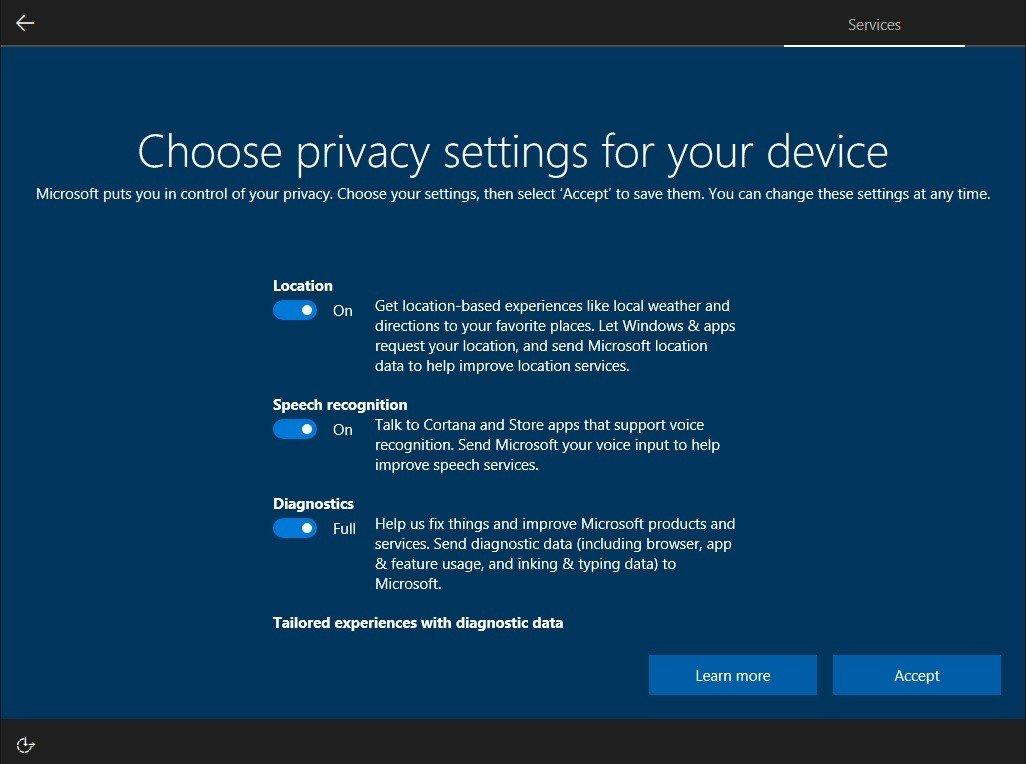
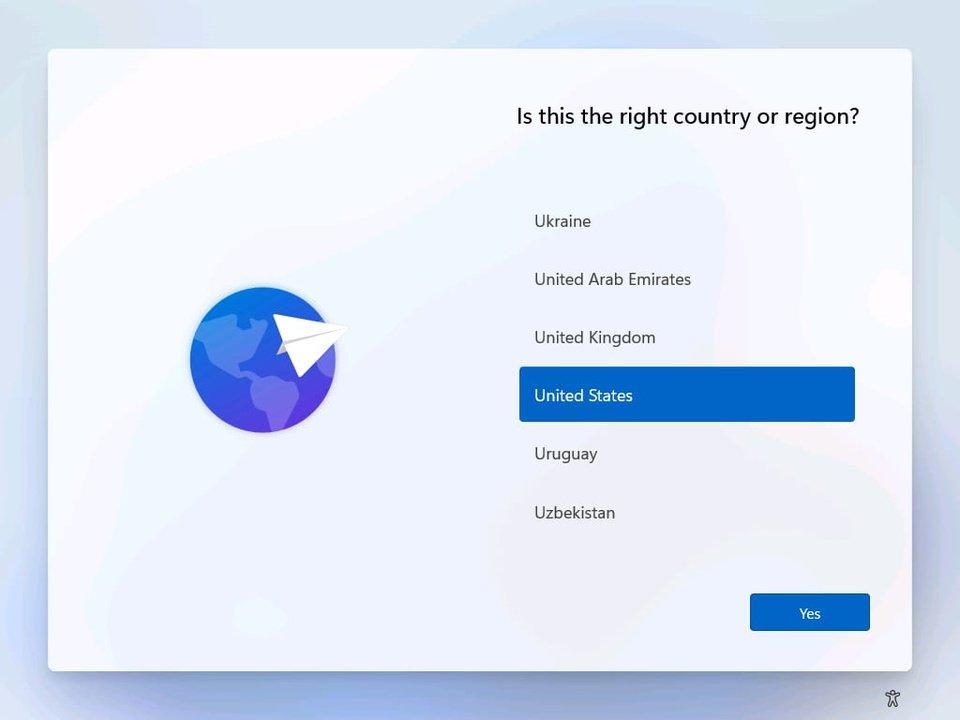
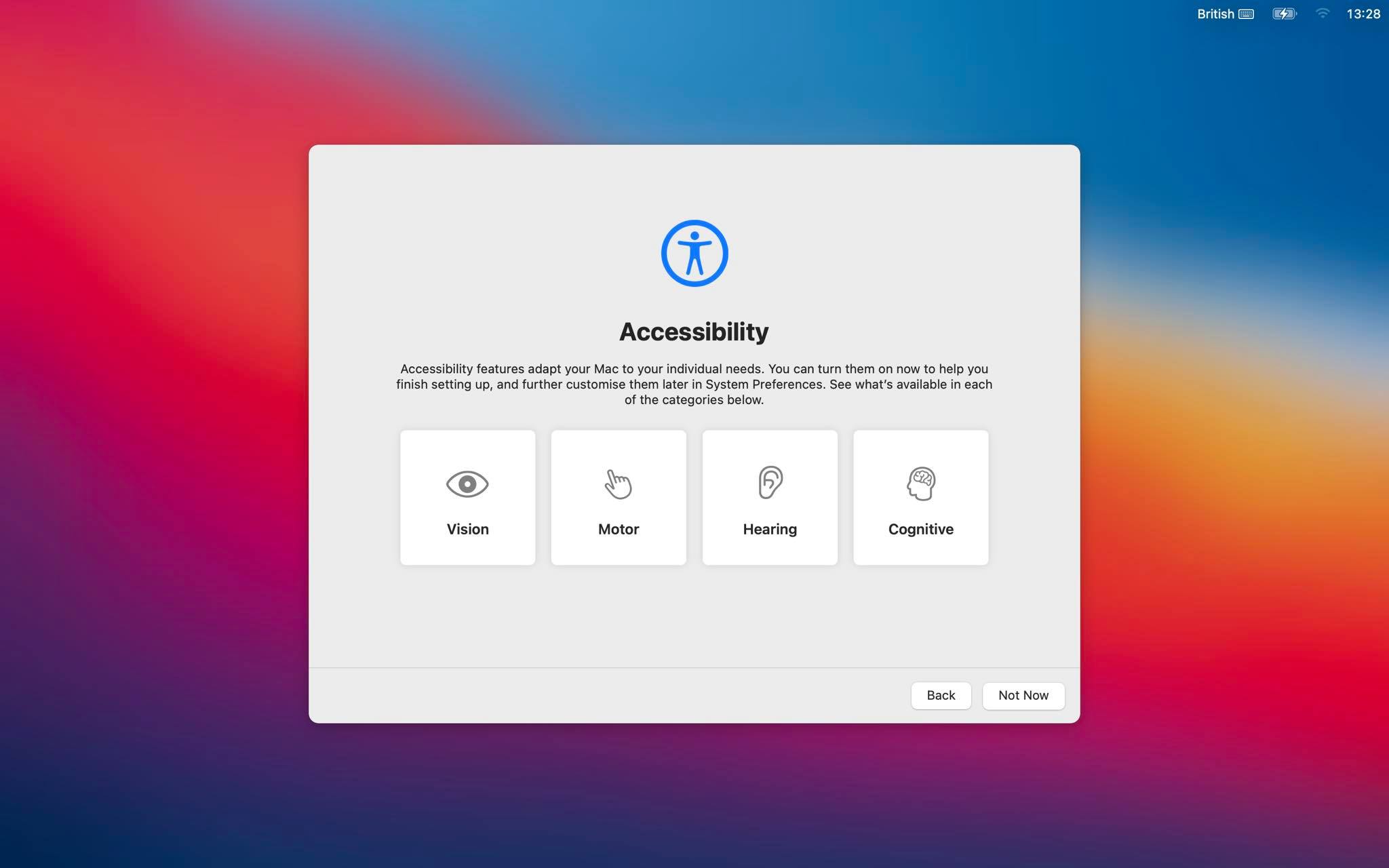
<p>Trên Windows 7, Windows 8.1 hay Windows 10, Microsoft thường sử dụng tông màu khá tối ở màn hình thiết lập cài đặt. Nhưng ở Windows 11, Microsoft lại chủ động chỉnh tông màu phần thiết lập sáng sủa hơn. Ngôn ngữ thiết kế này khá tương đồng với macOS Big Sur, khi mà thiết kế mô phỏng đồ vật đã được thay thế bằng giao diện màu sắc sặc sỡ.</p>
<figure id="attachment_395655" aria-describedby="caption-attachment-395655" style="width: 1026px" class="wp-caption aligncenter"><img loading="lazy" class="wp-image-395655 size-full" title="Giao diện thiết lập cài đặt trên Windows 10 khá tối và tù túng. (Ảnh: Internet)" src="https://bloganchoi.com/wp-content/uploads/2021/06/windows-11-windows-10-setting.jpg" alt="Giao diện thiết lập cài đặt trên Windows 10 khá tối và tù túng. (Ảnh: Internet)" width="1026" height="764" srcset="https://bloganchoi.com/wp-content/uploads/2021/06/windows-11-windows-10-setting.jpg 1026w, https://bloganchoi.com/wp-content/uploads/2021/06/windows-11-windows-10-setting-300x223.jpg 300w, https://bloganchoi.com/wp-content/uploads/2021/06/windows-11-windows-10-setting-1024x763.jpg 1024w, https://bloganchoi.com/wp-content/uploads/2021/06/windows-11-windows-10-setting-768x572.jpg 768w, https://bloganchoi.com/wp-content/uploads/2021/06/windows-11-windows-10-setting-80x60.jpg 80w, https://bloganchoi.com/wp-content/uploads/2021/06/windows-11-windows-10-setting-265x198.jpg 265w, https://bloganchoi.com/wp-content/uploads/2021/06/windows-11-windows-10-setting-696x518.jpg 696w, https://bloganchoi.com/wp-content/uploads/2021/06/windows-11-windows-10-setting-564x420.jpg 564w" sizes="(max-width: 1026px) 100vw, 1026px" /><figcaption id="caption-attachment-395655" class="wp-caption-text">Giao diện thiết lập cài đặt trên Windows 10 khá tối và tù túng. (Ảnh: Internet)</figcaption></figure>
<figure id="attachment_395654" aria-describedby="caption-attachment-395654" style="width: 960px" class="wp-caption aligncenter"><img loading="lazy" class="wp-image-395654 size-full" title="Màn hình thiết lập ban đầu trên Windows 11. Lối thiết kế này, trùng hợp thay, lại khá tương đồng với... (Ảnh: Internet)" src="https://bloganchoi.com/wp-content/uploads/2021/06/windows-11-country-region-setting.jpg" alt="Màn hình thiết lập ban đầu trên Windows 11. Lối thiết kế này, trùng hợp thay, lại khá tương đồng với... (Ảnh: Internet)" width="960" height="720" srcset="https://bloganchoi.com/wp-content/uploads/2021/06/windows-11-country-region-setting.jpg 960w, https://bloganchoi.com/wp-content/uploads/2021/06/windows-11-country-region-setting-300x225.jpg 300w, https://bloganchoi.com/wp-content/uploads/2021/06/windows-11-country-region-setting-768x576.jpg 768w, https://bloganchoi.com/wp-content/uploads/2021/06/windows-11-country-region-setting-80x60.jpg 80w, https://bloganchoi.com/wp-content/uploads/2021/06/windows-11-country-region-setting-265x198.jpg 265w, https://bloganchoi.com/wp-content/uploads/2021/06/windows-11-country-region-setting-696x522.jpg 696w, https://bloganchoi.com/wp-content/uploads/2021/06/windows-11-country-region-setting-560x420.jpg 560w" sizes="(max-width: 960px) 100vw, 960px" /><figcaption id="caption-attachment-395654" class="wp-caption-text">Màn hình thiết lập ban đầu trên Windows 11. Lối thiết kế này, trùng hợp thay, lại khá tương đồng với&#8230; (Ảnh: Internet)</figcaption></figure>
<figure id="attachment_395656" aria-describedby="caption-attachment-395656" style="width: 2048px" class="wp-caption aligncenter"><img loading="lazy" class="wp-image-395656 size-full" title="...màn hình thiết lập của macOS Big Sur (Ảnh: Internet)." src="https://bloganchoi.com/wp-content/uploads/2021/06/windows-11-big-sur-screen-4.jpg" alt="...màn hình thiết lập của macOS Big Sur (Ảnh: Internet)." width="2048" height="1280" srcset="https://bloganchoi.com/wp-content/uploads/2021/06/windows-11-big-sur-screen-4.jpg 2048w, https://bloganchoi.com/wp-content/uploads/2021/06/windows-11-big-sur-screen-4-300x188.jpg 300w, https://bloganchoi.com/wp-content/uploads/2021/06/windows-11-big-sur-screen-4-1024x640.jpg 1024w, https://bloganchoi.com/wp-content/uploads/2021/06/windows-11-big-sur-screen-4-768x480.jpg 768w, https://bloganchoi.com/wp-content/uploads/2021/06/windows-11-big-sur-screen-4-1536x960.jpg 1536w, https://bloganchoi.com/wp-content/uploads/2021/06/windows-11-big-sur-screen-4-696x435.jpg 696w, https://bloganchoi.com/wp-content/uploads/2021/06/windows-11-big-sur-screen-4-1068x668.jpg 1068w, https://bloganchoi.com/wp-content/uploads/2021/06/windows-11-big-sur-screen-4-672x420.jpg 672w" sizes="(max-width: 2048px) 100vw, 2048px" /><figcaption id="caption-attachment-395656" class="wp-caption-text">&#8230;màn hình thiết lập của macOS Big Sur (Ảnh: Internet).</figcaption></figure>
<p><iframe loading="lazy" class="youtube-player" width="640" height="360" src="https://www.youtube.com/embed/zLG5zgu9DqQ?version=3&#038;rel=1&#038;showsearch=0&#038;showinfo=1&#038;iv_load_policy=1&#038;fs=1&#038;hl=vi&#038;autohide=2&#038;wmode=transparent" allowfullscreen="true" style="border:0;" sandbox="allow-scripts allow-same-origin allow-popups allow-presentation"></iframe></p>
<h2><strong>5. Snap Layout của Windows 11</strong></h2>
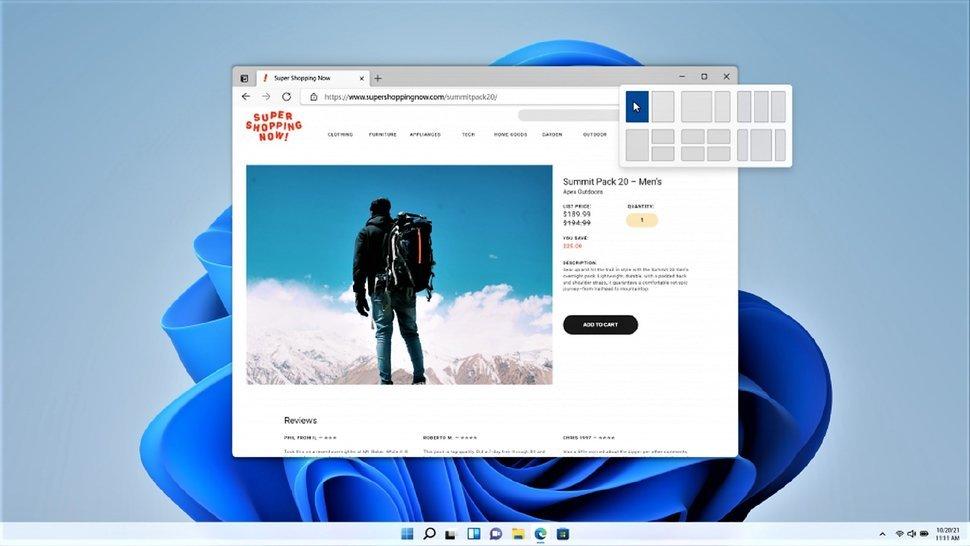
<p>Từ trước đến nay, người dùng Windows sẽ phải căn chỉnh thủ công độ rộng của hai ứng dụng nếu muốn làm việc đa nhiệm. Điểm bất tiện này đã được cải thiện dần dần qua tính năng Task View trên Windows 10. Tuy vậy phải đến Windows 11 thì tính năng <em>Snap Layout</em> mới thật sự trở nên lợi hại. Giờ đây <em>Snap</em> <em>Layout</em> đã cho phép người dùng có thể làm việc đồng thời lên tới 4 ứng dụng cùng một lúc trên một màn hình.</p>
<figure id="attachment_396151" aria-describedby="caption-attachment-396151" style="width: 970px" class="wp-caption aligncenter"><img loading="lazy" class="wp-image-396151 size-full" title="Snap Layout trên Windows 11. Tuy đi sau đối thủ macOS đến 6 năm, Windows 11 vẫn đem lại trải nghiệm tuyệt vời hơn do hỗ trợ đồng thời tới 4 màn hình làm việc. (Ảnh: Internet)" src="https://bloganchoi.com/wp-content/uploads/2021/06/windows-11-snap-layout.jpeg" alt="Snap Layout trên Windows 11. Tuy đi sau đối thủ macOS đến 6 năm, Windows 11 vẫn đem lại trải nghiệm tuyệt vời hơn do hỗ trợ đồng thời tới 4 màn hình làm việc. (Ảnh: Internet)" width="970" height="546" srcset="https://bloganchoi.com/wp-content/uploads/2021/06/windows-11-snap-layout.jpeg 970w, https://bloganchoi.com/wp-content/uploads/2021/06/windows-11-snap-layout-300x169.jpeg 300w, https://bloganchoi.com/wp-content/uploads/2021/06/windows-11-snap-layout-768x432.jpeg 768w, https://bloganchoi.com/wp-content/uploads/2021/06/windows-11-snap-layout-696x392.jpeg 696w, https://bloganchoi.com/wp-content/uploads/2021/06/windows-11-snap-layout-746x420.jpeg 746w" sizes="(max-width: 970px) 100vw, 970px" /><figcaption id="caption-attachment-396151" class="wp-caption-text">Snap Layout trên Windows 11. Tuy đi sau đối thủ macOS đến 6 năm, Windows 11 vẫn đem lại trải nghiệm tuyệt vời hơn do hỗ trợ đồng thời tới 4 màn hình làm việc. (Ảnh: Internet)</figcaption></figure>
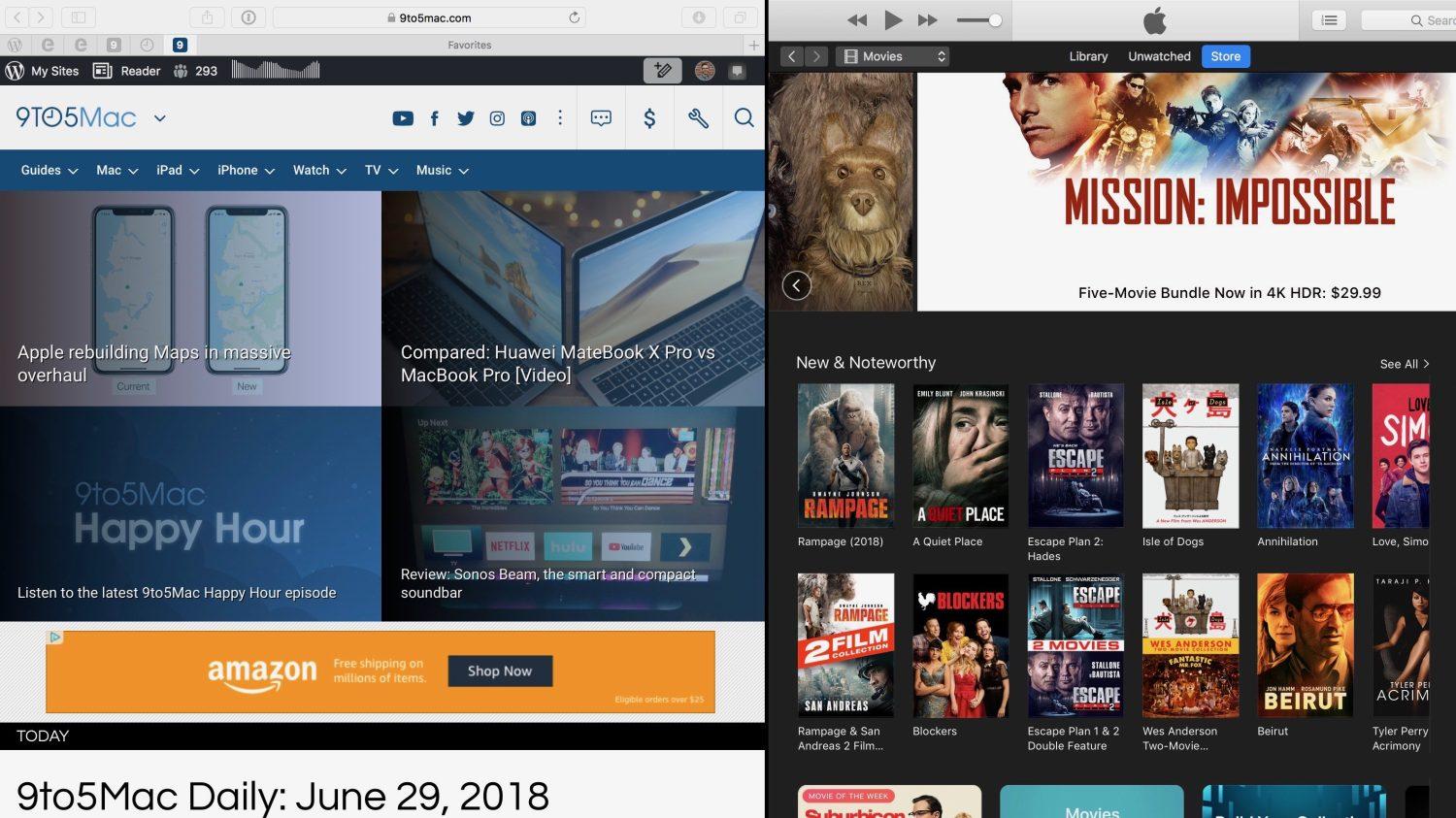
<p>So với Windows, macOS đã có tính năng tương tự mang tên Split View, được ra mắt trên OS X El Capitan (2015). Tuy đi sau macOS đến 6 năm ở tính năng này, người dùng Windows có thể cảm thấy tự hào về khoản làm việc đa nhiệm lên tới 4 màn hình, so với 2 của macOS.</p>
<p><iframe loading="lazy" class="youtube-player" width="640" height="360" src="https://www.youtube.com/embed/R_WpfsB9cao?version=3&#038;rel=1&#038;showsearch=0&#038;showinfo=1&#038;iv_load_policy=1&#038;fs=1&#038;hl=vi&#038;autohide=2&#038;wmode=transparent" allowfullscreen="true" style="border:0;" sandbox="allow-scripts allow-same-origin allow-popups allow-presentation"></iframe></p>
<figure id="attachment_396149" aria-describedby="caption-attachment-396149" style="width: 1500px" class="wp-caption aligncenter"><img loading="lazy" class="wp-image-396149 size-full" title="Tính năng Split View trên macOS được ra mắt lần đầu trên macOS X El Capitan (2015). Kể cả trên phiên bản macOS Montery vừa rồi, số lượng ứng dụng đa nhiệm tối đa vẫn chỉ là 2 (Ảnh: Internet)." src="https://bloganchoi.com/wp-content/uploads/2021/06/windows-11-macos-split-view.jpg" alt="Tính năng Split View trên macOS được ra mắt lần đầu trên macOS X El Capitan (2015). Kể cả trên phiên bản macOS Montery vừa rồi, số lượng ứng dụng đa nhiệm tối đa vẫn chỉ là 2 (Ảnh: Internet)." width="1500" height="843" srcset="https://bloganchoi.com/wp-content/uploads/2021/06/windows-11-macos-split-view.jpg 1500w, https://bloganchoi.com/wp-content/uploads/2021/06/windows-11-macos-split-view-300x169.jpg 300w, https://bloganchoi.com/wp-content/uploads/2021/06/windows-11-macos-split-view-1024x575.jpg 1024w, https://bloganchoi.com/wp-content/uploads/2021/06/windows-11-macos-split-view-768x432.jpg 768w, https://bloganchoi.com/wp-content/uploads/2021/06/windows-11-macos-split-view-696x391.jpg 696w, https://bloganchoi.com/wp-content/uploads/2021/06/windows-11-macos-split-view-1068x600.jpg 1068w, https://bloganchoi.com/wp-content/uploads/2021/06/windows-11-macos-split-view-747x420.jpg 747w" sizes="(max-width: 1500px) 100vw, 1500px" /><figcaption id="caption-attachment-396149" class="wp-caption-text">Tính năng Split View trên macOS được ra mắt lần đầu trên macOS X El Capitan (2015). Kể cả trên phiên bản macOS Montery vừa rồi, số lượng ứng dụng đa nhiệm tối đa vẫn chỉ là 2 (Ảnh: Internet).</figcaption></figure>
<h2><strong>6. Windows 11 cho phép chạy native ứng dụng Android </strong></h2>
<p>Một trong những tính năng vô cùng hấp dẫn được chờ đón trên Windows 11 là khả năng chạy ứng dụng Android trực tiếp mà không cần thông qua bất kỳ bên thứ 3 nào. Tuy nhiên thay vì tải trực tiếp ứng dụng từ Google Play, Microsoft đã &#8220;bắt tay&#8221; với Amazon AppStore để tích hợp tài nguyên có sẵn vào kho ứng dụng Microsoft Store. Bạn cần phải có tài khoản Amazon để có thể cài đặt ứng dụng Android trên Windows 11.</p>
<p><iframe loading="lazy" class="youtube-player" width="640" height="360" src="https://www.youtube.com/embed/hfXXMGei4Ys?version=3&#038;rel=1&#038;showsearch=0&#038;showinfo=1&#038;iv_load_policy=1&#038;fs=1&#038;hl=vi&#038;autohide=2&#038;wmode=transparent" allowfullscreen="true" style="border:0;" sandbox="allow-scripts allow-same-origin allow-popups allow-presentation"></iframe></p>
<p>Theo thông tin nội bộ, bạn hoàn toàn có thể cài đặt file APK trực tiếp lên Windows 11 mà không phải thông qua Microsoft Store hay Amazon Appstore. Tính năng này hiện vẫn chưa có mặt trên phiên bản Windows 11 hiện tại, nhưng sẽ được sớm ra mắt trong phiên bản chính thức.</p>
<p><iframe loading="lazy" class="youtube-player" width="640" height="360" src="https://www.youtube.com/embed/9ul3kuxwgwE?version=3&#038;rel=1&#038;showsearch=0&#038;showinfo=1&#038;iv_load_policy=1&#038;fs=1&#038;hl=vi&#038;autohide=2&#038;wmode=transparent" allowfullscreen="true" style="border:0;" sandbox="allow-scripts allow-same-origin allow-popups allow-presentation"></iframe></p>
<p>Cả macOS và Windows 11 đã đều phát triển khả năng chạy ứng dụng di động ngay trên nền tảng PC. Tuy nhiên chúng ta vẫn phải chờ đợi thêm thời gian nữa mới có thể thực sự có một trải nghiệm hoàn hảo về việc chạy ứng dụng iOS/Android trên PC hoặc laptop của mình.</p>
<p><strong>Mời bạn xem thêm những bài viết liên quan của BlogAnChoi:</strong></p>
<ul>
<li><a href="https://bloganchoi.com/nhung-ly-do-windows-10-van-con-giu-lai-control-panel/"><strong>Vì sao Windows 10 vẫn còn giữ lại Control Panel?</strong></a></li>
<li><a href="https://bloganchoi.com/macbook-la-gi-thong-tin-co-ban-ve-laptop-macbook-apple/#:~:text=MacBook%20l%C3%A0%20d%C3%B2ng%20s%E1%BA%A3n%20ph%E1%BA%A9m,(%E1%BA%A2nh%3A%20Internet)."><strong>Macbook là gì? Macbook rẻ hay đắt? Macbook Air, Macbook Pro là gì?</strong></a></li>
<li><a href="https://bloganchoi.com/mac-pro-ban-cao-cap-nhat-co-gia-52-600-usd/"><strong>Mac Pro &#8220;không dành cho người sợ lỗ&#8221; giá hơn 1 tỉ, có gì mà đắt đến như vậy?</strong></a></li>
</ul>
<p>Hãy đón xem BlogAnChoi mỗi ngày để nhận được nhiều thông tin thú vị cho cuộc sống bạn nhé!</p>]]></content>
		
					<link rel="replies" type="text/html" href="https://bloganchoi.com/windows-11-tinh-nang-moi-so-voi-windows-10-windows-8-1-va-macos/#comments" thr:count="0" />
			<link rel="replies" type="application/atom+xml" href="https://bloganchoi.com/windows-11-tinh-nang-moi-so-voi-windows-10-windows-8-1-va-macos/feed/atom/" thr:count="0" />
			<thr:total>0</thr:total>
			</entry>
		<entry>
		<author>
			<name>Dũng Nguyễn</name>
					</author>

		<title type="html"><![CDATA[Windows 11 &#8211; Vì sao máy tính cấu hình khủng chưa chắc chạy được?]]></title>
		<link rel="alternate" type="text/html" href="https://bloganchoi.com/he-dieu-hanh-windows-11/" />

		<id>https://bloganchoi.com/?p=395140</id>
		<updated>2021-06-28T05:11:43Z</updated>
		<published>2021-06-28T05:11:43Z</published>
		<category scheme="https://bloganchoi.com" term="Ứng dụng - Phần mềm" /><category scheme="https://bloganchoi.com" term="cách cài windows 11" /><category scheme="https://bloganchoi.com" term="cấu hình máy để cài windows 11" /><category scheme="https://bloganchoi.com" term="chip tpm" /><category scheme="https://bloganchoi.com" term="hệ điều hành windows" /><category scheme="https://bloganchoi.com" term="kiểm tra" /><category scheme="https://bloganchoi.com" term="laptop windows" /><category scheme="https://bloganchoi.com" term="máy tính" /><category scheme="https://bloganchoi.com" term="phần mềm" /><category scheme="https://bloganchoi.com" term="thiết bị" /><category scheme="https://bloganchoi.com" term="TPM 2 0" /><category scheme="https://bloganchoi.com" term="Windows" /><category scheme="https://bloganchoi.com" term="Windows 11" /><category scheme="https://bloganchoi.com" term="Windows PC Health Check" />
		<summary type="html"><![CDATA[Tối ngày 24/06/2021 (theo giờ Việt Nam), Microsoft đã chính thức ra mắt người dùng toàn cầu Windows 11 với nhiều cải tiến mới. Vậy cấu hình để cài Windows 11 là gì, kiểm tra máy bạn có chạy được Windows 11 bằng cách nào, hay vì sao những chiếc máy tính cấu hình khủng]]></summary>

					<content type="html" xml:base="https://bloganchoi.com/he-dieu-hanh-windows-11/"><![CDATA[<p><strong>Tối ngày 24/06/2021 (theo giờ Việt Nam), Microsoft đã chính thức ra mắt người dùng toàn cầu Windows 11 với nhiều cải tiến mới. Vậy cấu hình để cài Windows 11 là gì, kiểm tra máy bạn có chạy được Windows 11 bằng cách nào, hay vì sao những chiếc máy tính cấu hình khủng chưa chắc đã chạy được Windows 11? BlogAnChoi sẽ giải đáp những câu hỏi đó thông qua bài viết chi tiết dưới đây. </strong></p>
<p><span id="more-395140"></span></p>
<figure id="attachment_395143" aria-describedby="caption-attachment-395143" style="width: 1000px" class="wp-caption aligncenter"><img loading="lazy" class="wp-image-395143 size-full" title="Sau 6 năm kể từ Windows 10, người dùng lại tiếp tục chờ đón phiên bản Windows tiếp theo với những cải tiến quan trọng (Ảnh: Internet)." src="https://bloganchoi.com/wp-content/uploads/2021/06/windows-11-cai-dat.jpg" alt="Sau 6 năm kể từ Windows 10, người dùng lại tiếp tục chờ đón phiên bản Windows tiếp theo với những cải tiến quan trọng (Ảnh: Internet)." width="1000" height="563" srcset="https://bloganchoi.com/wp-content/uploads/2021/06/windows-11-cai-dat.jpg 1000w, https://bloganchoi.com/wp-content/uploads/2021/06/windows-11-cai-dat-300x169.jpg 300w, https://bloganchoi.com/wp-content/uploads/2021/06/windows-11-cai-dat-768x432.jpg 768w, https://bloganchoi.com/wp-content/uploads/2021/06/windows-11-cai-dat-696x392.jpg 696w, https://bloganchoi.com/wp-content/uploads/2021/06/windows-11-cai-dat-746x420.jpg 746w" sizes="(max-width: 1000px) 100vw, 1000px" /><figcaption id="caption-attachment-395143" class="wp-caption-text">Sau 6 năm kể từ Windows 10, người dùng lại tiếp tục chờ đón phiên bản Windows tiếp theo với những cải tiến quan trọng (Ảnh: Internet).</figcaption></figure>
<h2><strong>Cấu hình tối thiểu để cài đặt Windows 11 </strong></h2>
<ul>
<li><strong>Bộ vi xử lý:</strong> 1 GHz hoặc nhanh hơn với 2 lõi trở lên</li>
<li><strong>RAM:</strong> 4 GB trở lên</li>
<li><strong>Ổ cứng:</strong> 64 GB hoặc cao hơn</li>
<li><strong>Firmware:</strong> Hỗ trợ chế độ UEFI</li>
<li><strong>Đồ họa:</strong> Đồ họa tương thích DirectX 12 hoặc WDDM 2.x</li>
<li><strong>TPM 2.0:</strong> Con chip Trusted Platform Module (TPM) thường được trang bị trên hầu hết các thiết bị ra đời từ năm 2016 trở đi (đây chính là lý do khiến nhiều PC cấu hình khủng không thể chạy được Windows 11).</li>
<li><strong>Kích thước và độ phân giải màn hình:</strong> Các thiết bị có màn hình lớn hơn 9 inch với độ phân giải tối thiểu là HD (720p)</li>
<li><strong>Yêu cầu:</strong> Cần có tài khoản Microsoft và kết nối Internet để hoàn tất các bước thiết lập khi cài đặt Windows 11.</li>
</ul>
<h2><strong>Kiểm tra xem máy tính có lên Windows 11 được hay không bằng Windows PC Health Check</strong></h2>
<p><strong>Bước 1:</strong> Bạn tải về ứng dụng Windows PC Health Check của Microsoft.</p>
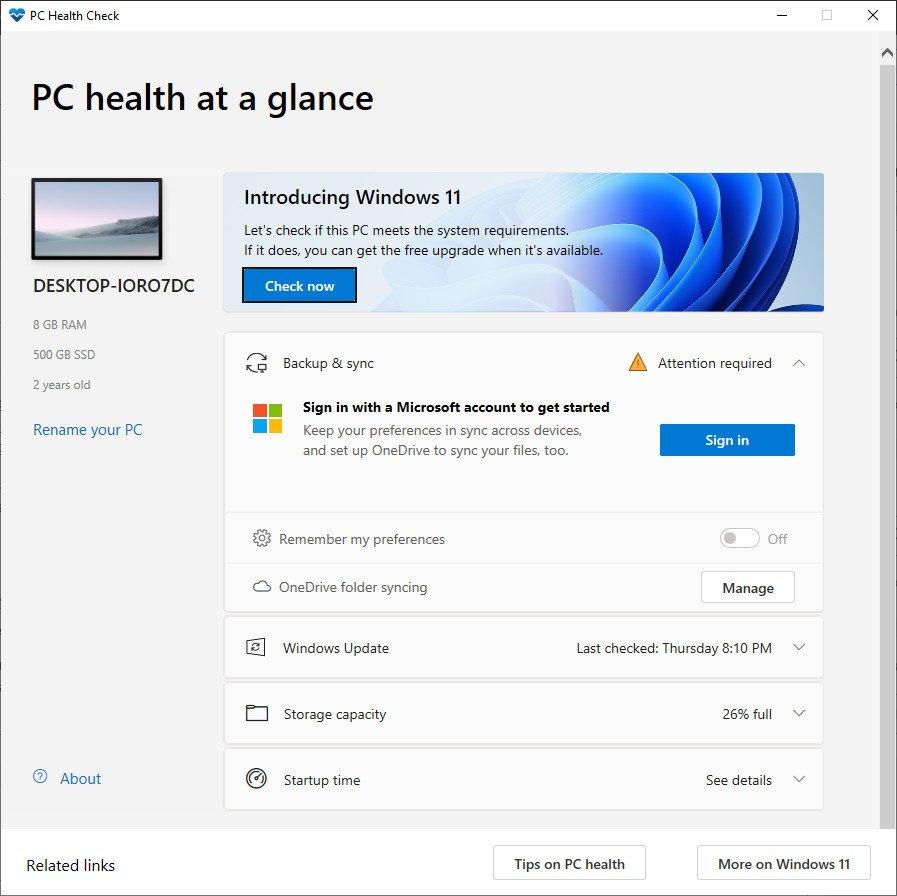
<p><b>Bước 2: </b>Cài đặt thành công PC Health Check, tại banner Introducing Windows 11, bạn chọn <em>Check now</em>.</p>
<figure id="attachment_395173" aria-describedby="caption-attachment-395173" style="width: 897px" class="wp-caption aligncenter"><img loading="lazy" class="wp-image-395173 size-full" title="Giao diện của Windows PC Health Check (Ảnh: Internet)." src="https://bloganchoi.com/wp-content/uploads/2021/06/windows-11-pc-health-check-check-now.jpg" alt="Giao diện của Windows PC Health Check (Ảnh: Internet)." width="897" height="896" srcset="https://bloganchoi.com/wp-content/uploads/2021/06/windows-11-pc-health-check-check-now.jpg 897w, https://bloganchoi.com/wp-content/uploads/2021/06/windows-11-pc-health-check-check-now-300x300.jpg 300w, https://bloganchoi.com/wp-content/uploads/2021/06/windows-11-pc-health-check-check-now-150x150.jpg 150w, https://bloganchoi.com/wp-content/uploads/2021/06/windows-11-pc-health-check-check-now-768x767.jpg 768w, https://bloganchoi.com/wp-content/uploads/2021/06/windows-11-pc-health-check-check-now-696x695.jpg 696w, https://bloganchoi.com/wp-content/uploads/2021/06/windows-11-pc-health-check-check-now-420x420.jpg 420w" sizes="(max-width: 897px) 100vw, 897px" /><figcaption id="caption-attachment-395173" class="wp-caption-text">Giao diện của Windows PC Health Check (Ảnh: Internet).</figcaption></figure>
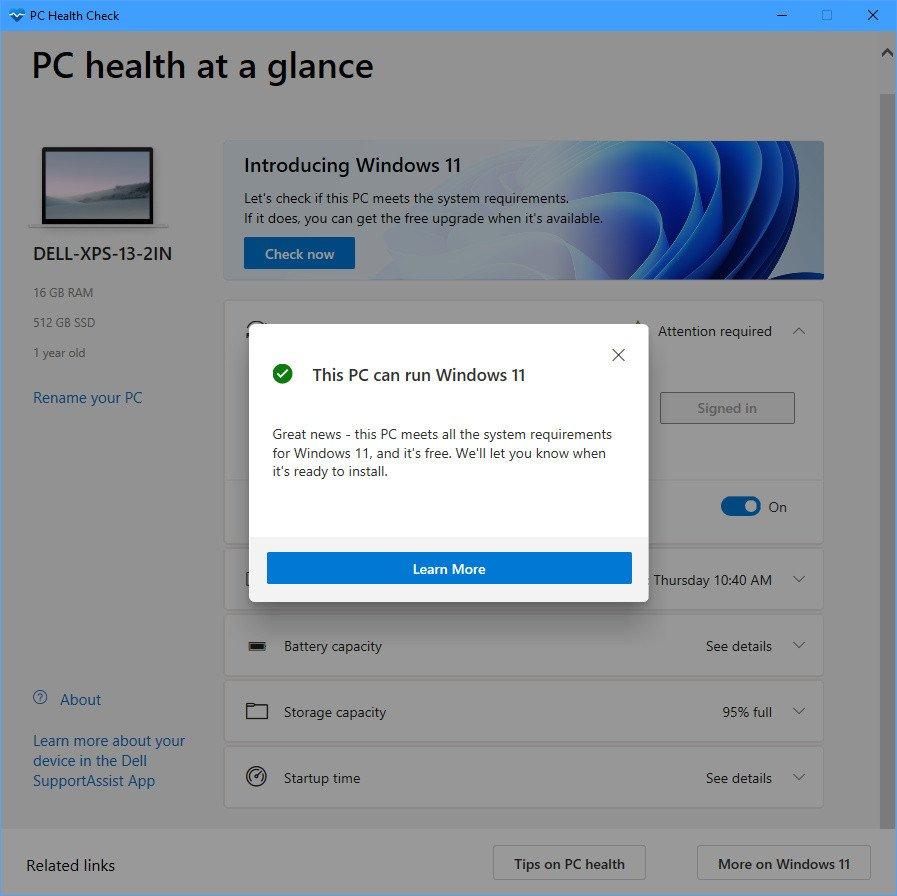
<p><b>Bước 3. </b>Nếu máy bạn đủ điều kiện nâng cấp lên Windows 11, ứng dụng sẽ hiện tick xanh và hiện thông báo <em>This PC can run Windows 11.</em></p>
<figure id="attachment_395174" aria-describedby="caption-attachment-395174" style="width: 897px" class="wp-caption aligncenter"><img loading="lazy" class="wp-image-395174 size-full" title="PC đủ điều kiện nâng cấp lên Windows 11 (Ảnh: Internet)." src="https://bloganchoi.com/wp-content/uploads/2021/06/windows-pc-health-check-4.jpg" alt="PC đủ điều kiện nâng cấp lên Windows 11 (Ảnh: Internet)." width="897" height="896" srcset="https://bloganchoi.com/wp-content/uploads/2021/06/windows-pc-health-check-4.jpg 897w, https://bloganchoi.com/wp-content/uploads/2021/06/windows-pc-health-check-4-300x300.jpg 300w, https://bloganchoi.com/wp-content/uploads/2021/06/windows-pc-health-check-4-150x150.jpg 150w, https://bloganchoi.com/wp-content/uploads/2021/06/windows-pc-health-check-4-768x767.jpg 768w, https://bloganchoi.com/wp-content/uploads/2021/06/windows-pc-health-check-4-696x695.jpg 696w, https://bloganchoi.com/wp-content/uploads/2021/06/windows-pc-health-check-4-420x420.jpg 420w" sizes="(max-width: 897px) 100vw, 897px" /><figcaption id="caption-attachment-395174" class="wp-caption-text">PC đủ điều kiện nâng cấp lên Windows 11 (Ảnh: Internet).</figcaption></figure>
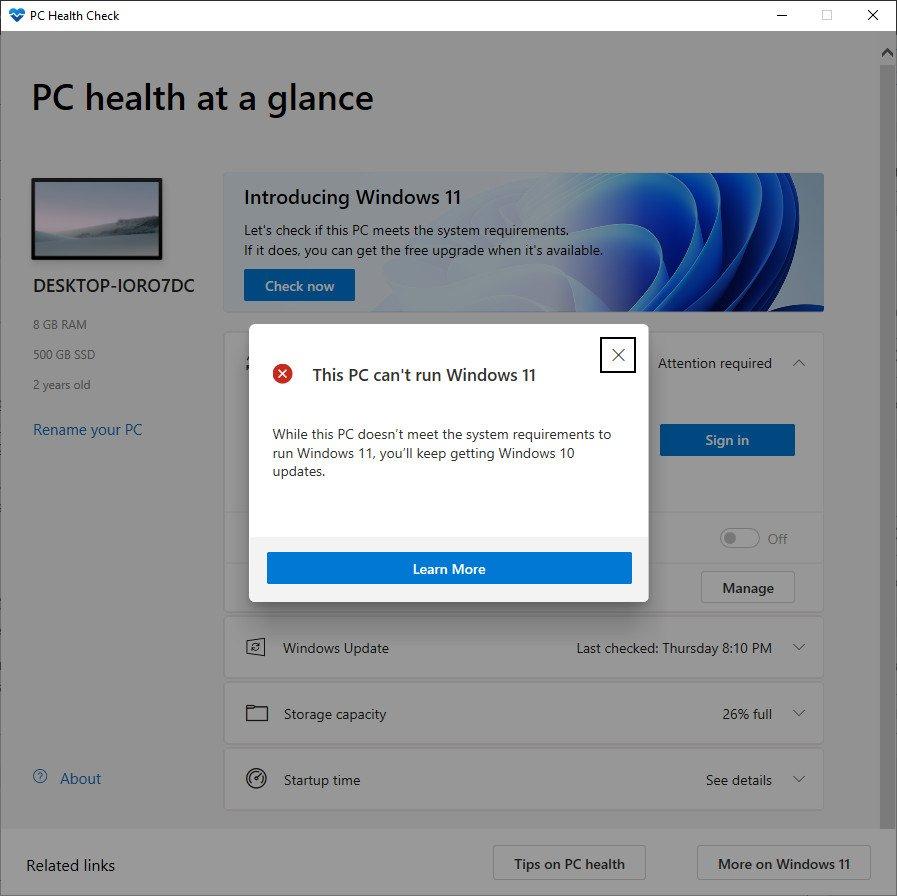
<figure id="attachment_395170" aria-describedby="caption-attachment-395170" style="width: 897px" class="wp-caption aligncenter"><img loading="lazy" class="wp-image-395170 size-full" title="Thông báo máy tính bạn không đủ điều kiện nâng cấp Windows 11 (Ảnh: Internet)." src="https://bloganchoi.com/wp-content/uploads/2021/06/windows-11-pc-health-check-001.jpg" alt="Thông báo máy tính bạn không đủ điều kiện nâng cấp Windows 11 (Ảnh: Internet)." width="897" height="896" srcset="https://bloganchoi.com/wp-content/uploads/2021/06/windows-11-pc-health-check-001.jpg 897w, https://bloganchoi.com/wp-content/uploads/2021/06/windows-11-pc-health-check-001-300x300.jpg 300w, https://bloganchoi.com/wp-content/uploads/2021/06/windows-11-pc-health-check-001-150x150.jpg 150w, https://bloganchoi.com/wp-content/uploads/2021/06/windows-11-pc-health-check-001-768x767.jpg 768w, https://bloganchoi.com/wp-content/uploads/2021/06/windows-11-pc-health-check-001-696x695.jpg 696w, https://bloganchoi.com/wp-content/uploads/2021/06/windows-11-pc-health-check-001-420x420.jpg 420w" sizes="(max-width: 897px) 100vw, 897px" /><figcaption id="caption-attachment-395170" class="wp-caption-text">Thông báo máy tính bạn không đủ điều kiện nâng cấp Windows 11 (Ảnh: Internet).</figcaption></figure>
<p><iframe loading="lazy" class="youtube-player" width="560" height="315" src="https://www.youtube.com/embed/E4e6c1uhR5g?version=3&#038;rel=1&#038;showsearch=0&#038;showinfo=1&#038;iv_load_policy=1&#038;fs=1&#038;hl=vi&#038;autohide=2&#038;wmode=transparent" allowfullscreen="true" style="border:0;" sandbox="allow-scripts allow-same-origin allow-popups allow-presentation"></iframe></p>
<h2><strong>Nghịch lý khó hiểu của Windows 11: Máy cấu hình khủng chưa chắc chạy được?</strong></h2>
<p>Jacob Roach, một biên tập viên của DigitalTrends đã gặp phải vấn đề dở khóc dở cười như vậy. Anh sở hữu một máy tính chơi game với card đồ hoạ RTX 2080 và chip Intel Core i9-10900K. Anh rất háo hức cài đặt Windows 11 lên chiếc PC của mình để trải nghiệm hệ điều hành mới nhất.</p>
<p>Nhưng chiếc PC của anh không cài đặt được, và mọi chuyện bắt nguồn từ Trusted Module Platform (TPM) 2.0.</p>
<h3><strong>Chip TPM là gì?</strong></h3>
<ul>
<li>TPM là một con chip bảo mật được hàn lên bo mạch chủ của máy tính.</li>
<li>TPM có nhiệm vụ lưu trữ các khoá bảo mật (key) để xử lý các vấn đề mã hoá với BitLocker hoặc lưu trữ dữ liệu sinh trắc học cho Windows Hello.</li>
<li>Do chip TPM được hàn lên bo mạch chủ, Windows 11 có thể truy cập nó trực tiếp mà không cần kết nối Internet hay sự can thiệp của bên ngoài.</li>
</ul>
<p><iframe loading="lazy" class="youtube-player" width="640" height="360" src="https://www.youtube.com/embed/26BkLs9DiiA?version=3&#038;rel=1&#038;showsearch=0&#038;showinfo=1&#038;iv_load_policy=1&#038;fs=1&#038;hl=vi&#038;autohide=2&#038;wmode=transparent" allowfullscreen="true" style="border:0;" sandbox="allow-scripts allow-same-origin allow-popups allow-presentation"></iframe></p>
<h3><strong>Chip TPM được trang bị cho những thiết bị nào?</strong></h3>
<p>Kể từ năm 2016, Windows đã yêu cầu nhà sản xuất PC tích hợp chip TPM 2.0 trên các máy tính chạy Windows. Do chỉ là yêu cầu, không phải quy định chung nên vẫn có khả năng bo mạch chủ bạn sở hữu gần đây không có con chip TPM 2.0.</p>
<p>Nhiều bo mạch chủ phổ thông không cài đặt chip TPM, ví dụ như bo mạch Asus Tuf Gaming Z490-Plus của Jacob.</p>
<h3><strong>Cách kiểm tra máy tính của bạn có hỗ trợ chip TPM hay không</strong></h3>
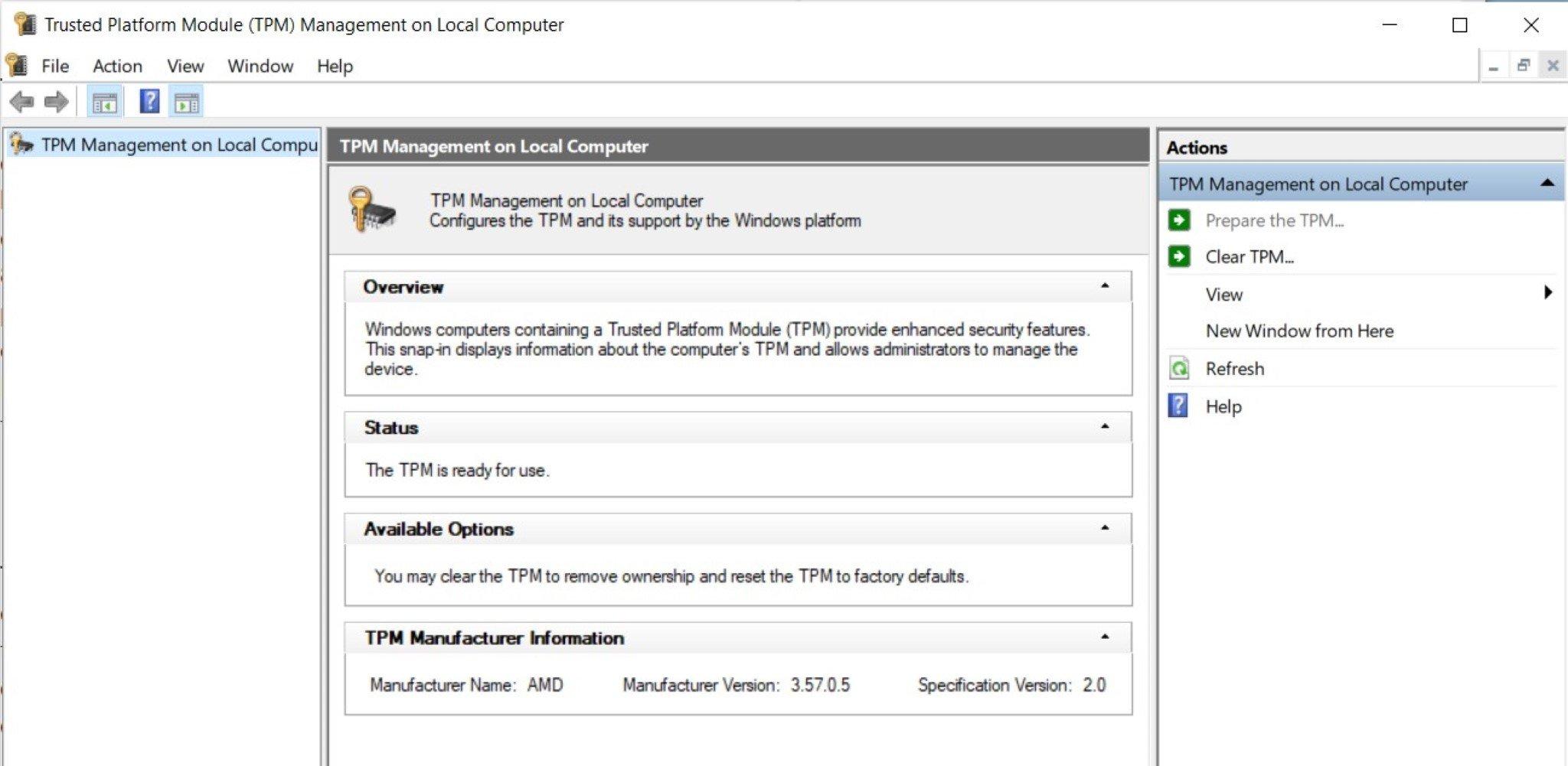
<p><strong>Bước 1.</strong> Bạn bấm tổ hợp phím Windows + R, rồi gõ “tpm.msc”.</p>
<p><strong>Bước 2.</strong> Máy bạn sẽ hiện lên trình quản lý TPM. Tại đây bạn có thể thấy thông tin chi tiết về TPM trên máy.</p>
<figure id="attachment_395179" aria-describedby="caption-attachment-395179" style="width: 2048px" class="wp-caption aligncenter"><img loading="lazy" class="wp-image-395179 size-full" title="Máy tính có TPM 2.0, hỗ trợ nâng cấp lên Windows 11 (Ảnh: BlogAnChoi)." src="https://bloganchoi.com/wp-content/uploads/2021/06/windows-11-tpm-2.jpg" alt="Máy tính có TPM 2.0, hỗ trợ nâng cấp lên Windows 11 (Ảnh: BlogAnChoi)." width="2048" height="1001" srcset="https://bloganchoi.com/wp-content/uploads/2021/06/windows-11-tpm-2.jpg 2048w, https://bloganchoi.com/wp-content/uploads/2021/06/windows-11-tpm-2-300x147.jpg 300w, https://bloganchoi.com/wp-content/uploads/2021/06/windows-11-tpm-2-1024x501.jpg 1024w, https://bloganchoi.com/wp-content/uploads/2021/06/windows-11-tpm-2-768x375.jpg 768w, https://bloganchoi.com/wp-content/uploads/2021/06/windows-11-tpm-2-1536x751.jpg 1536w, https://bloganchoi.com/wp-content/uploads/2021/06/windows-11-tpm-2-533x261.jpg 533w, https://bloganchoi.com/wp-content/uploads/2021/06/windows-11-tpm-2-696x340.jpg 696w, https://bloganchoi.com/wp-content/uploads/2021/06/windows-11-tpm-2-1068x522.jpg 1068w, https://bloganchoi.com/wp-content/uploads/2021/06/windows-11-tpm-2-859x420.jpg 859w" sizes="(max-width: 2048px) 100vw, 2048px" /><figcaption id="caption-attachment-395179" class="wp-caption-text">Máy tính có TPM 2.0, hỗ trợ nâng cấp lên Windows 11 (Ảnh: BlogAnChoi).</figcaption></figure>
<p><iframe loading="lazy" class="youtube-player" width="640" height="360" src="https://www.youtube.com/embed/OrF3Fb2kzkY?version=3&#038;rel=1&#038;showsearch=0&#038;showinfo=1&#038;iv_load_policy=1&#038;fs=1&#038;hl=vi&#038;autohide=2&#038;wmode=transparent" allowfullscreen="true" style="border:0;" sandbox="allow-scripts allow-same-origin allow-popups allow-presentation"></iframe></p>
<h2><strong>Cài Windows 11 cho máy không có TPM như thế nào?</strong></h2>
<h3><strong>Giải pháp về phần cứng</strong></h3>
<ul>
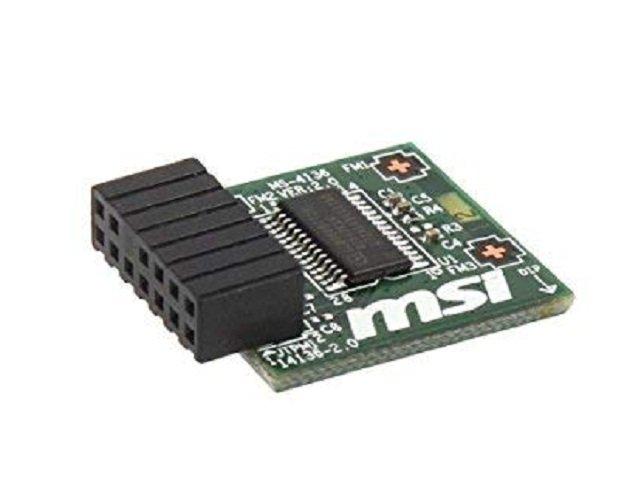
<li>Bạn có thể mua các Module TPM với giá khoảng 50 USD (khoảng hơn 1 triệu đồng) và gắn vào trong bo mạch chủ của dàn PC nhà mình.</li>
</ul>
<figure id="attachment_395302" aria-describedby="caption-attachment-395302" style="width: 644px" class="wp-caption aligncenter"><img loading="lazy" class="wp-image-395302 size-full" title="Chip TPM của MSI (Ảnh: Internet)." src="https://bloganchoi.com/wp-content/uploads/2021/06/windows-11-tpm-msi-1.jpg" alt="Chip TPM của MSI (Ảnh: Internet)." width="644" height="503" srcset="https://bloganchoi.com/wp-content/uploads/2021/06/windows-11-tpm-msi-1.jpg 644w, https://bloganchoi.com/wp-content/uploads/2021/06/windows-11-tpm-msi-1-300x234.jpg 300w, https://bloganchoi.com/wp-content/uploads/2021/06/windows-11-tpm-msi-1-538x420.jpg 538w" sizes="(max-width: 644px) 100vw, 644px" /><figcaption id="caption-attachment-395302" class="wp-caption-text">Chip TPM của MSI (Ảnh: Internet).</figcaption></figure>
<h3><strong>Giải pháp về phần mềm</strong></h3>
<ul>
<li>Tuy một số bo mạch chủ không có chip TPM, nhưng họ có cung cấp phần mềm TPM với tính năng tương tự.</li>
<li>Bạn có thể kích hoạt tính năng TPM trong BIOS/UEFI.</li>
</ul>
<p><iframe loading="lazy" class="youtube-player" width="640" height="360" src="https://www.youtube.com/embed/5qfrqvs0ry8?version=3&#038;rel=1&#038;showsearch=0&#038;showinfo=1&#038;iv_load_policy=1&#038;fs=1&#038;hl=vi&#038;autohide=2&#038;wmode=transparent" allowfullscreen="true" style="border:0;" sandbox="allow-scripts allow-same-origin allow-popups allow-presentation"></iframe></p>
<h3><strong>Nếu không thể cài đặt Windows 11 thì sao?</strong></h3>
<ul>
<li>Nếu đã thử hết các cách trên mà bạn vẫn không thể cài đặt được Windows 11 thì có thể do dàn PC của bạn đã quá cũ.</li>
<li>Bạn có thể tiếp tục sử dụng Windows 10 và nhận được sự hỗ trợ liên tục trong vòng 5 năm tiếp theo.</li>
</ul>
<p><iframe loading="lazy" class="youtube-player" width="640" height="360" src="https://www.youtube.com/embed/GkzPwUjf960?version=3&#038;rel=1&#038;showsearch=0&#038;showinfo=1&#038;iv_load_policy=1&#038;fs=1&#038;hl=vi&#038;autohide=2&#038;wmode=transparent" allowfullscreen="true" style="border:0;" sandbox="allow-scripts allow-same-origin allow-popups allow-presentation"></iframe></p>
<p><strong>Mời bạn xem thêm những bài viết liên quan của BlogAnChoi:</strong></p>
<ul>
<li><strong><a href="https://bloganchoi.com/slide-to-shutdown-tinh-nang-truot-dep-mat-tren-windows-10/">Windows 10 &#8211; Slide to Shutdown, tính năng trượt đẹp mắt trên Windows 10</a></strong></li>
<li><strong><a href="https://bloganchoi.com/windows-10-da-vuot-qua-windows-7-tro-thanh-he-dieu-hanh-pho-bien-nhat-the-gioi/#gsc.tab=0">Windows 10 đã vượt qua Windows 7 trở thành hệ điều hành phổ biến nhất thế giới</a></strong></li>
</ul>
<p>Hãy đón xem BlogAnChoi mỗi ngày để nhận được nhiều thông tin thú vị cho cuộc sống bạn nhé!</p>]]></content>
		
					<link rel="replies" type="text/html" href="https://bloganchoi.com/he-dieu-hanh-windows-11/#comments" thr:count="1" />
			<link rel="replies" type="application/atom+xml" href="https://bloganchoi.com/he-dieu-hanh-windows-11/feed/atom/" thr:count="1" />
			<thr:total>1</thr:total>
			</entry>
	</feed>